YYNote Help Center
1.YYNote Help Center
- Categorize to-dos, notes
- Control the content displayed in to-do lists, note lists, desktop calendars, schedule lists
- Supports custom category tags. Management entry:
- PC: [Settings] → [Category Tags]
- App: [Me] → [Category Tags]
- If tag filtering rules are set on the to-do list or note list, new to-dos or notes will be automatically tagged upon creation.
- Learn more
- Includes three types: To-do, Schedule, Countdown
- To-do: Tasks, only displayed on the to-do list.
- Schedule: Requires setting start/end time, displayed simultaneously on desktop calendar and schedule list.
- Countdown: Requires setting target date, displays countdown marker on to-do list.
- Automatically archived by completion date.
- Learn more
- Simple text notes.
- Can also be archived by completion date.
- Learn more
- A repeating to-do is a rule. It generates to-dos (To-do, Schedule, Countdown) only after the client program is launched and the rule is triggered.
- Triggering repeating to-dos requires the client to be running. Primarily avoids generating excessive to-dos if unused for long periods.
- Flexible settings: Repeat every N days/weeks/months/years.
- Learn more
- Starting from V25.08.01
- The 1st version in August 2025
- Place multiple plugins on the desktop, displaying different lists
- [Settings] → [App Settings] → To-do/Note Widgets quantity controls
- Desktop plugin → Top right [Settings] menu → Add desktop Widgets
- Hover over desktop Widgets, select list in top-left menu to freely switch between To-do, Note, Schedule, Countdown lists.
- A collection of to-dos, displays corresponding items based on set rules
- Show all unarchived to-dos
- Show to-dos with specified tags
- Show to-dos completed within 24 hours
- Sorted by creation time by default (earliest first)
- Drag the dot in front of a to-do to sort
- Pinned or completed to-dos cannot be sorted
- Settings entry:
- PC: Desktop plugin top right → [Settings] → [List Settings]
- PC: [Settings] → [To-do List]
- App: [Me] → [To-do List]
- Learn more
- A collection of notes, displays corresponding notes based on set rules
- Show all unarchived notes
- Show notes with specified tags
- Show notes archived within 24 hours
- Sorted by creation time by default (earliest first)
- Drag the dot in front of a note to sort
- Pinned or archived notes cannot be sorted
- Settings entry:
- PC: Desktop plugin top right → [Settings] → [List Settings]
- PC: [Settings] → [Note List]
- App: [Me] → [Note List]
- Learn more
- Displays schedules in a timeline format. More compact interface compared to calendar.
- Schedules
- Countdowns
- Repeating to-dos (Schedules, Countdowns)
- Only shows schedules from T-7 to T+30.
- Supports natural language input to automatically recognize schedule times.
- Learn more
- Only displays to-dos of the countdown type.
- Sorted by target date (earliest first).
- Displays to-dos of schedule, countdown types, and repeating to-dos.
- Open the sidebar to drag to-dos onto the calendar, quickly set start/end times, converting to-dos into schedules for planning.
- Drag schedules on month/week/day views to quickly adjust start/end times.
- Display public holiday schedules and lunar dates on the month view.
- Learn more
- Displays time, date, lunar calendar, weekday.
- Displays weather, forecasts, severe weather alerts.
- Two sizes, option to hide forecast.
- Location must be set first to display weather and alerts.
- Learn more
- Sync third-party calendars, display on PC and phone calendar lists, schedule lists.
- Sync delays up to ~15 minutes possible.
- Supported third-party calendar types:
- Enterprise WeChat Calendar
- DingTalk Calendar
- Feishu Calendar
- QQ Mail Calendar
- Exchange Mail Calendar
- CalDav Calendar
- Microsoft Account Calendar
- Read-only support currently. Editing not supported.
- Management Entry:
- PC: [Settings] → [Calendar Sync]
- App: [Me] → [Calendar Sync]
- Learn more
- Displays completed to-dos and archived notes by date.
- Bottom filter can select to-dos or notes.
- PC Archive page can export all to-dos/notes.
- Export all deleted to-dos/notes
2.YYNote Frequently Asked Questions (FAQ)
1.Hover over the desktop widget
Position your mouse cursor over any YYNote desktop widget (e.g., Todo list, Schedule) .
2.Access the list toggle button
A list toggle button (typically labeled with the current list type) will appear in the top-left corner of the widget .
3.Click to expand list options
Click the toggle button to reveal a dropdown menu containing
4.Select the target list
Click your desired list type (e.g., “Schedule List” to view upcoming events). The widget will instantly refresh to display the selected content
- Limited by Windows WPF window system constraints. Clicking the desktop activates all YYNote desktop plugins.
- Using WIN+D to show desktop causes YYNote plugins to temporarily detach from the desktop.
- Click any other application window to restore YYNote plugin embedding.
- Reasons
- Older versions are gradually phased out of support.
- Client upgrade or historical version issues causing corrupted local data preventing normal startup.
- Solutions
- Install the latest version.
- Go to: Computer → Documents → YYNote folder → Delete the entire YYNote folder.
- Restart the application.
- Reason
- Local corrupted data preventing normal operation.
- Solutions
- Install the latest version.
- Go to: Computer → Documents → YYNote folder → Delete the entire YYNote folder.
- Restart the application.
- Reason: Often company PC requiring domain account login.
- Company IT/Desktop Support teams restrict software installs for network security.
- Solutions:
- Contact company IT/Desktop Support team for assistance.
- Request administrator privileges from company IT/Desktop Support team.
- Personal PC install failure? Email error screenshot to service@yynote.cn for support.
- 1、Find YYNote folder in Start Menu
- Select Uninstall.
- 2、Go to PC Settings
- Go to Apps → Installed apps
- Find YYNote, click … on the right, select Uninstall.
- If not fully uninstalled, manually delete C:\Program Files (x86)\YYNote folder.
- Thorough cleanup: Open Documents → YYNote folder → Delete YYNote folder.
- Open Settings, go to App Settings
- Click settings icon on Widgets, select App Settings from menu.
- Click YYNote tray icon in system taskbar notification area, enter App Settings.
- Add To-do, Note, Schedule, Countdown Widgets
- Set quantity for To-do/Note/Schedule/Countdown Widgets
- Set to 0 to disable Widgets.
- Enable Time & Weather Widgets
- Toggle switch control.
- Enable Calendar Widgets
- Toggle switch control.
- Expand/Collapse To-do List
- Click the arrow on the left side of the calendar.
- Quickly drag to-dos from left list to right calendar/week view for scheduling. Automatically adds start/end dates/times.
- Left list scope: All uncompleted to-dos without set start/end time or countdown target date.
- Right-click the schedule on the calendar, select color from the menu.
- Click [Settings] button on desktop Widgets top right, select [List Settings]
- App → [Me] → [To-do/Note List] → Select corresponding list
- Toggle [Show to-dos completed within 24 hours] On/Off
- Click [Settings] button on desktop Widgets top right, select [Plugin Settings]
- Adjust settings as needed.
- First, ensure the YYNote icon is on your desktop. Reinstall if missing.
- Right-click the icon: Right-click the YYNote icon to open the context menu.
- In the menu, select “Run as administrator”.
- Set Auto-Start: In YYNote settings, find “Auto-Start on Boot” and ensure it’s enabled.
- Check security software (360, Tencent PC Manager etc.) for blocking YYNote auto-start.
3.How to Quickly Get Usage Help Form YYNote Help Center
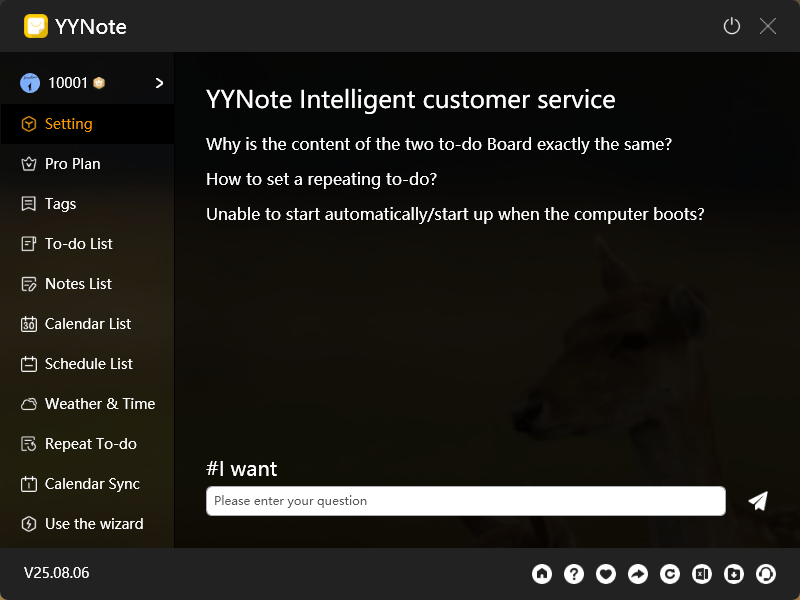
- Navigate to Settings:
- Open the Settings page in YYNote.
- Access Smart Assistant:
- Locate and click the [Smart Assistant] button in the bottom-right corner of the Settings interface.
- Receive Guided Support:
- •The Smart Assistant will provide step-by-step guidance tailored to your specific issue, such as troubleshooting sync errors, configuring widgets, or managing recurring tasks.
Get the YYNote
Multi-device sync with automatic data backup
Compatible with Window & Android & iOS & HarmonyOS NEXT