
Every day when you turn on your computer and look at the tiny date in the lower right corner, don't you always feel a little uneasy? Messages keep popping up in the work group, one email after another. Weekend appointments, next week's reports, and family birthdays are a series of critical and complicated schedules. It's easy to get into a panic by relying solely on the brain's memory and scattered memos. The most worrying situation is this. There is a feeling that there is something that needs to be done, but you can't remember what it is. You will regret it until you miss it, and your heart will be full of regrets.
If you are also looking for a schedule management solution that can always be displayed in front of you and be clear at a glance, it is definitely a wise choice to "pin" the calendar directly on the computer desktop. It can change your control of time from "passive recalling" to "active seeing".
The Limitations of Traditional Methods: Why Are You Still Inconvenienced?
Many people will first try to use the functions of the system itself. For example, in Windows systems, you can use the date area in the lower right corner of the taskbar to quickly open a simple calendar panel. This panel can display the lunar calendar and holidays, and also supports adding schedules and reminders. However, this calendar cannot stay on the desktop as an independent window for a long time. You have to click to view it. Once it is closed or the window is switched, it will disappear from the field of view and cannot function as a continuous reminder.
A common method is to use the system's widget library, which can be found through the control panel and add calendar widgets to the desktop. However, the functions of such widgets are usually relatively basic, and the interface may not be in harmony with the modern desktop wallpaper, and cannot be synchronized with the schedule on your mobile phone. How to set up and display the Win10 desktop calendar, which means that the schedule you record on the computer is very likely to be completely forgotten after you go out.
A better desktop calendar experience: the key lies in "integration" and "visualization"
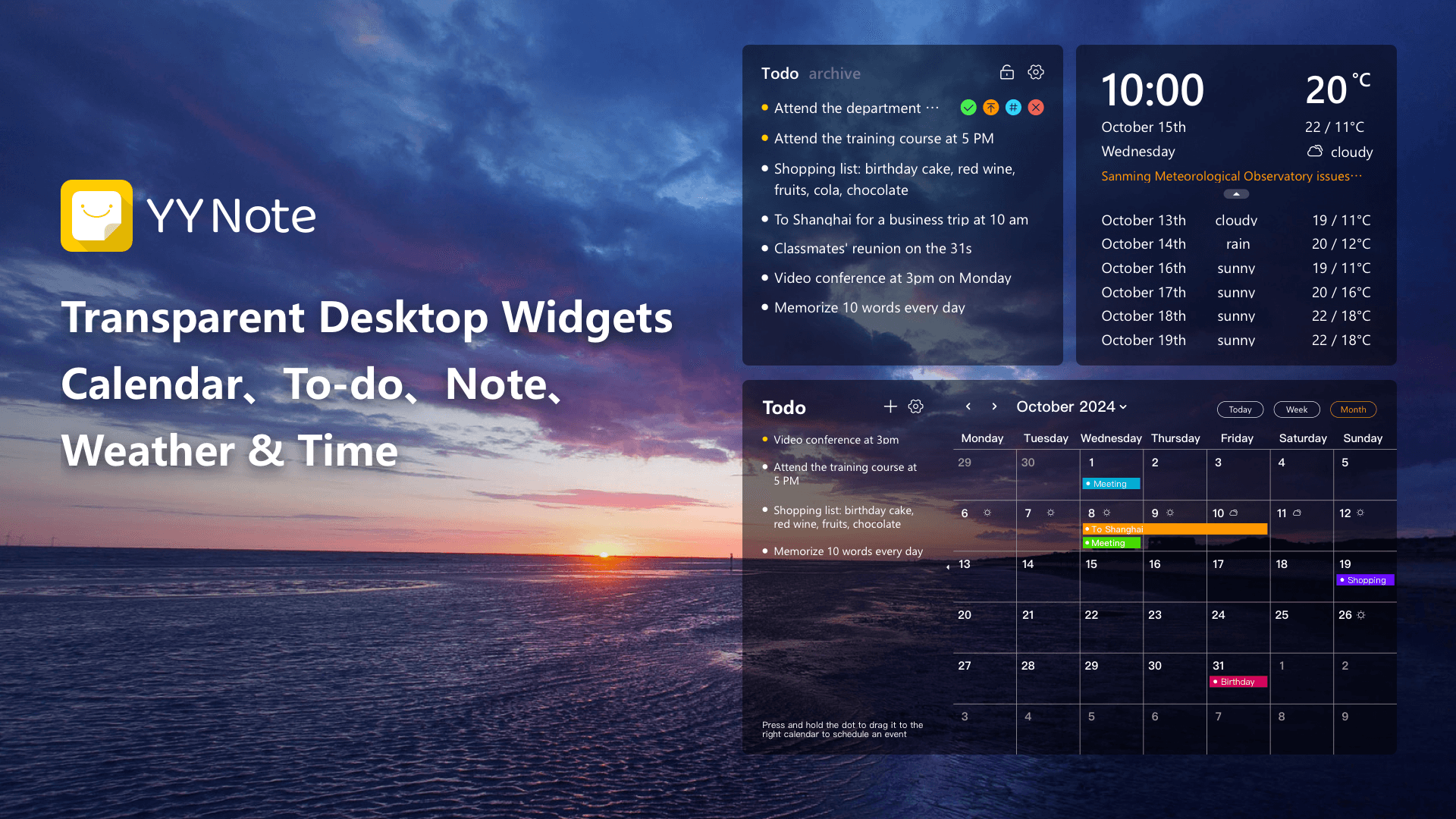
There is such a desktop calendar. It is not just responsible for displaying the date and acting as a simple decoration. It has truly efficient features and should be integrated. The time management center shows that the to-do items you have, as well as meeting schedules and even inspiration notes, should be seamlessly related to the calendar.
Try to imagine a scenario where you can directly drag a to-do task with the mouse and place it on a certain date in the calendar, and it will immediately turn into a schedule with a clear time. All schedules you have, whether they come from work email, team collaboration software, or personal arrangements, can be gathered in this single view. The monthly, weekly, and daily views can be switched with one click, so that time planning can be under overall control.
More importantly, it can keep in sync with the frequency of the life you cherish. The dates of the lunar calendar, the lunar calendar birthday reminders of family members, these things that are difficult to handle in detail with the calendar provided by the system itself can be easily set in a considerate tool. The highest level of management is not to fill life to the full, but to leave just the right amount of space for important people and crucial things.
Take control of your desktop: choose the transparency plug-in that’s right for you
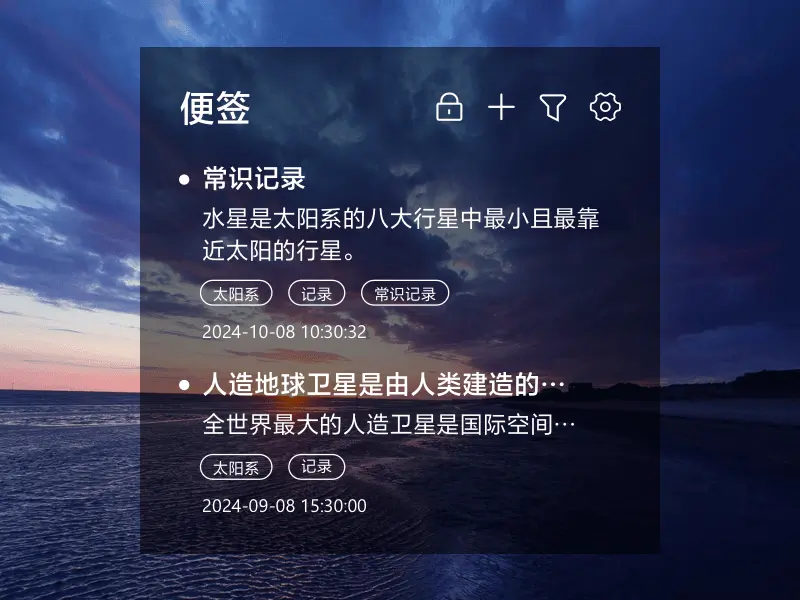
To achieve all the functions mentioned above, the key is to choose an excellent third-party desktop calendar plug-in. The key thing about this software is that it can rely on a. The beautiful, transparent window is embedded directly into your desktop and blends in with your wallpaper, making it visible without blocking the background.
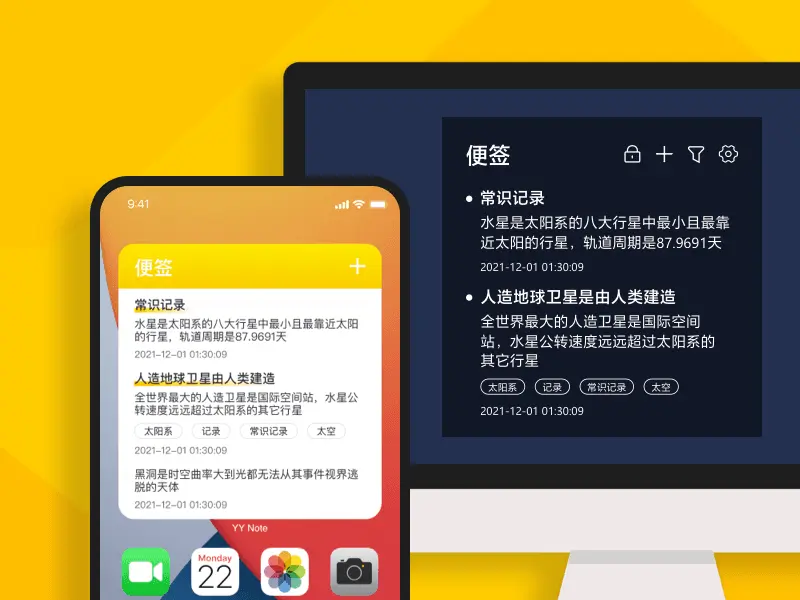
It should be highly customizable. You can adjust its size and transparency at will. You can also change the color and font at will to fully fit your aesthetic concepts and work habits. At the same time. Cross-platform synchronization is an absolutely indispensable function. All arrangements recorded on the computer can be instantly viewed and reminded on the mobile phone, ensuring that no matter where you are, you will not miss anything.
Take action now and wave goodbye to clutter and forgetfulness. Find a desktop calendar tool that suits your inner thoughts. Let it become the quietest and most reliable companion on your desktop, helping you organize your complicated schedule into a clear order, calmly control every minute and every second, and truly feel the sense of relaxation brought by efficiency and order.
Download Now → Unlock Desktop Efficiency Center:

Microsoft Store

Google Play

App Store