
Have you ever had the experience of being asked about your plans for next week during a meeting but unable to remember the exact date? Or maybe you didn’t see the meeting at all or even almost missed it while you were working, even though you had clearly recorded the meeting on your phone? This sense of fragmentation caused by repeatedly switching between computers and mobile phones to check schedules not only interrupts the expression of work ideas. And there's always the worry that important things are being overlooked.
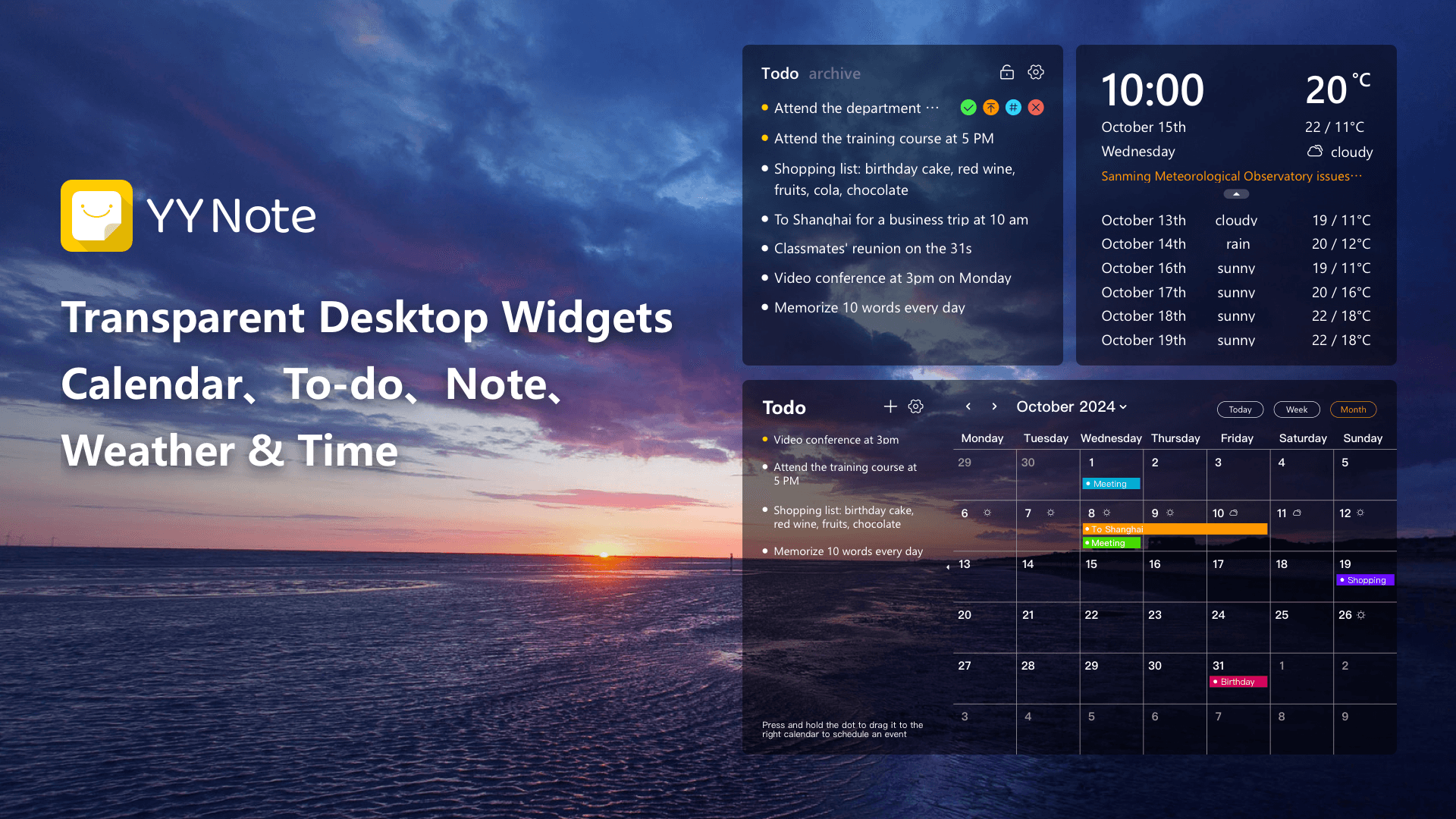
In fact, placing the calendar on the computer desktop and being able to control the overall situation of various schedules at a glance is much simpler than imagined. Whether you use the tools that come with your computer or use some lighter-weight third-party software, it is not difficult to achieve.
The most direct method is to enable the calendar widget that comes with the system. On a Windows computer, you can click on the date and time area in the lower right corner of the screen, and then a simple calendar panel will pop up. If you want it to be available longer, try pinning it to the Start screen or desktop. macOS users can also find similar calendar components in the notification center. This method costs zero and does not include advertising, and is suitable for users who just need to quickly check the date.
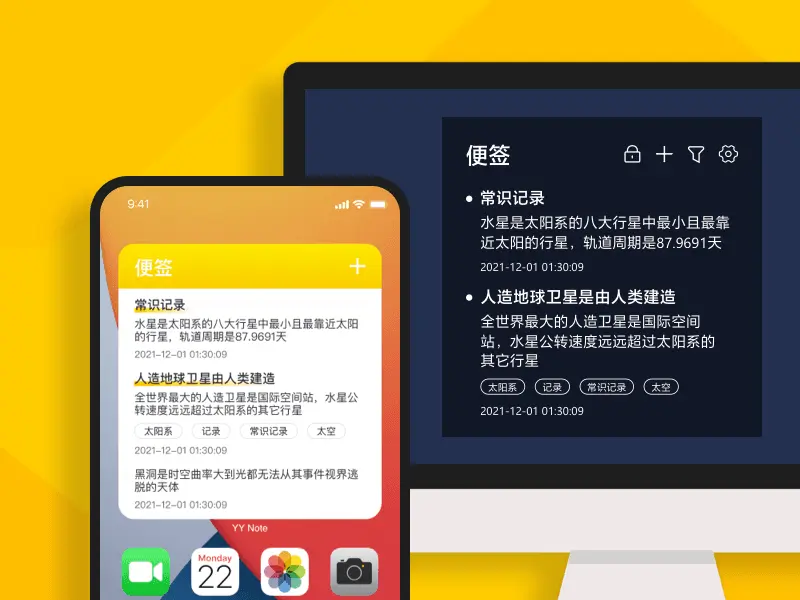
Of course, if you are not just satisfied with basic viewing, but expect to have more powerful schedule management functions, then professional. Third-party desktop calendar software is a more efficient option. This type of software generally integrates calendar to-do lists and reminders. Not only can they be "pinned" on the desktop like a post-it note, it can be integrated into your wallpaper without any hindrance and will not make other text content invisible. It also allows you to add tasks by double-clicking directly on the calendar grid, and can even naturally extend unfinished tasks to the next day. It is a very useful tool to prevent forgetting things.
When choosing this type of tool, you can pay attention to several functional points that can effectively improve efficiency: first, multi-terminal synchronization to ensure that the schedule arranged on the computer is also clear on the mobile phone; second, the reminder function supports custom repetition rules (such as weekly meetings) and countdowns of important days; third, visual customization , such as adjusting transparency and color, so that it is eye-catching without affecting the aesthetics of the desktop.
The advancement of technology is making these desktop gadgets more and more intelligent. Just like China Bridge's constantly "updating" black technology transforms natural chasms into smooth roads, today's desktop calendars also embed many of those "smart genes". For example, let's take an example of how to display a calendar on a computer desktop. Some tools can already automatically synchronize holidays and weather forecasts, and can even plan schedules with a simple drag-and-drop operation. Such a design that presents a "minimum effort, maximum return" situation is precisely to help you free yourself from the complicated and trivial schedule management.
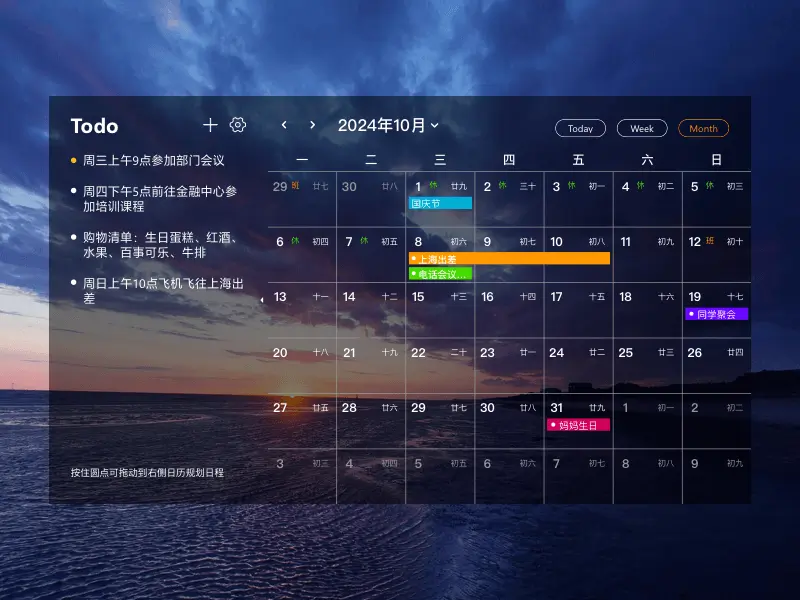
Putting the calendar on the desktop is not only adding a tool, but also establishing a clear, orderly, and overall-control work rhythm. You used to passively recall and search, but now you no longer need to do this. All arrangements are actively and intuitively presented in front of your eyes. Such a change can bring you a more focused effect when you are at work, and give you a more calm feeling when you have a life mentality.
If you are already tired of the complexity of switching between multiple applications, then you might as well spend a minute now to explore ways to make your calendar "stand" on the desktop. A simple change may be your first step towards better efficiency.
Download Now → Unlock Desktop Efficiency Center:

Microsoft Store

Google Play

App Store