
Have you ever had the following experience: You plan your schedule on a Windows computer, and then you have to manually open the calendar software to view it. Once you get busy, you forget about it? Or maybe you record important arrangements in your mobile phone, but when you are working, you always "see them as if they don't exist"? An ideal working state should be that all important things are clearly laid out in front of you, so that you can control the overall situation at a glance. Today, I will share an extremely simple method that allows you to "pin" your schedule directly on your computer desktop to achieve true efficiency.
Why do you need a "desktop schedule"?
The root cause of many efficiency problems lies in "information hiding". Whether the system itself has a calendar or a powerful online schedule management tool, they all require you to actively open it before you can see it. Such a "passive" viewing form can easily lead to the schedule being forgotten unknowingly. An industry observation shows this. More than 80% of time management software users are still troubled by forgotten tasks and unclear planning . The problem is often not the tool itself, but that it has not been integrated into your core work vision.
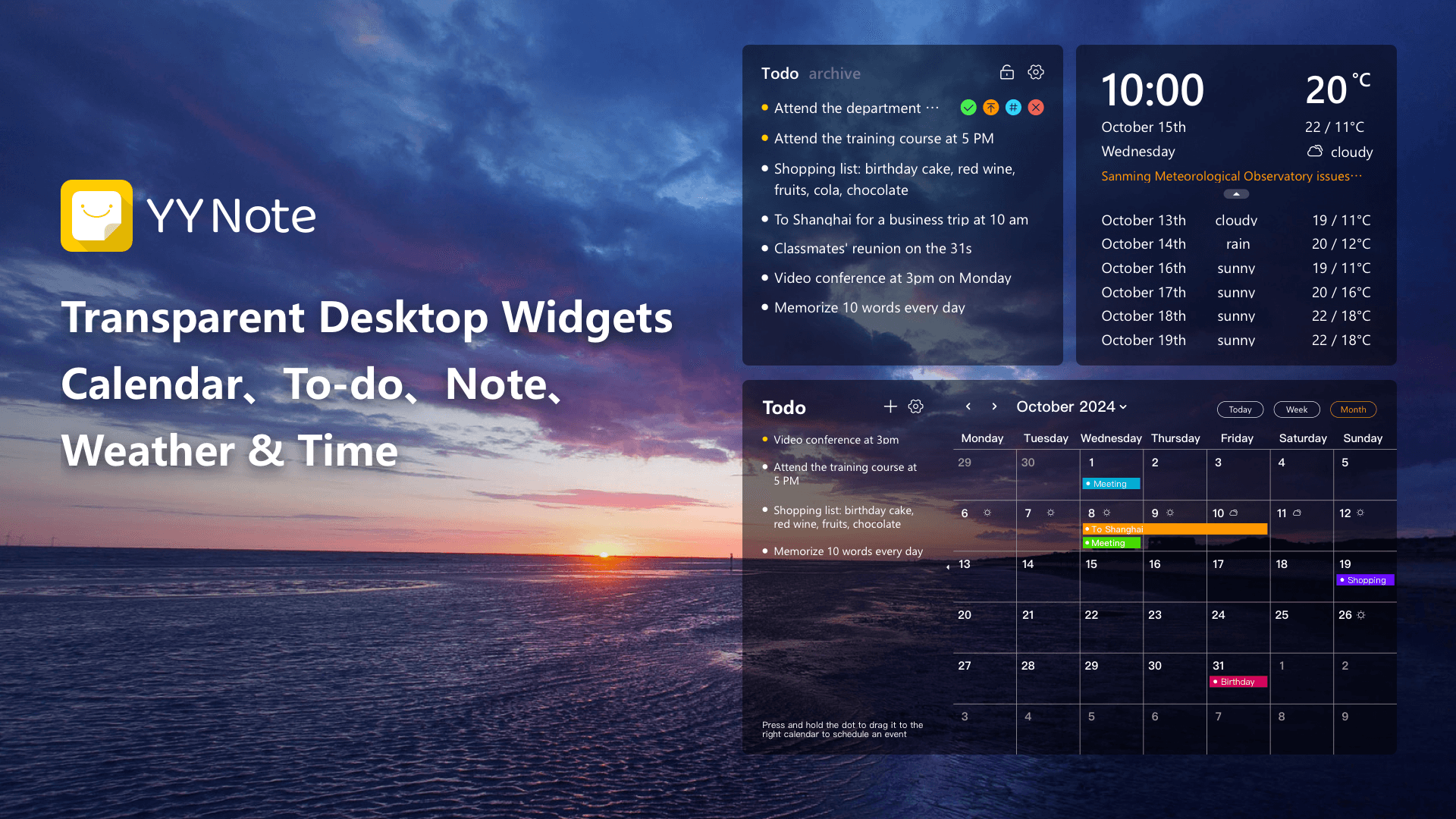
An ideal solution would be like a clock widget or a weather-related widget placed on the desktop, providing relevant information without the need for any actual operations. Active and continuous presentation in front of your eyes is precisely the key value of fixing the schedule on the desktop. It transforms your planning from a memo that needs to be recalled into a visual reminder that cannot be ignored at all.
How to "embed" schedule into your desktop?
To achieve this point, you no longer need to use complicated system settings to fix the Win10 schedule to the desktop, nor do you need to manually create a floating window. With a desktop productivity plug-in specifically designed for Windows, the entire process can be made extremely simple.

The core function of this type of tool is to create a calendar window that is always on top, transparent and can be embedded on the desktop . It can "float" above all your application windows or be perfectly integrated into the desktop wallpaper. This means that whether you are editing a document, browsing the web, or giving a presentation, the day's to-do items, meeting arrangements, and future plans are clearly visible.
Specifically, a good desktop calendar tool usually provides these conveniences:
One-click pin to top and transparency can easily set the calendar window to a "pinned to the desktop" state, and adjust the transparency so that it becomes a part of the desktop background, which can be clearly seen without blocking other work content.
Quickly create tasks often support global shortcut keys to call up input boxes, and even smartly recognize natural language similar to "There will be a meeting at 3 o'clock tomorrow afternoon" and set the reminder time by yourself.
Multiple view switching allows you to switch freely between a concise to-do list, an intuitive weekly view, and an overall monthly view, allowing oneself to adapt to different planning scenarios.
Intelligent reminders integrate highly critical schedules and will remind you exactly at the set time through desktop pop-up windows and ringing bells, ensuring that you will never miss important things.

More than just a schedule: a productivity center on your desktop
When the schedule is firmly finalized on the desktop, you will definitely find that its value is much more than just a "reminder". It's looking more and more like an efficient one. Personal work command center .
For example, you can collect project deadlines, meeting-related arrangements, and inspiration notes in the same area of the desktop. Some tools also have support for and. Major services such as Outlook and Google Calendar simultaneously integrate your schedules on various platforms and categorize them in one place. It is particularly worth mentioning that some plug-ins have integrated functional features such as AI intelligent question and answer, fast file search, etc., which means that you can start processing simple queries and file search operations without leaving the current work interface, improving efficiency down to every detail. In this era of severe information overload, this kind of thinking concept that encourages tools to actively adapt to people, rather than waiting for people to adapt to tools, is increasingly highlighting its importance.
Turn on your "one-glance control" work mode
All in all, setting the schedule on the desktop is actually a small but crucial optimization method for the work mode. It changes the way information is transmitted, causing the most critical planning content to change from "needing to be found" to "always present in front of you." This situation can not only reduce the probability of forgetting, but also help you develop a global concept, allowing you to focus on the execution level rather than just staying on the memory side.
If you are tired of switching back and forth between various and diverse applications, and worry all the time that you may miss crucial and important arrangements, then you might as well try this method that emphasizes the minimum effort to obtain the maximum return. Try it now for free and within one minute, equip your Windows desktop with such a so-called "plug-in brain" with high performance. When you turn on your computer and are in a state where all your schedules are clearly displayed and nothing is missed, maybe this is the starting point for you to say goodbye to the hectic and disorderly situation and move towards a calm and efficient working mode.
Download Now → Unlock Desktop Efficiency Center:

Microsoft Store

Google Play

App Store