
Have you ever encountered this situation, where your daily work schedule is very tight, but you always inadvertently miss important meeting appointments? Or are you looking for a desktop calendar that people can understand at a glance, so that they can easily control the entire monthly schedule, instead of switching back and forth in a panic between numerous pop-up windows and applications? This is almost a common worry for every modern workplace person. The more complicated the information, the more we need a clear and efficient "command center." Today, we will discuss how to use a simple method to set up a computer desktop calendar and turn the computer desktop into your schedule management center, so that you can really know your time.
Desiring to create a desktop calendar that is both beautiful and practical, the focus is on "integration" and presentation to a completely concise state. The functions of traditional system calendars are relatively single and one-sided, but professional software with high complexity can often appear bloated. The ideal solution should look like a thoughtful transparent assistant that quietly blends into your desktop wallpaper without interfering with your visual experience, but clearly displays all content when you need it.
Step 1: Choose an effective “transparency partner”
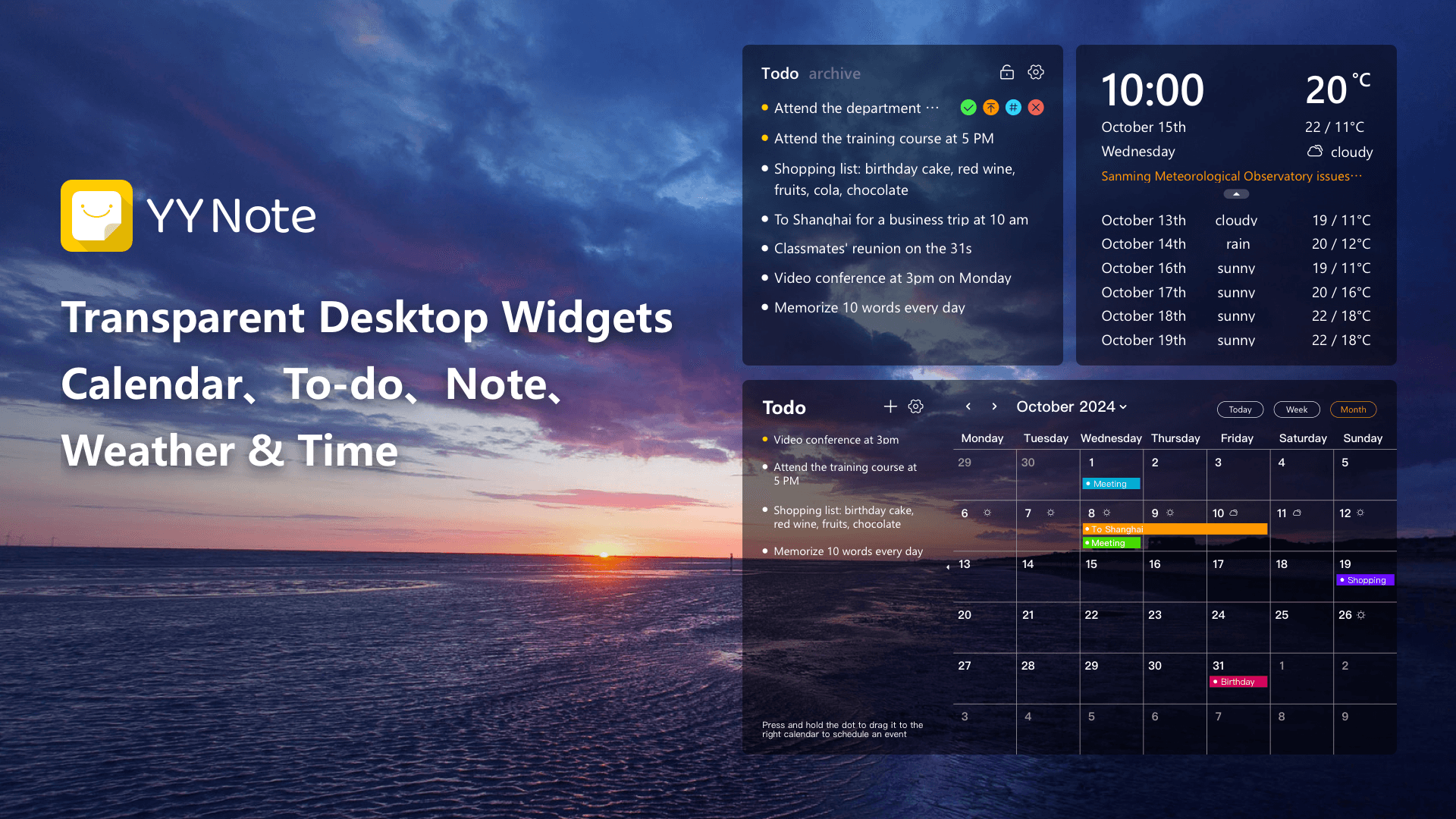
Many desktop plug-ins on the market are either very fancy in design or have complicated functions. As an excellent desktop calendar tool, it must first achieve the state of "no sense". It should have a minimalist design and adjustable transparency, and can flawlessly adapt to any style of your desktop background. It should be visible when you start it up, but it will not appear obtrusive. In this way, your schedule can be seamlessly integrated with the work environment and present in front of you at all times, without causing any visual burden.
Step 2: Let the view work for you, rather than you adapting to the view
Effective time management requires a different perspective. A powerful desktop calendar deserves at least that. Month view, week view and list view .
The monthly view allows you to see all the meetings, deadlines, and holiday arrangements throughout the month at a glance. It is your strategic map, and the macro plan is completely under your control.
The weekly view is your sandbox for tactical use. It can clearly show the specific time allocation for each day of the week, thus facilitating you to carry out more detailed task arrangements.
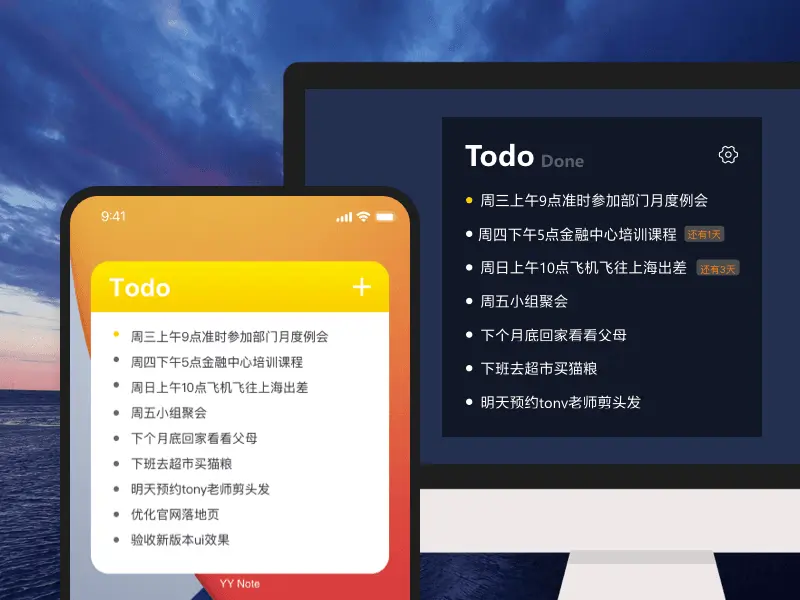
List view is suitable for quickly reviewing all to-do items to ensure that nothing is missed.
Even better, if this calendar can also automatically display legal holidays and weather forecasts , then it will give you travel reminders and dressing reminders, effectively achieving the efficiency improvement in the situation of "minimum effort, maximum return".
Step 3: Say goodbye to cumbersome input and use “drag and drop” to plan
The most troublesome part is planning the schedule. There should be an excellent tool. When you are faced with a to-do list, you can use the mouse to drag the task to any date on the calendar to achieve a convenient and express schedule layout. How to adjust the schedule and implement the above drag and drop action again. Such intuitive interaction will make planning as easy and natural as organizing desktop files, significantly reducing operating costs.

Step 4: Connect all your calendar sources
For us, our schedule may be scattered across many platforms such as DingTalk, Feishu, Enterprise WeChat, and QQ mailbox. There is a top desktop calendar available. Synchronizing these third-party calendars means that you no longer need to switch to different applications again and again to view your schedule. All important arrangements will be brought together on your desktop to achieve truly unified management. You can imagine that when you start your computer every day, all the meetings that need to be attended and the tasks that need to be completed are clearly listed in front of you, giving you that calm feeling of having everything under control.
Step 5: Personalized settings to protect privacy
This partner placed on the desktop must be smart and considerate enough. You can adjust its size, change its position, and change its font color as you wish, so that it fits your usage habits very well. At the same time, it should have. Automatic hiding close to the edge of the screen and one-click hiding have such functions. When you are in a situation where you need to focus, or when you need to protect your privacy, it can be "invisible" immediately, thus presenting you with a clean and tidy work interface.
Similar to the relaxed and independent life pursued by the "zero debt crowd" discussed by many people recently, efficient work should be a feeling of "low energy consumption and high control". By crafting an efficient desktop calendar, you're not just installing a tool, you're creating a more organized and calm work philosophy. When all current schedules are clearly and beautifully integrated in front of you, you will find that you are more able to focus on the things themselves, make faster decisions, and work more easily.
Now, you can use a transparent desktop calendar with elegant design and powerful functions as the starting point for you to work efficiently. Spend a few minutes setting it up and the reward will be a sense of order and inner calm every day. Try it now and it will open up a new era of efficiency for your desktop for free.
Download Now → Unlock Desktop Efficiency Center:

Microsoft Store

Google Play

App Store