
Have you ever encountered this scenario: During a meeting, you quickly manually write down the tasks just assigned by your boss on your mobile phone or computer. After the meeting, you find that you have written down the tasks, but you have no idea when to do them and how to do it with the schedule? Or maybe I just recorded "Client meeting at 3pm on Tuesday" on my computer calendar, and then added "Prepare client meeting materials" to the schedule on my mobile phone, and still have to manually unify the time? Switching back and forth between different applications and repeated entries cause inefficiency, which has become a common pain point in the modern workplace. All the time, we are surrounded by countless and scattered tasks, and we are also bound by the same schedule. However, what is distressing is that we have never been able to find a simple and straightforward way to integrate these tasks and schedules, so that the plan is really clear and can be implemented smoothly.
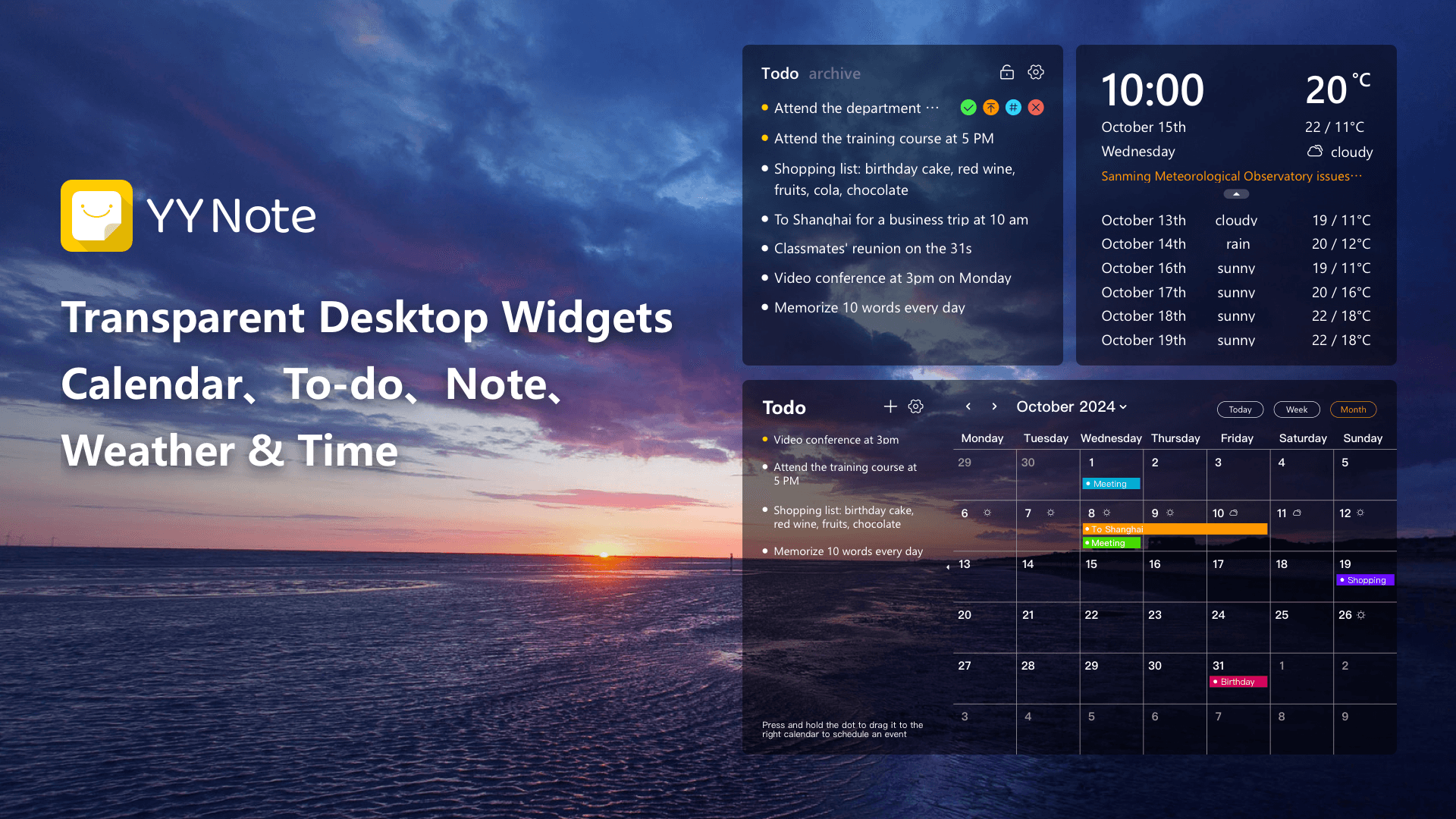
Putting to-do items and calendar on the same screen on the desktop is exactly the key to solving this annoying problem. In the past, how to add to-do items in the calendar on the computer desktop, you may have to go through complicated operations or use special tools to achieve that situation, but now, with one. With a fully transparent desktop efficiency plug-in , this process has become more intuitive and simpler than ever.
You just write down your tasks in the to-do list on your desktop, such as "Complete Project Report" or "Make a Doctor's Appointment." When you need to plan specific time for this task, the most direct way is. Gently drag it with the mouse and place it directly on a specific date or a specific time period in the desktop calendar. In an instant, this task changes from a "note" in a to-do state to a clear agenda in your schedule. This seemingly simple dragging action actually achieves an efficient task of "space-time positioning".
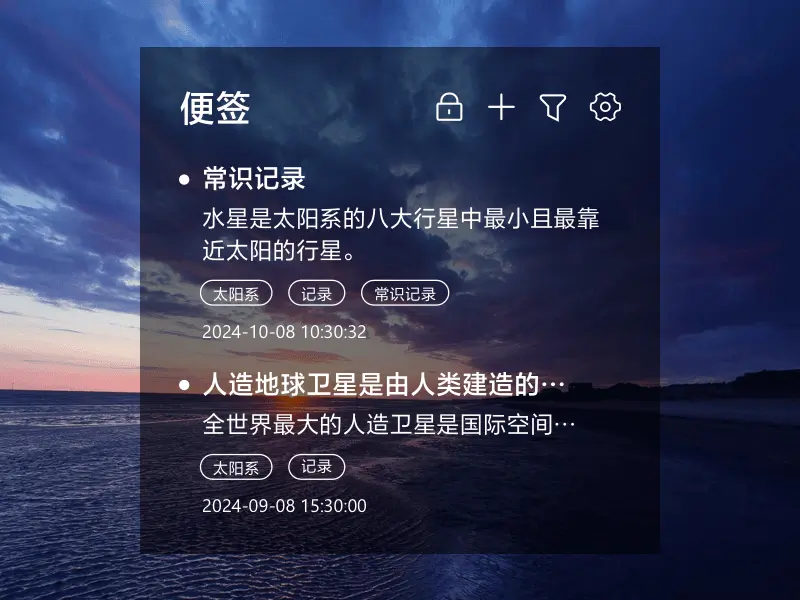
On the contrary, if you see a free time slot next week on your calendar and plan to arrange some flexible tasks, you don't need to enter it again. You can drag tasks directly from the to-do list to the date grid, or start creating a new to-do item at the corresponding position on the calendar, and it will automatically have a date label. So and so. The two-way seamless connection completely breaks down the barriers between task management and time planning.
The changes it brings are fundamental. First of all, it frees you from the tedious "multi-application copy and paste", and all operations can be completed in a visual interface. Reduce repetitive operations by more than 80%. Secondly, when everything, whether it is project milestones with clear deadlines or trivial things that need to be dealt with in time, are presented on a calendar in chronological order, your time schedule will change from "a mess" to "a mess". You can clearly see the daily and weekly "task density" at a glance , thereby making more reasonable plans to prevent time conflicts or task overload.
What deserves more attention is that such a desktop integration solution is gradually evolving into an effective tool to deal with "involution" and inefficient competition. Once the information is no longer fragmented and once the planning becomes visual, you can put more energy into the work that truly creates value and achieve the efficient work philosophy of "minimum effort, maximum return". This is essentially consistent with the country’s current macro direction of promoting efficient allocation of resource factors and improving overall economic efficiency.
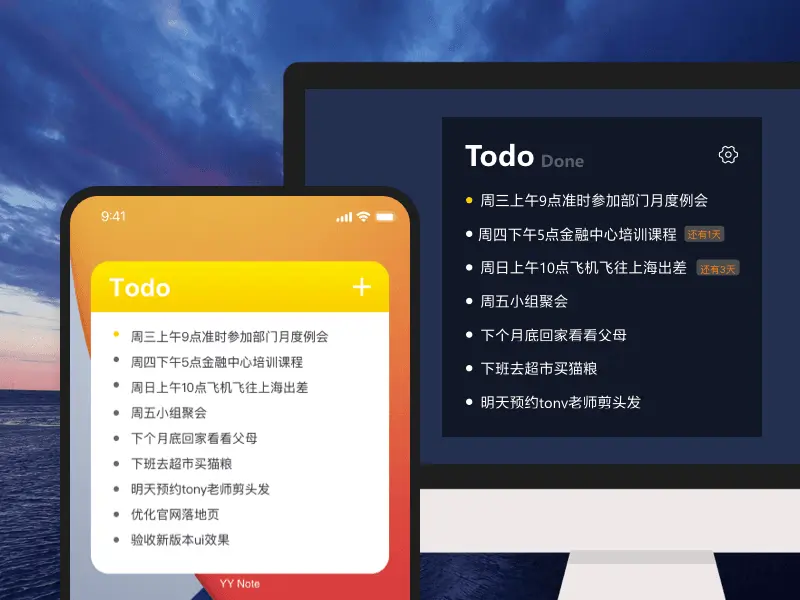
Try to imagine such a working state. After turning on the computer every day, a transparent panel integrated with the wallpaper will appear on the desktop. It has a to-do list on the left and a calendar for this month on the right. At a glance you will know what to do today and what the focus of this week will be. When you receive a new task, take two seconds to note it on the left; when planning time, just drag it to the calendar on the right. There are no redundant software switching situations or complicated operation steps. Everything happens naturally on your main work interface. Such a sense of control not only improves efficiency, but also significantly reduces the psychological burden caused by complicated affairs, allowing you to have a more relaxed and focused work experience.
The pursuit of efficiency should not mean the use of complicated, practical efficiency tools. It should be integrated into your work process unconsciously to handle the most basic complex situations in the most intuitive way. If you are tired of running around among many applications, you are longing for a clear, worry-free planning method with everything under control. So now, it’s time to experience this new concept of desktop efficiency. A simple change may open a new stage of orderly work for you.
Download Now → Unlock Desktop Efficiency Center:

Microsoft Store

Google Play

App Store