
How to Display a Calendar on Your Windows Desktop: Transparent Desktop Calendar
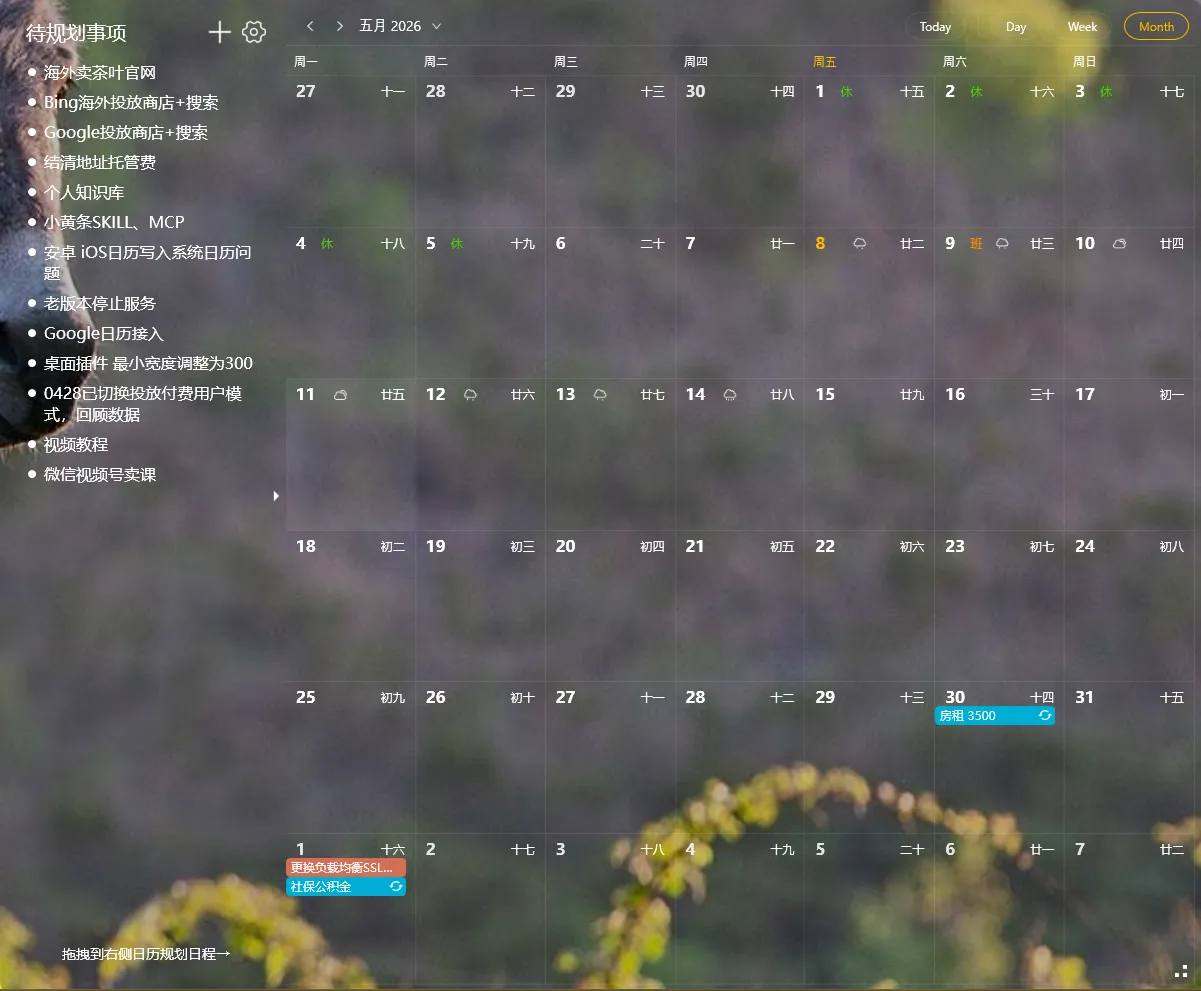
Ever find yourself opening your phone, checking the date, then opening it again ten minutes later? There’s a better way: put the calendar directly on your desktop.
Why Put a Calendar on Your Desktop?
Section titled “Why Put a Calendar on Your Desktop?”The taskbar calendar requires a click to see. Browser calendars need an open tab. Your phone calendar might not be checked all day.
What you really want: glance up and see today’s date, this week’s schedule.
YYNote Transparent Desktop Calendar
Section titled “YYNote Transparent Desktop Calendar”YYNote’s desktop calendar isn’t a popup or a floating window. It’s a transparent widget embedded directly into your wallpaper — like the calendar was printed on it.
How to set it up
Section titled “How to set it up”- Download YYNote for Windows
- Right-click the YYNote tray icon → App Settings
- Set “Desktop Calendar List” to 1
- The transparent calendar appears on your desktop instantly
Three views, no clicking required
Section titled “Three views, no clicking required”Click the top-right corner of the calendar widget to switch:
| View | Best for |
|---|---|
| Month | Monthly overview — see all key dates at a glance |
| Week | Planning your work week — time distribution by day |
| Day | Detailed daily schedule — broken down by hour |
What else you get
Section titled “What else you get”- Lunar calendar & public holidays: Chinese lunar dates and public holidays displayed directly on the calendar. No separate lookup needed.
- 7-day weather forecast: Weather overlay on the calendar — see both your schedule and whether you’ll need an umbrella
- Calendar sync: Sync calendars from WeCom, DingTalk, Feishu, and QQ Mail. All your schedules in one desktop view.
- Drag todos into the calendar: Grab a task from your to-do list, drop it onto a date — it becomes a scheduled event automatically. No manual time entry.
Simple Comparison
Section titled “Simple Comparison”| Feature | System Calendar | YYNote Desktop Calendar |
|---|---|---|
| Always visible | ❌ Click required | ✅ Embedded on wallpaper |
| Views | Month only | Month/Week/Day |
| Lunar & Holidays | ❌ | ✅ Supported |
| External sync | ❌ | ✅ WeCom/DingTalk/Feishu |
Which one should you pick?
Section titled “Which one should you pick?”If you just need to check the date occasionally, the taskbar clock is fine.
If you want your calendar as visible as your wallpaper — always there, zero clicks, showing this month, this week, and today’s schedule without opening anything — YYNote’s desktop calendar is one of the few options on Windows that does this well.
Try all features free for 7 days. Pay only if it works for you.
Download YYNote — Put Your Calendar on the Desktop →
More on desktop calendar: Desktop Calendar & Sticky Notes Pairing · Desktop Calendar List Guide