
Desktop Countdown Timer Plugin: Never Miss Important Dates
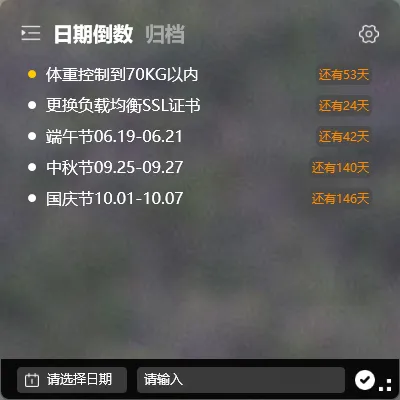
Some things aren’t about “what time to do it” but rather “by which day it needs to be done.”
Things like mortgage due dates, your mom’s birthday, or a project delivery deadline. Keeping these in your head makes it easy to miscalculate time. With a desktop countdown timer plugin, seeing “X days remaining” directly on your screen is far more intuitive.
That’s what the countdown feature does — it’s a lightweight countdown plugin embedded right on your Windows desktop.
What is a Countdown
Section titled “What is a Countdown”A countdown sets a target date for a todo. Once set, the todo list directly displays “X days remaining” or “X days overdue.”
For example, create a todo “Mom’s birthday” with a target date of May 20th — the list will show “18 days remaining” (assuming today is May 2nd).
How to Set a Countdown
Section titled “How to Set a Countdown”- Create or edit a todo
- Find the “Target Date” setting
- Select a date
- Save
After setting it, the todo will display the number of days until that date on the list.
Countdown List
Section titled “Countdown List”Todos that have a target date set also appear in the “Countdown List,” making it easy to centrally view all items with countdown needs.
Difference Between Countdown and Reminder
Section titled “Difference Between Countdown and Reminder”| Countdown | Reminder | |
|---|---|---|
| Purpose | Show days remaining until a target date | Notify you at a specific time |
| Trigger method | Passive viewing | Active notification |
| Typical scenario | Important date countdown | Task that needs to be done on time |
| Example | Mom’s birthday in 18 days | Meeting at 9 AM tomorrow |
Both features can work together: set a target date and a reminder time at the same time. You’ll get both the countdown display and a notification before the date arrives.
Best Use Cases
Section titled “Best Use Cases”- Important date countdowns (birthdays, anniversaries, holidays)
- Project delivery deadlines
- Bill/payment due date reminders
- Trip departure dates
Desktop Countdown Plugin Comparison
Section titled “Desktop Countdown Plugin Comparison”Few desktop tools offer countdown features on the desktop. Here’s how YYNote compares:
| Tool | Implementation | Desktop Display | Multi-device Sync |
|---|---|---|---|
| YYNote Countdown Plugin | System-level desktop widget | ✅ Transparent on wallpaper | ✅ Full sync |
| Phone calendar countdown | Mobile app only | ❌ Need to open phone | Same ecosystem |
| Web countdown tool | Browser bookmark | ❌ Need to open browser | ❌ No sync |
| Excel date calculation | Manual formula | ❌ Need to open file | Manual only |
Why YYNote’s desktop countdown timer plugin? It’s the only tool that shows countdowns on your desktop at startup — no phone, no browser, no manual calculation. Set it once and see the remaining days every time you look at your screen.
Final Thoughts
Section titled “Final Thoughts”No flashy new features, just continuous refinement. Countdowns make the sense of time for important dates more intuitive — so you never realize on the day that you’re already late.