
How to Put Your Schedule on Your Desktop: YYNote Schedule Widget Guide
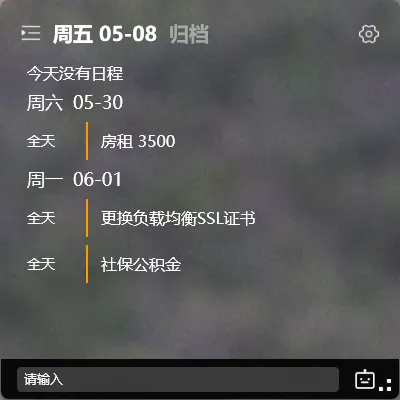
Your schedule is scattered across WeChat, DingTalk, Lark, and your phone calendar — open your computer and none of it is visible. To check today’s plan, you have to pull out your phone, scroll through chat history, or dig through email. The problem isn’t your memory. It’s that there’s no single place where your schedule lives.
Three ways to manage your schedule — compared
Section titled “Three ways to manage your schedule — compared”| Approach | Paper planner | Phone calendar | YYNote schedule widget |
|---|---|---|---|
| Visible on desktop | Only when opened | Only when you pull out your phone | Always there when you turn on your PC |
| Transparent overlay | N/A | N/A | Yes, blends into wallpaper |
| Plan mode (incomplete stays visible) | Flip the page and forget | Notification disappears | Yes, uncompleted items persist |
| Calendar sync | No | Yes | Yes |
| Tag categorization | No | Partial | Yes |
Paper planner: flip to today’s page to see it. Turn the page and yesterday’s unfinished tasks vanish into thin air.
Phone calendar: pull out your phone to see it. When you’re working at your computer, a schedule on your phone might as well not exist.
YYNote schedule widget: your schedule lives directly on your desktop. What you didn’t finish yesterday stays visible today. Tags let you separate work schedules from personal ones.
How to put your schedule on your desktop
Section titled “How to put your schedule on your desktop”Step 1: Enable the desktop widget
Section titled “Step 1: Enable the desktop widget”Download and install YYNote. Right-click the tray icon → Enable Desktop Widget. A transparent panel will appear on the right side of your desktop.
If the widget doesn’t appear, check if your antivirus is blocking desktop rendering — add YYNote to the allowlist.
Step 2: Switch to the schedule list
Section titled “Step 2: Switch to the schedule list”At the top of the widget, there are four list icons: To-Do, Schedule, Sticky Notes, Countdown. Click the second one (the calendar icon) to switch to the schedule list.
The schedule list shows today’s and upcoming events by default. Three views are available: month view (see the whole month), week view (see this week’s rhythm), and day view (see today’s details).
Step 3: Create a schedule — drag to a date
Section titled “Step 3: Create a schedule — drag to a date”The easiest way to create a schedule: drag a to-do item from the left panel onto a date in the calendar. It automatically becomes a schedule for that day.
You can also click directly on a calendar date and type in the input box. Set start time, end time, and recurrence rules (daily/weekly/monthly/lunar calendar).
Plan mode: if it’s not done, it stays
Section titled “Plan mode: if it’s not done, it stays”This is the biggest difference between YYNote’s schedule widget and a regular calendar. A regular calendar flips to the next day and forgets what wasn’t done. YYNote has “Plan Mode”: yesterday’s uncompleted schedules still appear in today’s list until you check them off.
Who it’s for
Section titled “Who it’s for”- Office workers: spend long hours at a computer — put your schedule on the desktop and cut down on phone switching
- Project managers: juggling schedules across multiple projects — tags help you separate them
- Multi-platform schedule users: WeChat, DingTalk, Lark, phone calendar — consolidate into one desktop widget
Final thought
Section titled “Final thought”The essence of schedule management isn’t “remembering” — it’s “seeing.” Putting your schedule on your desktop turns it from something you have to actively check into something you passively notice. Seeing today’s plan the moment you turn on your computer beats any notification.
Related: How to Put a Memo on Your Desktop · Best Todo List Widgets for Desktop · How to Use Desktop Calendar and To-Do Together · Best Desktop Calendar for Windows