
Desktop Todo List: How to Manage Tasks with a Desktop Todo App
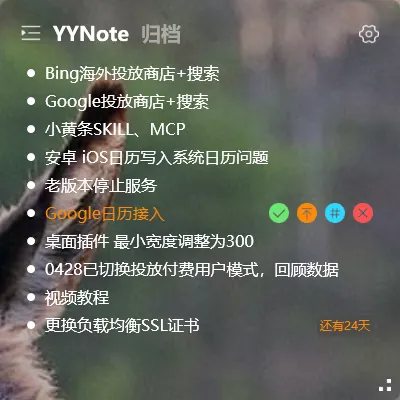
Most people have used a to-do list app on their phone. But there’s one problem: phone todo apps have low open rates — you install them, use them for a few days, then forget to check.
Desktop todo list is different. It lives on your wallpaper, visible every time you switch to your desktop. No need to actively open anything — it’s just there.
Why Todos Should Be on Your Desktop
Section titled “Why Todos Should Be on Your Desktop”| Comparison | Phone Todo | Desktop Todo |
|---|---|---|
| Visibility | Can’t see when locked | Visible at startup |
| Check frequency | Only when opened | Every time you see desktop |
| Recording speed | Unlock → find app → type | Click and write |
| Work distraction | Pulls you to phone | No window switches |
| Reminders | Notification center | Desktop popup + always visible |
If you spend 6+ hours a day on your computer, a desktop todo app is far more efficient than a phone one.
YYNote Desktop Todo App Core Features
Section titled “YYNote Desktop Todo App Core Features”Create todos: Switch to todo mode on the desktop widget and start typing. Press Enter for the next item. Works entirely with keyboard.
Mark complete: Click the checkbox — completed items get strikethrough and sink to bottom. Visually satisfying to see tasks shrink.
Set reminders: Each todo can have a reminder time. Windows notification pops up at the scheduled time, even if you’re away from your desk.
Repeat todos: Daily tasks (reports, check-ins) can repeat daily; weekly tasks (weekly reports) repeat weekly. Set once, works forever.
Tag categories: Use #work, #personal, #study tags to classify todos. Click a tag to see only that category.
Four List Modes for Different Scenarios
Section titled “Four List Modes for Different Scenarios”YYNote’s desktop widget supports four modes:
- Sticky Note mode: Pure text recording for quick ideas and temp notes
- Todo mode: Checkbox task list for daily todos
- Schedule mode: Time-ordered events for meetings and appointments
- Countdown mode: Countdown display for deadlines and anniversaries
Switch modes from the top-left corner — no need to open different windows.
Best Practices
Section titled “Best Practices”List 3-5 items each morning: Too many items becomes overwhelming. Pick the most important tasks, add more after completing them.
Use tags for filtering: When work items pile up, filter by #urgent tag and process those first.
Set reminders before the task: Set the reminder time when you need to start preparing, not at the deadline. Meeting at 3 PM? Remind at 2:45 PM.
Complete and clear: Check it off when done. Desktop todo lists aren’t archives — keep them clean.
Desktop and Phone Work Together
Section titled “Desktop and Phone Work Together”Todos created on your computer sync to your phone instantly. Out and about? Open the YYNote app — everything is there.
- Create a todo on desktop → syncs to phone
- Mark complete on phone → updates on desktop
- Add on phone → appears on desktop automatically
One account, all devices synced — no manual work needed.
A desktop todo list isn’t just a tool — it’s a habit. Put it where you’ll see it every day, and you’ll never forget your tasks again.