
How to Switch Calendar Views? YYNote Month/Week/Day View Guide
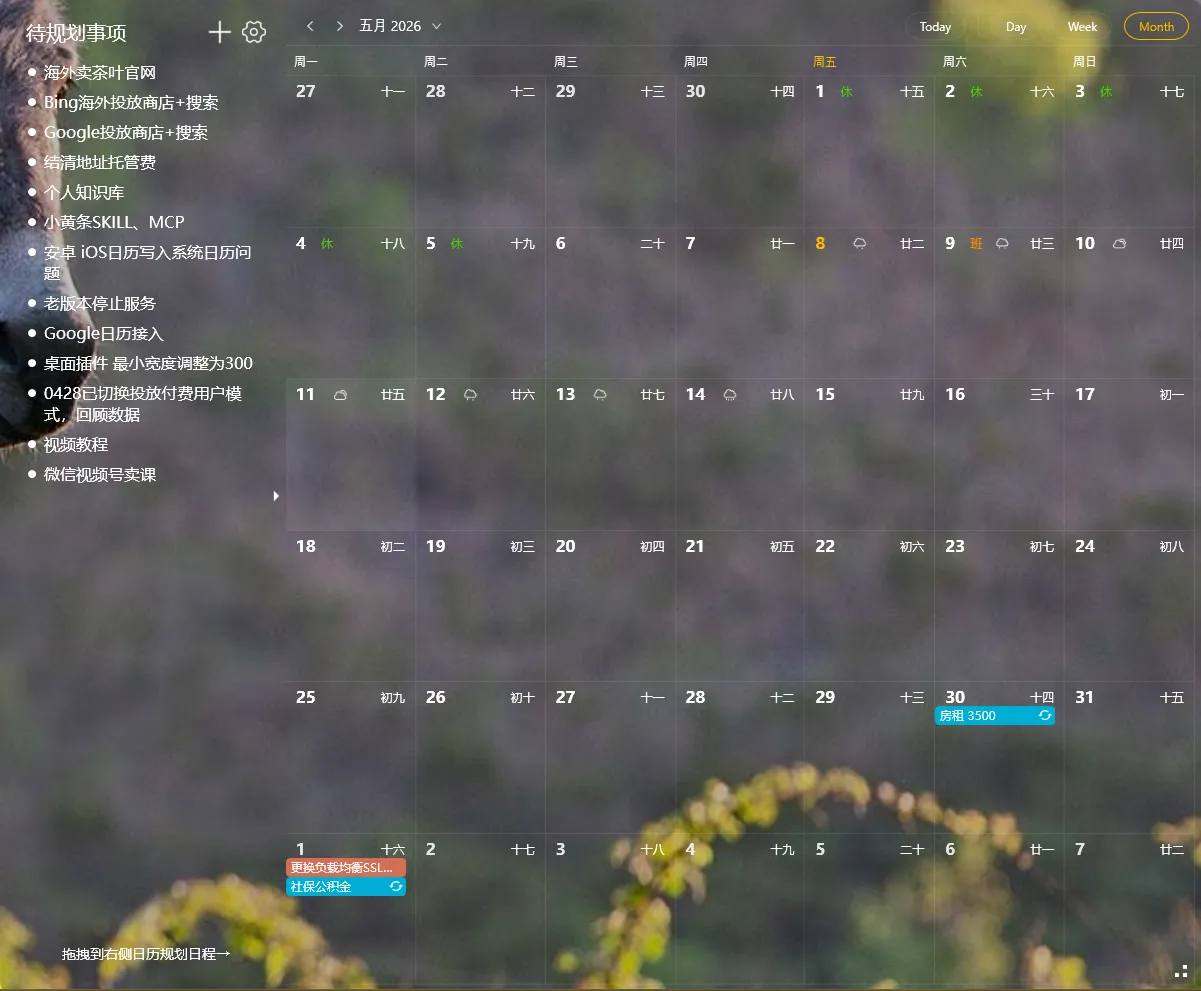
The desktop calendar has three views: Month, Week, and Day.
Each view suits different scenarios. Choosing the right view is key to getting the most out of your calendar.
💡 Month and Week views are available on both PC and mobile App. Day view is available on the Windows desktop widget only. The App version offers Month and Week views in its Calendar tab.
Month View
Section titled “Month View”An overview of the entire month, with each day shown in a grid cell.
Best for:
- Seeing which key dates fall this month (project deadlines, meeting-heavy weeks)
- Checking if a specific date is already booked
- Reviewing monthly task completion at month’s end or start
The Month view is great for the big picture, but not for detailed time planning.
Week View
Section titled “Week View”A weekly time-block view showing the distribution of tasks across days.
Best for:
- Planning this week’s work
- Checking for time conflicts this week
- Viewing detailed schedules for a specific day (expand to see details)
The Week view is ideal for weekly planning — the most commonly used view in a work context.
Day View
Section titled “Day View”A daily timeline, with each hour in a slot, showing detailed scheduling for the day.
Best for:
- Planning today’s schedule
- Checking if the afternoon is free
- Hour-by-hour time planning
The Day view is perfect for today’s execution — the most used view when working through your daily plan.
Switching Views
Section titled “Switching Views”Click the top-right area of the calendar widget → select the desired view type.
You can switch between views for different scenarios — you don’t have to stick with just one.
Final Thoughts
Section titled “Final Thoughts”No flashy new features, just continuous refinement. Choose the right view, and your calendar becomes a powerful tool.