
Desktop Tag Management: Organize Todos and Notes Better Than Folders
The hardest part of organizing todos and notes: where does this go?
Create a “Work” folder, but some items are both “Work” and “Project A”. Create a “Shopping” list, but some things aren’t shopping or tasks — they’re just information you want to keep.
Tags solve this problem.
Tags vs Folders
Section titled “Tags vs Folders”| Scenario | Folders | Tags |
|---|---|---|
| One item belongs to two categories | ❌ Can only be in one folder | ✅ Add two tags |
| Cross-category search | Check each folder | Filter by tag, see all at once |
| Reorganize | Move files to new folders | Add/remove tags |
| Share categories across lists | Create same folder in each list | Tags work across lists |
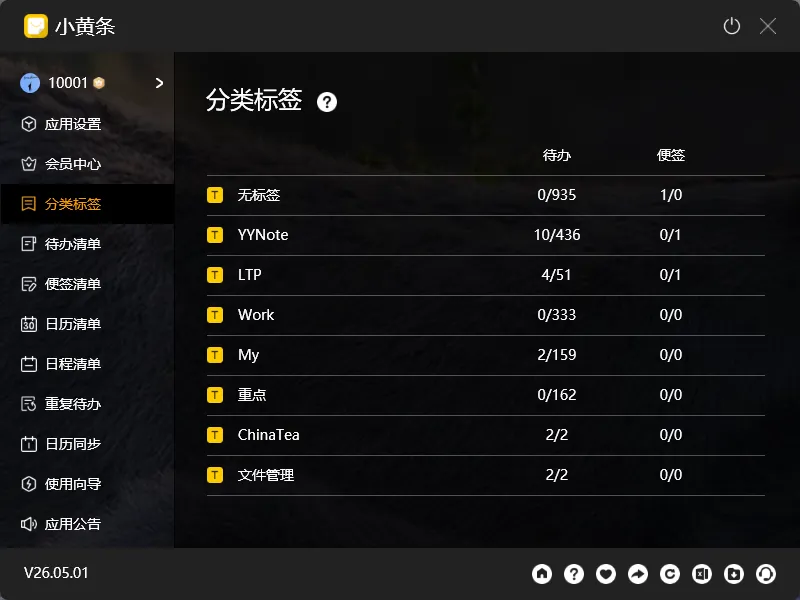
In YYNote, both sticky notes and todos support tags. One sticky note can have both “Work” and “Project A” tags. Filter by “Work” and you see it. Filter by “Project A” and you see it too.
How to Use Tags for Desktop Notes and Todos
Section titled “How to Use Tags for Desktop Notes and Todos”By project: Tag items #ProjectA and #ProjectB. No matter which list they’re in, filter by tag and all Project A items appear.
By priority: Use tags like #urgent, #this-week, #someday. Open the tag list and filter by priority.
By type: #meeting, #idea, #reading — helps you find things when you’re trying to remember.
Auto-Tagging
Section titled “Auto-Tagging”YYNote supports auto-tagging rules. Set up conditions, and new todos or notes automatically get the right tag — no manual effort required.
Tag Filtering: AND or OR
Section titled “Tag Filtering: AND or OR”YYNote currently uses OR filtering for multiple tags — selecting multiple tags shows items that match ANY of them.
This means you won’t miss items because of over-categorization. The practical use is “filter by scenario” rather than “filter by strict directory.”
Want to see this week’s work items? Select #this-week + #work, and everything matching either tag shows up.
Who Should Use Tags
Section titled “Who Should Use Tags”Tags are most useful when you have more than 30 items. Under 30, a quick scan works. Beyond that, tags are the biggest efficiency booster.
For detailed tag operations, check the tag management guide.