
Best Calendar Widgets for Desktop: YYNote vs Rainlendar vs DesktopCal vs System Calendar
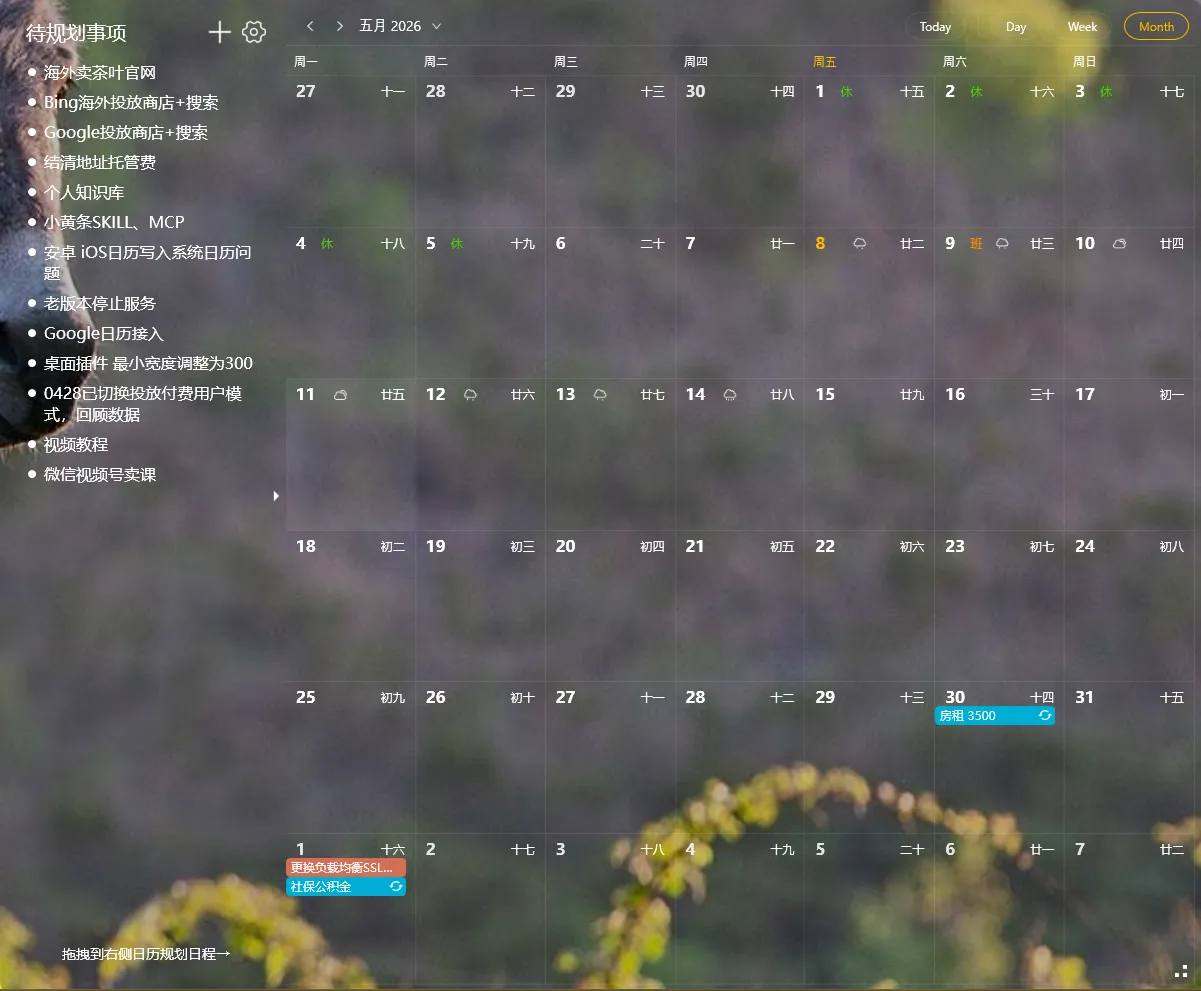
Desktop calendar widgets are a “seems simple, hard to choose” category. Search the app store and you’ll find dozens — but most are either opaque blocks ruining your wallpaper, look like Windows 98, or can’t sync with anything.
Here’s a comparison of four desktop calendar tools to help you pick the right one.
Four desktop calendars compared
Section titled “Four desktop calendars compared”| Feature | YYNote | Rainlendar | DesktopCal | System Calendar |
|---|---|---|---|---|
| Transparent desktop integration | Fully transparent | Skin support | Adjustable transparency | Opaque window |
| Month/week/day views | Month, week, day | Month, week, day | Month only | Month |
| Lunar calendar | Yes | Via plugin | No | No |
| Calendar sync | Google/Outlook | No | System calendar | |
| Weather integration | 7-day forecast | Via plugin | No | No |
| Resource usage | Low | Medium | Low | Minimal |
| Free tier | 7-day trial → paid | Free tier sufficient | Free for personal | Built-in |
1. YYNote Calendar — fully transparent + sync + weather
Section titled “1. YYNote Calendar — fully transparent + sync + weather”YYNote’s calendar widget is “so transparent you only see the date text.” No background box, no title bar — dates float directly on your wallpaper.
Multiple views. Switch between month, week, and day views with one click. Lunar calendar dates display by default — great if you follow lunar dates.
Calendar sync is essential. Sign in with Google or Outlook, and your events appear on the desktop calendar automatically. No need to open a browser to check your schedule.
Weather integration. Current weather and 7-day forecast display right on the calendar. Check your dates and know whether to grab an umbrella — all in one glance.
Ideal for: office workers, anyone who needs lunar dates or holiday schedules, people juggling multiple calendars.
2. Rainlendar — veteran, lots of skins, needs tinkering
Section titled “2. Rainlendar — veteran, lots of skins, needs tinkering”Rainlendar is the “old guard” of desktop calendars. It supports a skin system with a large community library. Feature-wise, it covers month/week/day views, to-do lists, and event reminders.
Pros: the free version is sufficient, tons of skins, highly customizable.
Cons: the default interface looks dated. You’ll need time to find skins and tweak settings. Lunar calendar and weather require plugins. For anyone who just wants “install and use,” the learning curve is steep.
3. DesktopCal — double-click the desktop to add events
Section titled “3. DesktopCal — double-click the desktop to add events”DesktopCal embeds the calendar directly into your desktop background. Double-click a date cell to add an event — the interaction is intuitive.
Pros: free for personal use, simple to operate. The calendar sits on the desktop background, blending in visually.
Cons: month view only — no week or day views. No calendar sync — events are local only. No lunar calendar.
4. System Calendar — zero install, but not a desktop widget
Section titled “4. System Calendar — zero install, but not a desktop widget”Windows’ built-in Calendar app requires no installation and integrates well with the system. But it’s a standalone window app, not a desktop widget.
Pros: no install, zero extra resource usage, system notification integration.
Cons: can’t pin to the desktop as an always-visible widget. Every calendar check requires opening a window. No lunar calendar, no weather.
Which one to pick
Section titled “Which one to pick”- Just need to glance at the date in the corner → System Calendar is enough
- Love tinkering with skins and want maximum customization → Rainlendar
- Want a simple double-click-to-add-events experience → DesktopCal
- Want transparent, multi-view, synced, weather-integrated all in one → YYNote
Final thought
Section titled “Final thought”The purpose of a desktop calendar is “glance and know.” If it’s not transparent enough, can’t sync, or the interface makes you not want to look at it — it’s no different from pulling out your phone.
Pick a calendar that truly blends into your desktop, and it’ll become something you rely on without even thinking about it.
More desktop calendar tips: Complete Guide to Desktop Calendar Widgets