
How to Put a Calendar Widget on Your Desktop: Always-Visible Desktop Calendar
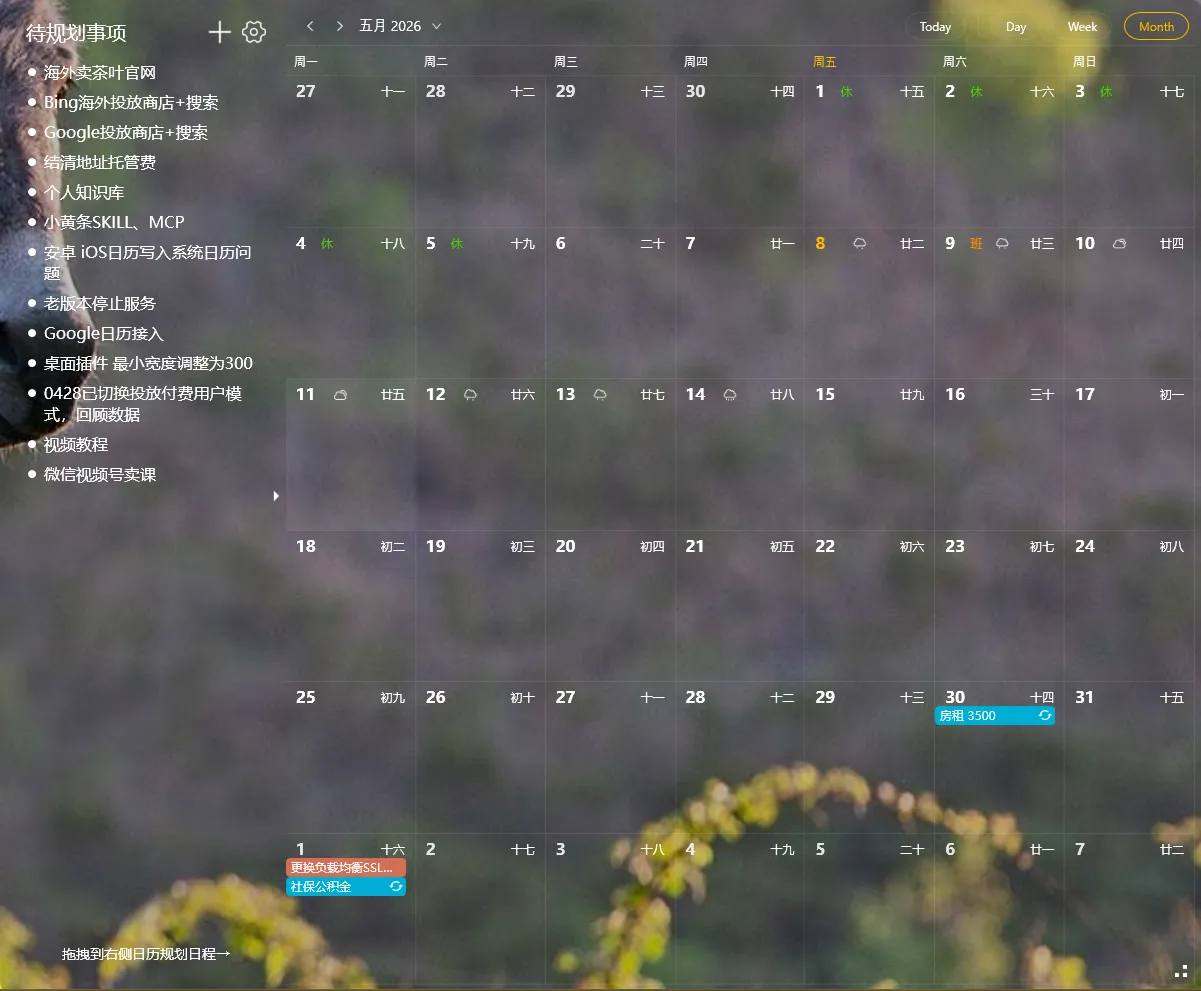
You pull out your phone to check your calendar — there’s a meeting at 3 PM today, and tomorrow is a makeup workday for the upcoming holiday. You lock the screen, put the phone aside. For the next six hours, you stare at your computer screen. Nothing on that screen reminds you of either thing.
That’s the calendar problem: you check it on your phone, but you spend your day looking at your computer. Between the calendar on your phone and the screen in front of you, there’s a gap you rarely bridge.
A desktop calendar widget puts your calendar directly on your screen — a transparent overlay showing dates, schedules, and events. No phone, no browser tab. One glance and you know the date and what’s coming up this week.
YYNote Desktop Calendar: Core Features
Section titled “YYNote Desktop Calendar: Core Features”YYNote’s calendar is a desktop widget. Like the to-do list and notes widgets, it’s a transparent overlay on your wallpaper — always visible.
Three view modes: Month view for the big picture, week view for distribution, day view for today’s focus. One-click switching.
Lunar calendar + solar terms: Built-in lunar dates, solar terms, and holiday markers. No extra plugin needed.
WeCom / DingTalk calendar sync: If your company uses WeCom or DingTalk, YYNote pulls calendar events from those platforms and displays them alongside your personal calendar — unified on your desktop.
Todo markers: Dates with a dot = that day has tasks. Click the date → the main panel shows that day’s to-do list.
Transparent overlay: Not a floating window — the calendar blends into your wallpaper. Always visible without blocking your desktop background.
How to Put a Calendar on Your Desktop: 3 Steps
Section titled “How to Put a Calendar on Your Desktop: 3 Steps”Step 1: Enable the calendar widget
Open YYNote → Main panel settings → Desktop Widgets → Enable “Calendar” widget. A transparent calendar appears on your desktop.
Step 2: Switch views
The calendar widget has a view switcher in the top-right corner. Month for overview, week for detail, day for focus. Switch as needed.
Step 3: Sync external calendars (optional)
If you use WeCom or DingTalk: Settings → Calendar Sync → Log in and authorize your WeCom/DingTalk account. Company and personal calendars merge into one desktop view.
Dates with a dot = that day has tasks. Click the date → the main panel shows that day’s to-do list.
Who This Is For
Section titled “Who This Is For”- Office workers: Meetings, deadlines, makeup workdays — you need to check your calendar constantly. A desktop calendar widget is a hundred times better than the taskbar clock.
- Holiday watchers: Lunar calendar and holiday markers ensure you never miss Spring Festival adjustments, Dragon Boat Festival holidays, or Mid-Autumn break. “Off” and “Work” labels right on the calendar.
- Multi-calendar users: Company WeCom calendar + personal calendar, merged into one desktop view. No app-switching required.
Final Thought
Section titled “Final Thought”A calendar’s value isn’t in how much information it holds — it’s in how often you actually see it. A desktop calendar widget reduces “checking your calendar” to zero effort — no clicks, no window switching, no app opening.
The calendar on your desktop is the calendar you actually use.
Download YYNote | How to Put a To-Do List on Desktop | How to Put Sticky Notes on Desktop