
How to Put a Memo on Your Desktop: YYNote Desktop Memo Widget Guide
Inspiration strikes. You quickly type it into Notepad. Then you close the window — and never think to open it again. The next day, that brilliant thought is buried under dozens of random snippets.
It’s not a memory problem. It’s a visibility problem.
Three ways to keep memos — compared
Section titled “Three ways to keep memos — compared”| Approach | Paper notebook | System Notepad | YYNote desktop memo |
|---|---|---|---|
| Visible on desktop | Only when open | Only when window is open | Always on your desktop |
| Transparent overlay | N/A | N/A | Yes, blends into wallpaper |
| Never lost | Tear it out and it’s gone | Saved locally | Cloud-synced, survives reinstall |
| Multi-device sync | No | No | Yes, view on phone too |
| Search | Flip manually | Yes | Yes |
| Tag categorization | No | No | Yes |
Paper notebook: write it down and it’s there — until you tear out the page. Want to find something from three days ago? Start flipping.
System Notepad: minimize to taskbar and it’s effectively “filed away.” Unless you consciously remember to check Notepad, it will never proactively remind you it exists.
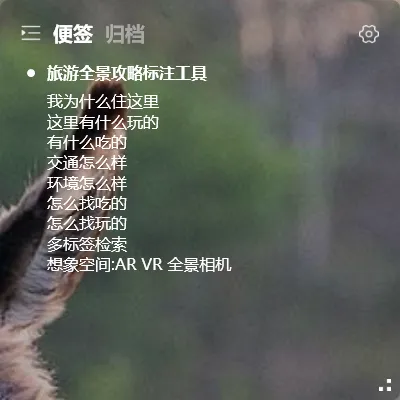
YYNote desktop memo: uses the sticky notes list as your memo pad. Transparent, lives on your desktop. Cloud-synced — reinstall your OS and your memos are still there. View them on your phone too.
How to put a memo on your desktop
Section titled “How to put a memo on your desktop”Step 1: Enable the desktop widget
Section titled “Step 1: Enable the desktop widget”Download and install YYNote → right-click the tray icon → Enable Desktop Widget. A transparent widget panel appears on the right side of your desktop.
Step 2: Switch to the sticky notes list
Section titled “Step 2: Switch to the sticky notes list”Among the four list icons at the top of the widget, click the third one (the sticky note icon). This is your desktop memo pad.
What makes the sticky notes list different: each item is an independent note card. There’s no “done/undone” concept — it’s pure text recording. Perfect for capturing ideas, inspirations, and temporary information.
Step 3: Start writing, drag to reorder
Section titled “Step 3: Start writing, drag to reorder”Click the ”+” at the bottom of the sticky notes list, or double-click on empty space in the widget to create a new note.
Once you’ve written a few, drag them to reorder — important ones at the top, temporary ones below. Use tags to categorize (e.g., “Ideas,” “To Organize,” “Project A”).
Who it’s for
Section titled “Who it’s for”- Office workers: jot down meeting points, phone numbers — no need to hunt for a Notepad file
- Creative professionals: capture ideas the moment they flash — without breaking your current workflow
- Students: lecture notes, reading excerpts, quick reminders — synced to your phone, accessible from the library
Final thought
Section titled “Final thought”The real fear with memos isn’t forgetting to write things down — it’s losing them after you’ve written them. A desktop memo widget solves this by making “finding” cost zero. Glance at your desktop — everything you’ve noted is right there. No searching, no folder digging, no remembering file names.
Related: How to Put Your Schedule on Your Desktop · Best Todo List Widgets for Desktop · Desktop Sticky Note Usage Guide · Best Desktop Memo App