
How to Display Calendar on Windows Desktop - YYNote Widget
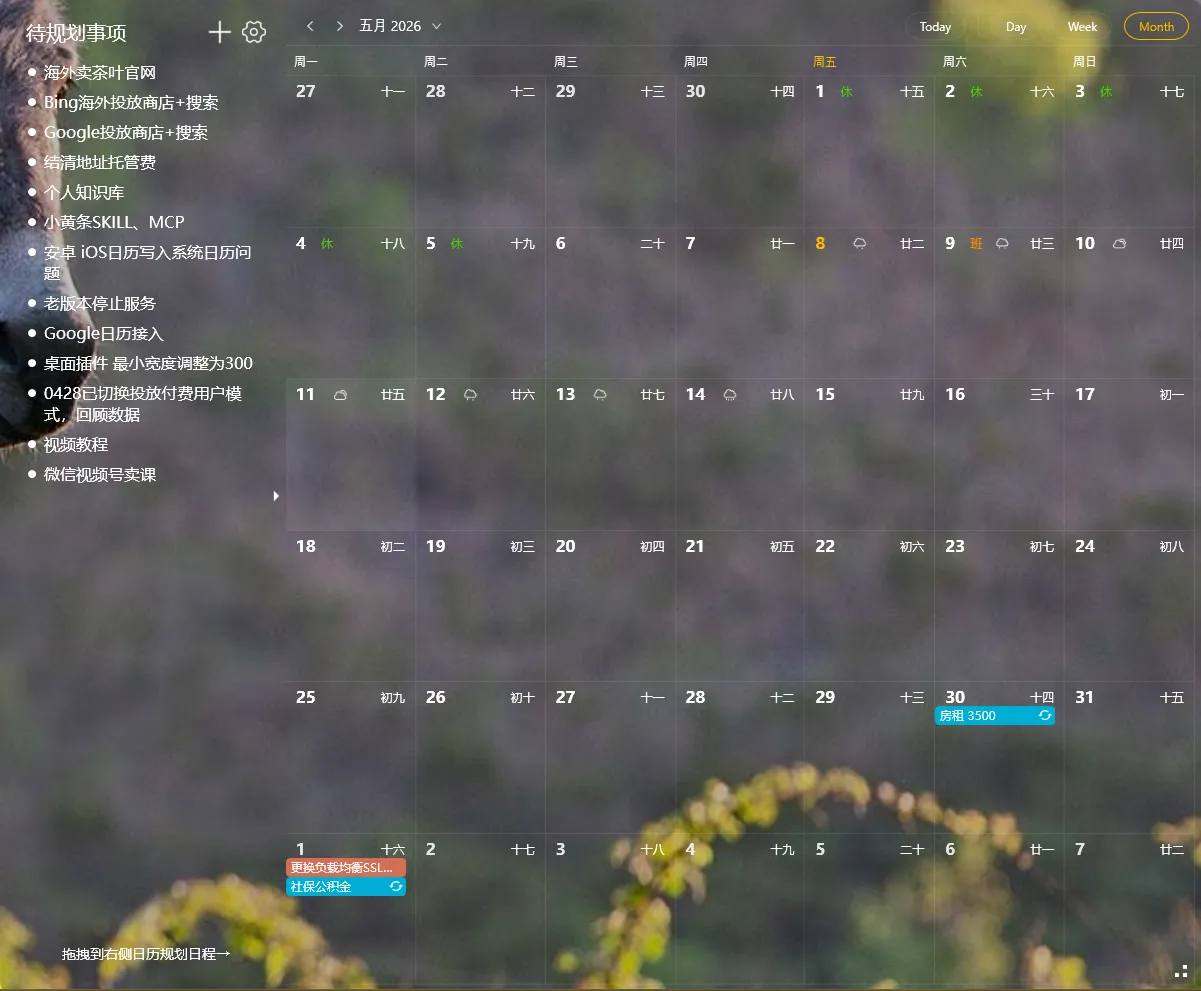
Tired of opening your calendar app, checking the date, closing it, then opening it again later? That repeated switching wastes time and breaks focus.
What if your calendar was always visible on your desktop — month view, week view, or day view, without opening anything?
How to Display a Calendar on Your Windows 10 Desktop
Section titled “How to Display a Calendar on Your Windows 10 Desktop”Step 1: Install YYNote
Section titled “Step 1: Install YYNote”Download YYNote for Windows from the official website and complete registration.
Step 2: Enable the Desktop Calendar
Section titled “Step 2: Enable the Desktop Calendar”Right-click the YYNote tray icon → Settings → App Settings → Set the “Desktop Calendar List” quantity to 1.
The calendar widget instantly appears on your desktop as a transparent floating panel.
Step 3: Choose Your View
Section titled “Step 3: Choose Your View”Click the top-right corner of the calendar widget to switch between:
| View | Best For |
|---|---|
| Month | Monthly overview — see key dates and events at a glance |
| Week | Planning the work week — see daily time distribution |
| Day | Detailed daily schedule — time broken down by hour |
Features That Make the Desktop Calendar Useful
Section titled “Features That Make the Desktop Calendar Useful”Schedule Directly on the Calendar
Section titled “Schedule Directly on the Calendar”Click any time slot on the desktop calendar, enter your event details, and save — the schedule appears instantly. No app-switching needed.
Drag Todos Into Your Calendar
Section titled “Drag Todos Into Your Calendar”This is where YYNote shines. Have a todo that needs a time slot? Drag it from the task list onto a date on the calendar. It automatically sets start and end times, converting your task into a scheduled event.
Public Holidays, Lunar Calendar & Weather
Section titled “Public Holidays, Lunar Calendar & Weather”The desktop calendar can display:
- Chinese public holidays (with workday markings)
- Lunar calendar dates
- 7-day weather forecast
All toggleable from the calendar widget settings.
Sync External Calendars
Section titled “Sync External Calendars”Already using WeCom, DingTalk, Feishu, or QQ Mail calendars? YYNote syncs them all to one desktop calendar. View your work schedule, personal events, and meetings from every channel in one place.
Stop Switching, Start Seeing
Section titled “Stop Switching, Start Seeing”The best calendar is the one you don’t have to open. Once it’s on your desktop, you just look — no clicking, no searching, no switching.