
How to Manage Todos with Tags? Organize Your Lists with Labels
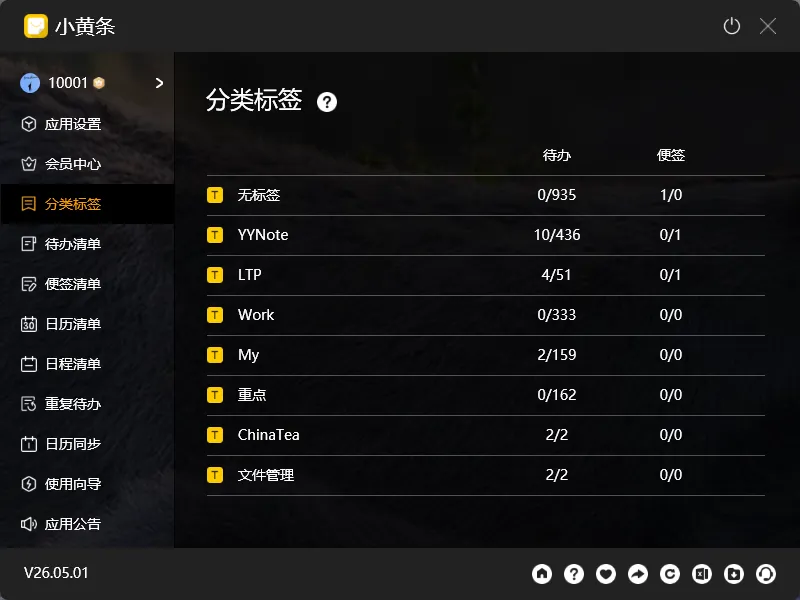
When you have too many tasks, things get messy quickly: work items mixed with personal errands, no easy way to see just one category without scrolling manually.
Tags solve this problem.
What Tags Can Do
Section titled “What Tags Can Do”- Categorize: Add tags like “Work”, “Personal”, or “Important”
- Filter: Show only items with specific tags, hide the rest
- Auto-tag: When you create a new item under a list, it gets the list’s tag automatically
Creating and Managing Tags
Section titled “Creating and Managing Tags”Path:
- PC: Settings → Tags → New
- App: Profile → Tags → New
You can create as many tags as you want, and customize their colors.
Tagging Your Items
Section titled “Tagging Your Items”When creating or editing a todo, simply select the tags. Multiple tags are supported per item.
Filtering Lists with Tags
Section titled “Filtering Lists with Tags”In list settings, you can set up tag filter rules.
For example, set it to “Show only items tagged as Work” — other items are hidden automatically, leaving only work-related tasks visible.
Note: When filtering by multiple tags, the logic is OR — any matching tag will include the item in the results.
This feature is great for:
- Juggling multiple projects, each with its own tag
- Focusing on top priorities by marking items with an “Important” tag
- Keeping work and personal life separate with different tags
Auto-Tagging Rules
Section titled “Auto-Tagging Rules”In list settings, you can configure auto-tagging rules. When you create a new todo or note under that list, the system automatically applies the corresponding tag — no need to manually select it every time.
For example, set the “Work” list to auto-tag with “Work” — any item created under this list will carry the “Work” tag automatically.
Tags Across Modules
Section titled “Tags Across Modules”Tags work across all modules:
| Module | Tag Purpose |
|---|---|
| Todo Lists | Categorize + Filter |
| Sticky Notes | Categorize + Filter |
| Calendar / Schedule Lists | Categorize + Filter |
Final Thoughts
Section titled “Final Thoughts”No flashy new features, just continuous refinement. When you have few tasks, tags aren’t necessary. When tasks pile up, tags are the key to staying organized.