
How to Put a To-Do List on Your Desktop (Windows Widget Guide)
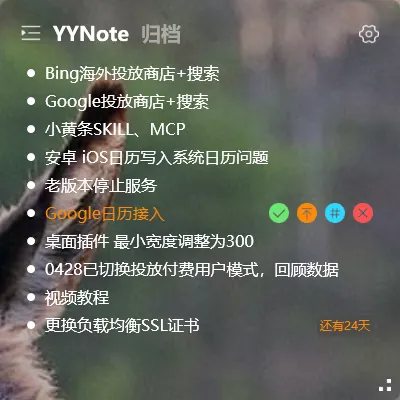
Quick answer: To put a to-do list on your Windows desktop, install YYNote, right-click the tray icon, set the “Desktop Todo List” quantity under App Settings, and the widget appears directly on your wallpaper as a transparent floating list - no extra window to open.
If you have ever ended a workday and realized the task you typed into your phone that morning is still unchecked, you already know the problem. Your phone and your computer do not talk to each other, and the to-do app you actually need lives somewhere you never look.
A desktop to-do list widget fixes that by putting your tasks on the screen you stare at all day. This guide walks through exactly how to do it on Windows, what to configure first, and what to do if the widget does not show up where you expect.
Why a Desktop Widget Beats a Phone App for Daily Tasks
Section titled “Why a Desktop Widget Beats a Phone App for Daily Tasks”Research consistently finds that knowledge workers spend 30-60 minutes per week just searching for information they already have - usually because it lives in a different app, on a different device, or behind a notification they swiped away. A widget on your desktop removes that lookup cost entirely.
Three reasons a desktop to-do widget works better than a phone app for desk work:
- Always visible. Every glance at your screen, your tasks are there.
- Zero habit cost. You do not have to “remember to check it.” It is already in your line of sight.
- Transparent by default. A good widget blends into your wallpaper and does not block your work.
For mobile-only tasks - quick captures on the go, shopping lists at the store - your phone still wins. For everything you do at a desk, the desktop wins.
What You Need Before You Start
Section titled “What You Need Before You Start”You only need three things:
- A Windows PC (Windows 10 or 11). The widget uses a transparent overlay that runs on top of the desktop, not inside a window.
- YYNote installed and signed in. Registration is one click with email, WeChat, QQ, Google, Apple, Huawei, or Microsoft. New accounts get 7 days of full membership to try everything.
- About 2 minutes. The whole setup is tray icon, settings, quantity, done.
If you are coming from a phone-only to-do app, you do not need to migrate manually. Once you sign in on Windows, the same account on your phone will push tasks to the desktop widget automatically.
How to Put a To-Do List on Your Desktop: Step by Step
Section titled “How to Put a To-Do List on Your Desktop: Step by Step”Step 1 - Download and install YYNote
Section titled “Step 1 - Download and install YYNote”Grab the Windows installer from the YYNote download page or the Microsoft Store. Double-click the .exe and follow the prompts. The first launch asks you to register or sign in. The setup process is the same as covered in the desktop sticky notes complete guide.
Step 2 - Open the tray settings
Section titled “Step 2 - Open the tray settings”After sign-in, find the YYNote icon in your system tray (the small icons near the clock). Right-click it and select Settings. A panel opens on the left side of the screen.
Step 3 - Set the Desktop Todo List quantity
Section titled “Step 3 - Set the Desktop Todo List quantity”Inside the settings panel, go to App Settings. You will see a setting labeled “Desktop Todo List” with a quantity field.
- Set the quantity to
1for a single, always-visible task list. - Set it to
2or3if you want separate lists (for example, “Work” and “Personal”) each pinned to different corners of the screen.
The widget appears on your desktop immediately as a transparent floating list - no restart required.
Step 4 - Add your first task
Section titled “Step 4 - Add your first task”Click anywhere on the empty area of the widget. A text input appears. Type your task and press Enter.
A few shortcuts that save time:
- Smart date parsing. Type “Call client tomorrow at 9 AM” and YYNote recognizes the date and time automatically - no date picker needed.
- Drag to calendar. Drag a todo item onto the desktop calendar widget to set a start and end time. It converts from a plain task into a scheduled event.
- Tag for filtering. Add a tag like
Work,Personal, orErrandto group tasks. Filter the widget to show only one tag at a time.
Step 5 - Pin it where you actually look
Section titled “Step 5 - Pin it where you actually look”Drag the widget to the corner of your screen where your eye naturally falls. Industry surveys of desktop productivity tools consistently find that the bottom-right and top-right corners get the most glances per minute, because they sit outside the main text-reading area. YYNote remembers the position - it stays put after every restart and reboot.
What the Widget Looks Like in Practice
Section titled “What the Widget Looks Like in Practice”A few things to know about the on-screen behavior:
- Transparent overlay, not a window. The widget sits on your desktop layer, not in the taskbar. It does not have a close button and does not show up in Alt-Tab. Right-click it to access quick actions.
- One-click plugin switching. The top-left corner has a tab switcher. Flip between the to-do list, sticky notes, calendar, and weather views in the same panel.
- Multiple widgets are independent. With quantity set to 3, each widget can show a different tag or list.
Multi-Device Sync (the Real Win)
Section titled “Multi-Device Sync (the Real Win)”Once you put a to-do list on your desktop, the next question is whether the same list follows you to your phone. With YYNote, it does.
Industry surveys of cross-device note-taking apps consistently find that sync is the single feature most users abandon a product over. If a task added on your iPhone does not show up on your Windows desktop within a few seconds, the desktop widget stops being useful.
YYNote syncs in real time across Windows, macOS, Android, iOS, and HarmonyOS:
- Add on phone, see on desktop. Capture a task on the bus; it is on your wallpaper by the time you sit down.
- Complete on desktop, archive on phone. Check a task off at your desk; it disappears from your phone widget instantly.
- Same account, everywhere. Sign in once on each device. No manual export, no CSV imports.
The 7-day membership trial includes the sync. After the trial, sync continues on the free tier for the features you actually use day to day; paid plans unlock advanced scheduling and unlimited history.
Troubleshooting: When the Widget Does Not Show Up
Section titled “Troubleshooting: When the Widget Does Not Show Up”If you set the quantity and nothing appears on your desktop, walk through this list:
- Check the tray icon is running. Look for the YYNote icon near the clock. If it is missing, launch YYNote from the Start menu.
- Confirm auto-start is enabled. Settings → General → enable “Start with Windows.” Otherwise the widget will not survive a reboot.
- Right-click desktop → View → Show desktop icons is unrelated - the widget is its own overlay, not a desktop icon. Do not confuse the two.
- Check transparency. If the widget is invisible, your wallpaper may be the same color as the default text. Open widget settings and adjust font color or opacity.
- Restart the widget. Set the quantity to
0, click apply, then set it back to1. This forces a re-render.
Frequently Asked Questions
Section titled “Frequently Asked Questions”Does the to-do widget really sit on the wallpaper, or is it just a floating window?
Section titled “Does the to-do widget really sit on the wallpaper, or is it just a floating window?”It sits on the wallpaper as a transparent overlay. It is not a regular window, so it does not appear in the taskbar, does not show up in Alt-Tab, and does not get covered by full-screen apps in the same way. You can drag it anywhere on the screen and it stays there after every reboot.
Can I have more than one to-do list on my desktop?
Section titled “Can I have more than one to-do list on my desktop?”Yes. In App Settings, set the “Desktop Todo List” quantity to 2, 3, or more. Each widget is independent - you can bind each one to a different tag, so one shows “Work” tasks and the other shows “Personal” tasks. Many users keep one widget in the top-right for today’s priorities and another in the bottom-right for the week.
Will the tasks I add on my phone appear on the desktop widget?
Section titled “Will the tasks I add on my phone appear on the desktop widget?”Yes, in real time. Sign in on both devices with the same account. Tasks, completions, and tag changes sync within a few seconds. The sync works the other direction too: a task you check off on your desktop disappears from your phone widget immediately.
Is the desktop widget free?
Section titled “Is the desktop widget free?”YYNote gives every new account a 7-day free trial of all features, including the desktop widget, with no limits. After the trial, the basic desktop to-do list and sync remain free; paid plans add advanced scheduling, unlimited archive history, and additional desktop widgets. You do not need to pay to use the widget described in this guide.