
How to Adjust Desktop Widget Position? YYNote Widget Layout Guide
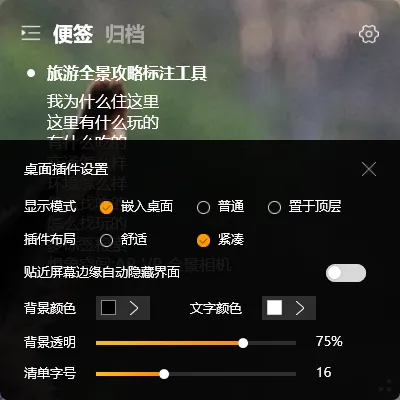
Where your desktop widget sits and how much space it takes up — these can be adjusted.
When positioned well, it’s a productivity tool. When positioned poorly, it’s visual clutter.
Adjusting Position
Section titled “Adjusting Position”Widgets can be freely dragged to any position on your desktop.
We recommend placing them in a corner at the edge of your screen — bottom-right or top-left, for example. This keeps them outside your main field of view during work, visible when you glance over but unobtrusive when not needed.
Once positioned, the widget will automatically return to its last position the next time you start your computer.
Adjusting Size
Section titled “Adjusting Size”Desktop widgets support resizing by dragging the edges.
Width: Stretch just enough to fit your todo content — no need to make it too wide.
Height: If placed in a corner, you don’t need to show all your todos. Just display the most important ones for today.
A widget that’s too small is hard to interact with; one that’s too large blocks your desktop. Find a comfortable middle ground.
Adjusting Transparency
Section titled “Adjusting Transparency”Transparency affects the opacity of the background, not the clarity of the text.
Lower transparency: The background becomes nearly invisible, with text floating over your wallpaper. Higher transparency: The background becomes more solid, making text clearer but slightly obscuring the wallpaper.
We recommend setting it between 10% and 30% — text stays readable without ruining your wallpaper.
Multi-Widget Layout
Section titled “Multi-Widget Layout”If you’ve placed multiple desktop widgets (todos, notes, calendar, weather), position them in different corners to avoid clustering:
- Todo list: Bottom-right corner
- Sticky notes: Top-left corner
- Weather/Time: Top-left corner (choose one or stack vertically with notes)
- Calendar: Center-left or center-right
Don’t let widgets overlap or crowd each other. Give each its own corner to keep your desktop clean.
Final Thoughts
Section titled “Final Thoughts”No flashy new features, just continuous refinement. Positioned well, widgets boost productivity. Positioned poorly, they’re just visual noise.