
Desktop Calendar List: Transparent Calendar Widget with Schedule List, Month/Week/Day Views & Holidays
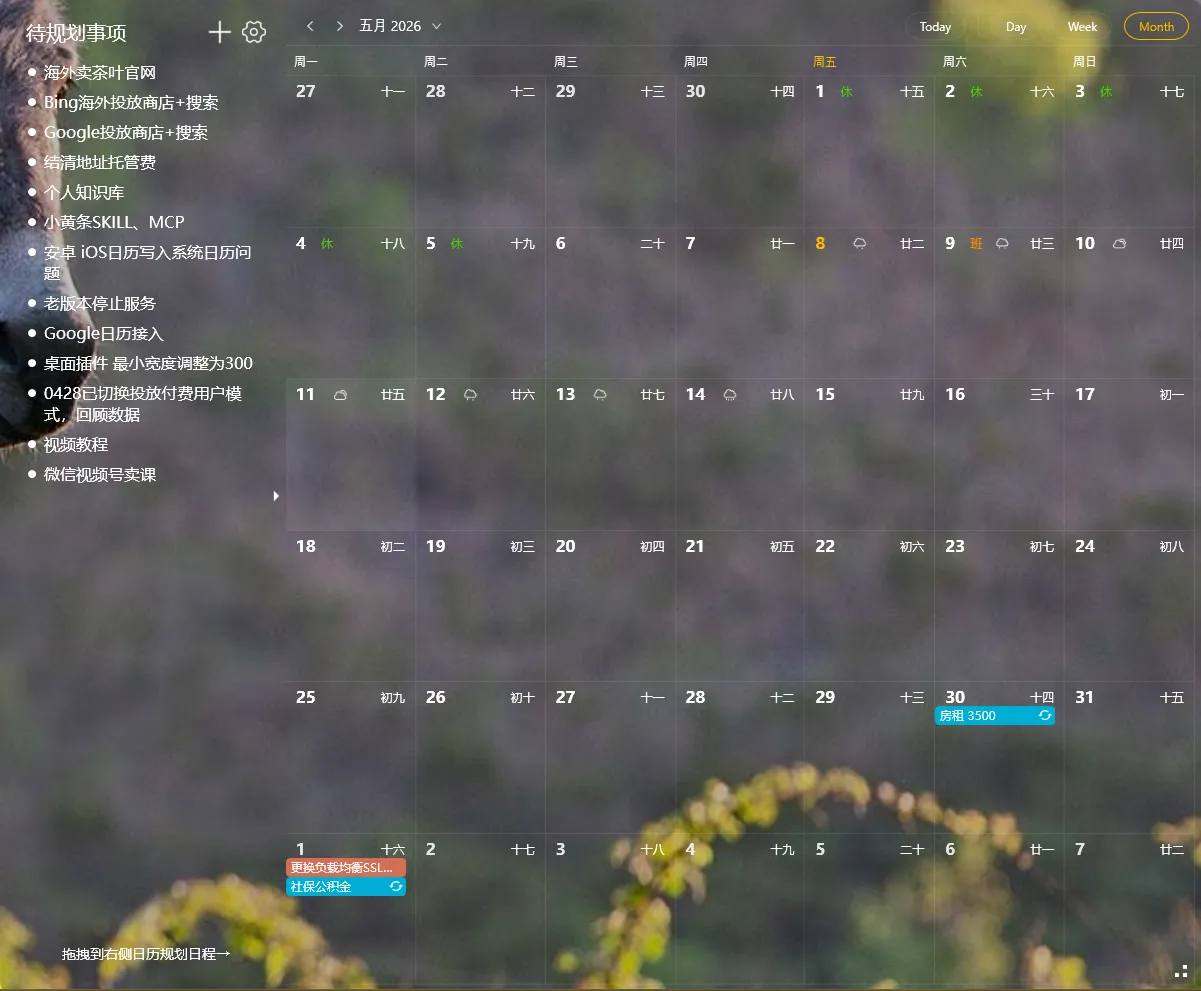
Calendars have month view, week view, and day view. But sometimes, you don’t need to look at grids.
Sometimes you just want to know: what do I have to do today?
That’s when a calendar list is more useful than a calendar view.
What Is a Calendar List
Section titled “What Is a Calendar List”A calendar list shows your schedule as a simple list. No grids, no monthly overview — just events lined up one after another, sorted by time.
YYNote’s desktop widget lets you switch between four modes: Todos, Sticky Notes, Schedule, and Countdown.
The Schedule List is the calendar list — all events with times, listed chronologically. Add an event, set a time, and it appears in the list.
Calendar List vs Calendar Views
Section titled “Calendar List vs Calendar Views”| Scenario | Month View | Week/Day View | Calendar List |
|---|---|---|---|
| See what’s happening this month | ✅ Overview at a glance | ❌ Too narrow | ❌ Too long |
| See today’s agenda | ❌ Cells too small | ✅ Timeline | ✅ Most direct |
| Check a specific event | Click to open | Click to open | Displayed inline |
| Drag to reschedule | ✅ Supported | ✅ Supported | ❌ Not supported |
| Quick overview of the day | ❌ Low info density | ❌ Low info density | ✅ High info density |
The desktop calendar doesn’t replace calendar views — it complements them. Need to reschedule? Switch to month view and drag. Need a quick overview of today? Switch to the schedule list and scan.
Three Views in One Desktop Calendar
Section titled “Three Views in One Desktop Calendar”YYNote’s desktop calendar widget offers three view modes:
Month View — See the whole month at a glance. Events show as dots or abbreviations in each date cell. Great for planning your month and checking how busy a week is.
Week View — Monday to Sunday in columns, events vertically arranged by time. Perfect for weekly work planning.
Day View — A full day timeline from morning to night, events arranged by hour. Best for high-density scheduling like ten meetings in one day.
Switch between all three views from the top-left corner of the same desktop calendar widget.
Desktop Calendar Shows Holidays
Section titled “Desktop Calendar Shows Holidays”YYNote’s desktop calendar includes built-in holiday data:
- New Year, Spring Festival, Qingming, Labor Day, Dragon Boat Festival, Mid-Autumn, National Day
- Make-up workdays (automatically marked in gray)
- Current date highlighted in green
Legal holidays are marked in red, make-up workdays in gray. No need to check your phone — glance at your desktop calendar.
Schedule List on the Desktop Widget
Section titled “Schedule List on the Desktop Widget”On YYNote’s desktop calendar widget, switch from calendar view to schedule list from the top-left corner. Your desktop instantly shows a list of your schedule.
The soonest upcoming event appears at the top. Complete it and it’s done — no need to open the app.
Who Is This For
Section titled “Who Is This For”Busy schedulers: Ten meetings a day? Month view is too cluttered, a list is clearest.
Todo-to-schedule users: YYNote lets you convert a todo into a schedule item. It automatically appears in the schedule list — no double-entry.
Anyone who doesn’t want to open an app: Desktop schedule list is visible at startup. No app opening required.
YYNote’s desktop calendar and schedule list are both transparently embedded on your wallpaper. Calendar view for the big picture, schedule list for details. Use them together and your daily planning becomes noticeably faster.
Try YYNote Desktop Calendar Free →
Learn more about calendar features.