
How Do I Put a To-Do List on My Desktop Home Screen? (Windows Guide)
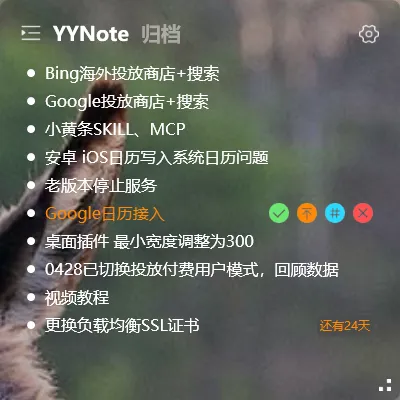
Quick answer: Install YYNote on your Windows PC, right-click the YYNote icon in the system tray, open App Settings, and set the number of Desktop Todo Lists you want. A transparent to-do list then appears directly on your desktop wallpaper — not in a floating window — so the moment you turn on the computer, your tasks are already on your home screen, ready to be worked through.
Why the desktop home screen is the right home for your tasks
Section titled “Why the desktop home screen is the right home for your tasks”If you have ever typed “how do I add a to do list to my desktop” into a search box, you already understand the problem: your tasks live in one app, your calendar in another, and your ideas in a third, each one forgotten click away. The desktop home screen is the single surface you are guaranteed to see every time you sit down at the computer — before you open a browser, before you launch anything. Putting the to-do list there deletes the “remember to open the app” step from your day entirely.
Surveys of office workers consistently find that a meaningful share of planned tasks are forgotten rather than deliberately dropped — not because people are careless, but because the reminder was not visible at the moment it mattered. A list that lives on your wallpaper gets checked passively, dozens of times a day. Industry surveys on productivity habits also suggest that people who keep a task list visible throughout the workday report fewer missed deadlines than those who check a list only when they remember to open it. Visibility, not discipline, does most of the work.
What YYNote actually puts on your desktop
Section titled “What YYNote actually puts on your desktop”YYNote is a Windows desktop app built around one simple idea: the information that matters most should live on the desktop itself. Its signature feature is a transparent to-do list embedded directly into the wallpaper — not a floating window hovering above your work, and not a panel you summon from the edge of the screen. The list renders as part of the desktop surface, sitting quietly behind your program windows without blocking your icons.
Because the list lives at the wallpaper level, a few things follow naturally:
- It never steals focus. It is part of the desktop, not an active window, so it cannot interrupt you mid-sentence.
- It does not cover your icons. The transparent rendering keeps every desktop shortcut clickable.
- It is there the instant the desktop loads — before you launch a single program — and it survives reboots, sleep, and monitor changes.
You can read through everything the app offers on the YYNote features page.
How do I put a to-do list on my desktop home screen? Step by step
Section titled “How do I put a to-do list on my desktop home screen? Step by step”The full setup takes about two minutes, and every desktop component is controlled from the same place.
Step 1: Install YYNote on your Windows PC
Section titled “Step 1: Install YYNote on your Windows PC”Download YYNote and run the installer. When installation finishes, the app starts automatically and a YYNote icon appears in the system tray next to the clock. If the tray collapses extra icons, click the little arrow to reveal it.
Step 2: Right-click the tray icon
Section titled “Step 2: Right-click the tray icon”Right-click the YYNote icon in the system tray and choose App Settings — the single control room for everything YYNote can place on your desktop.
Step 3: Set the number of Desktop Todo Lists
Section titled “Step 3: Set the number of Desktop Todo Lists”In App Settings, find the Desktop Todo List option and choose how many lists you want on your wallpaper — one for the workday, one for errands, one for a long-running project. The lists appear on your desktop home screen immediately.
Step 4: Add your tasks and tick them off
Section titled “Step 4: Add your tasks and tick them off”Click into the list on your wallpaper and start typing. Finish an item, tick the checkbox, and the list updates in place — no window to manage, nothing to minimize. The next time you boot the PC, the list is exactly where you left it.
That is the complete answer to “how do I create a to-do list on my desktop”: tray icon → App Settings → Desktop Todo List → done.
More than to-dos: the other desktop components
Section titled “More than to-dos: the other desktop components”The same App Settings panel also governs the rest of YYNote’s desktop components, all built on the same wallpaper-embedded philosophy:
- Desktop sticky-note lists — a note-style format for quick capture.
- Desktop calendar lists — dated tasks and schedule entries in the same transparent style.
- Weather and time components — glanceable information pinned to the desktop alongside your lists.
Because every component shares one settings entry point, arranging your desktop is a single visit to the tray menu. For a deeper walkthrough, see our desktop to-do list widget guide.
The list follows you to every device
Section titled “The list follows you to every device”YYNote syncs across all your devices. Add a task from your phone, and it shows up on the desktop home screen list by the time you sit back down; tick something off at the PC, and the phone view updates. Full multi-device sync means the wallpaper list is never a stale copy — it is the same list everywhere.
The to-do list is not showing — how to fix it
Section titled “The to-do list is not showing — how to fix it”Occasionally someone sets everything up and the wallpaper looks unchanged. There are two usual causes, both fixed in seconds:
- The Desktop Todo List count is set to 0. Open App Settings from the tray icon and confirm the number of Desktop Todo Lists is at least 1 — if it reads 0, no list is rendered. This is by far the most common cause.
- YYNote is not running. The wallpaper-level list is drawn by the app itself, so if YYNote has exited, the desktop quietly reverts to a plain wallpaper. Start YYNote again from the Start menu and the list returns exactly as configured.
If neither applies, right-click the tray icon again and confirm the component is enabled and the count is at least one — in practice, one of the two checks above resolves nearly every report.
Why a transparent, wallpaper-embedded list beats the old workarounds
Section titled “Why a transparent, wallpaper-embedded list beats the old workarounds”Before desktop-embedded lists, there were two popular workarounds, and both fail in well-known ways. Paper sticky notes on the monitor bezel still show up in polls of everyday computer users, but surveys of note-using workers surface the same complaints: worn-out notes, no space, and notes left behind on another machine — paper does not sync or tick checkboxes. A notes app kept open in a window gets buried the moment you maximize anything, and a floating window either covers your icons or hides. The wallpaper-embedded list avoids both traps: always visible without ever being on top, and synced so the list on your desk and the list in your pocket are the same object.
Q: How do I add a to-do list to my desktop without covering my icons?
A: Use YYNote’s Desktop Todo List. It renders transparently at the wallpaper level, so your desktop icons and files stay visible and clickable. Nothing is overlaid or blocked.
Q: Will the list still be on my home screen after I restart the computer?
A: Yes. The list is part of the desktop surface, and YYNote restores it at startup. You set it up once; you do not re-create it each morning.
Q: Can I put more than one to-do list on the desktop home screen?
A: Yes. In App Settings, set the number of Desktop Todo Lists to whatever you need — for example, separate lists for work, errands, and a long-running project.
Q: Does YYNote cost anything?
A: Registering gives you a 7-day free trial of membership, and an affordable membership keeps everything running afterward.
One list, on the screen you see first
Section titled “One list, on the screen you see first”The question “how do I put a to do list on my desktop home screen” is really a question about friction: you want your tasks on the one screen that is always in front of you, without adding another window to your day. YYNote’s answer is a transparent list embedded in the wallpaper — set once through the tray icon’s App Settings, visible every time the computer wakes, synced to every device. If you split your time between a desktop PC and a laptop, see the same setup for portable machines in how to put a to-do list on your laptop home screen.