
How to Get a To-Do List on Your Desktop in Windows (Windows 11 & 10)
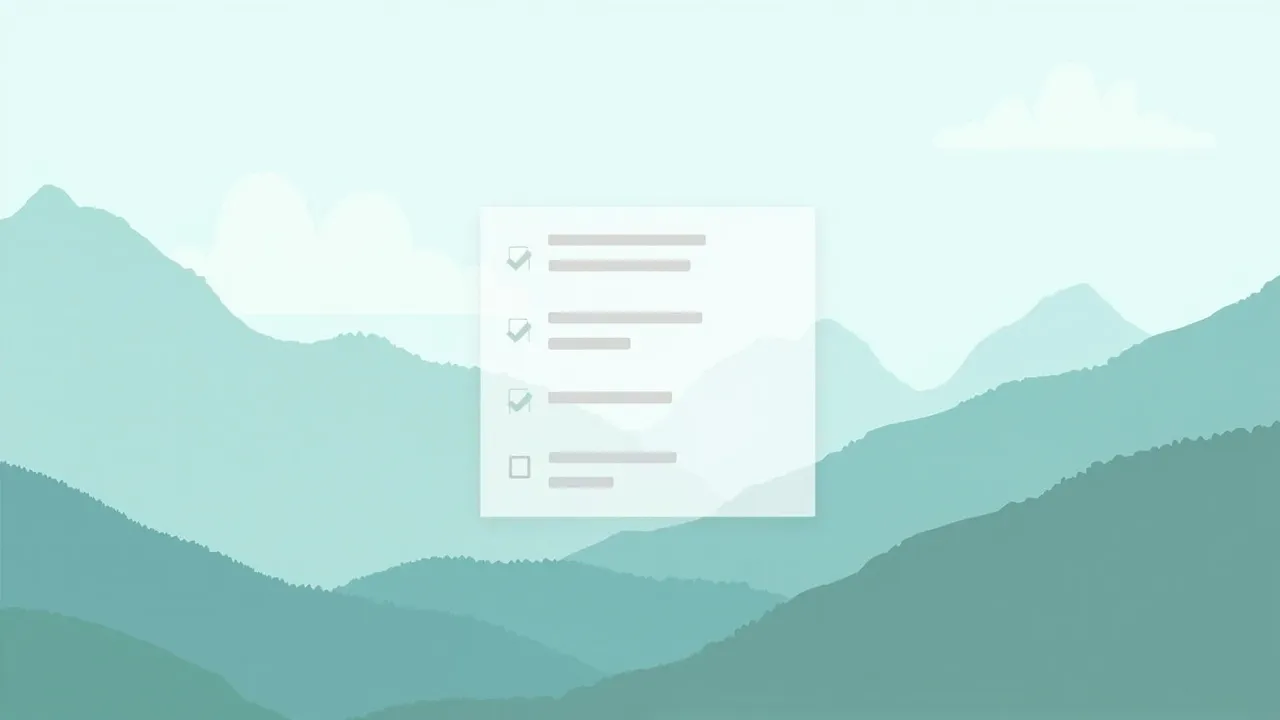
Quick answer: To get a to-do list on your desktop in Windows, install YYNote, right-click the YYNote icon in the system tray, open App Settings, and set the number of Desktop Todo Lists you want. A transparent list appears directly on your Windows 11 or Windows 10 wallpaper — not in a floating window — so your tasks are on screen the moment the desktop loads. No app to launch each morning, no extra window competing for space, and the same two-minute setup on both versions of Windows.
Windows gives you a taskbar, not a desktop list
Section titled “Windows gives you a taskbar, not a desktop list”If you typed “how to get a to do list on desktop windows” into a search box, you have already run into the gap. Windows 11 ships a widgets board — press Win+W — but it slides over your work as a separate layer: you summon it, read it, dismiss it, and it is gone until the next keystroke. Windows 10 removed desktop gadgets years ago and never replaced them. Sticky Notes exist on both, but they live in a window the next maximized app buries. Neither version puts a task list on the desktop surface itself — the one part of the screen you are guaranteed to see before you open anything.
Industry surveys of workplace productivity keep pointing the same way: a meaningful share of planned tasks slips through the day not because people are careless, but because the reminder was not visible at the moment it mattered. A list you have to remember to open competes with your memory instead of supporting it.
The fix is not another window. It is a list rendered at the wallpaper level, where nothing can bury it and nothing needs to launch it.
What a wallpaper-embedded to-do list means on Windows
Section titled “What a wallpaper-embedded to-do list means on Windows”YYNote is a Windows desktop to-do, memo, and calendar app built around one idea: the information that matters should live on the desktop itself. Its Desktop Todo List is drawn transparently onto the wallpaper layer — not a floating window hovering above your work, and not a panel summoned from the edge of the screen. It looks as if your tasks were printed onto the wallpaper itself:
- The list sits behind your program windows. It is part of the desktop surface, so it never steals focus mid-sentence.
- It stays out of the window machinery. No taskbar entry, no Alt-Tab appearance, no minimize-or-lose decision.
- Your desktop icons remain visible and clickable. The transparent rendering overlays nothing.
- It survives restarts and sign-out. YYNote restores the list when the desktop loads, so you set it up once, not every morning.
How to get a to-do list on your desktop in Windows: step by step
Section titled “How to get a to-do list on your desktop in Windows: step by step”Step 1: Install YYNote on your Windows PC
Section titled “Step 1: Install YYNote on your Windows PC”Download the Windows client and run the installer. When installation finishes, YYNote starts and its icon appears in the system tray next to the clock. On Windows 11, if you do not see it, click the small chevron in the corner of the taskbar to reveal hidden tray icons — or enable it under Settings > Personalization > Taskbar > Other system tray icons. Windows 10 works the same way through its tray overflow arrow.
Step 2: Right-click the tray icon and open App Settings
Section titled “Step 2: Right-click the tray icon and open App Settings”Right-click the YYNote icon in the system tray and choose App Settings. This one panel is the control room for everything YYNote can place on your desktop — lists, notes, and calendar.
Step 3: Set the number of Desktop Todo Lists
Section titled “Step 3: Set the number of Desktop Todo Lists”In App Settings, find the Desktop Todo List option and choose how many lists you want on the wallpaper. One list is enough for most people; a second or third is useful to separate the workday from errands or a long-running project. The lists appear on the desktop immediately — no reboot, no sign-out.
Step 4: Type your tasks straight onto the wallpaper
Section titled “Step 4: Type your tasks straight onto the wallpaper”Click into the list on your desktop and start typing. When an item is done, tick its checkbox and the list updates in place. There is no window to resize, nothing to minimize — the next time Windows loads, the list is on the wallpaper, exactly where you left it.
That is the complete answer to “how do I create a to do list on my desktop”: tray icon → App Settings → Desktop Todo Lists → done.
Windows 11 and Windows 10: what differs, what does not
Section titled “Windows 11 and Windows 10: what differs, what does not”The steps do not change between versions, but a few details are worth knowing:
- The tray behaves differently. Windows 11 tucks new tray icons behind the chevron by default, so do not assume the app is missing; Windows 10 shows the same overflow arrow near the clock. Everything after that right-click is identical.
- The built-in widget options differ. Windows 11 offers the Win+W widgets board and Windows 10 offers nothing comparable out of the box — but both are layers you summon, not surfaces you passively see. A wallpaper-embedded list is visible on both versions without a keystroke.
- The rendering never changes. On either version the list sits on the desktop layer, behind windows, out of Alt-Tab, restored at every boot.
Industry surveys on multitasking suggest that knowledge workers switch contexts many times per hour, and each switch carries a small cost in refocus time. A list you can read with a glance — the moment the desktop is exposed — turns a window switch into a passive check, and that difference compounds across an entire workday.
Beyond the list: sticky notes and a desktop calendar
Section titled “Beyond the list: sticky notes and a desktop calendar”The same App Settings panel also governs YYNote’s other desktop components, all built on the same wallpaper-embedded approach:
- Desktop sticky notes — a note-style surface for quick capture: a phone number, a snippet, an idea you would otherwise lose.
- Desktop calendar — month and date views in the same transparent style, so your schedule and your tasks share one planning surface. For a full walkthrough, see how to add a calendar widget to your Windows desktop.
Every component is configured from the one tray menu, so arranging the desktop is a single visit to App Settings. To go deeper on multi-list setups, see the desktop to-do list widget guide.
The list follows you to every device
Section titled “The list follows you to every device”YYNote syncs across all your devices on one account. Add a task from your phone, and it is on the desktop list by the time you sit back down; tick an item off at the PC, and every other device updates. Industry surveys of note-taking and task-app users consistently rank cross-device sync among the most-valued capabilities, because a list confined to one screen stops being trusted. With sync, the wallpaper list is not a copy of your tasks — it is the tasks.
Pricing and the free trial
Section titled “Pricing and the free trial”Registering a YYNote account is free and includes a 7-day membership trial, so you can set up the desktop list and live with it for a full week before paying anything. After the trial, membership runs 30 CNY for 3 months, 88 CNY for 1 year, 188 CNY for 3 years, or 288 CNY for 5 years.
Q: How do I add a to-do list to my desktop without using the Windows 11 widgets board?
A: The widgets board (Win+W) is a layer that opens over your work. For a list that lives on the desktop itself, install YYNote, right-click the tray icon, open App Settings, and set the Desktop Todo List quantity to at least 1 — the list renders into the wallpaper and needs no keystroke to view.
Q: Are the steps the same on Windows 10 and Windows 11?
A: Yes — install, right-click the tray icon, open App Settings, set the count. The single practical difference is that Windows 11 may hide the tray icon behind the chevron until you enable it in taskbar settings.
Q: I set everything up, but no list is on my desktop. What now?
A: Two checks fix nearly every case. Confirm the Desktop Todo List count in App Settings is at least 1 — if it reads 0, nothing renders. Then confirm YYNote is running — the app draws the wallpaper-level list itself — and start it from the Start menu if it has exited.
Q: Will the list cover my desktop icons or files?
A: No. The list renders transparently at the wallpaper level, so icons and files stay visible and clickable.
Put the desktop to work
Section titled “Put the desktop to work”The question “how to add to do list to desktop” is, at heart, a question about friction: you want your tasks on the surface Windows shows you before anything else, without adding another window to manage. YYNote’s answer is a transparent list embedded in the wallpaper — set once through App Settings, present at every boot on Windows 11 and Windows 10, synced to every device. For a broader take, see putting a to-do list on your desktop home screen.