
Calendar and Sticky Notes on One Desktop: Show Date, Events and Notes Together
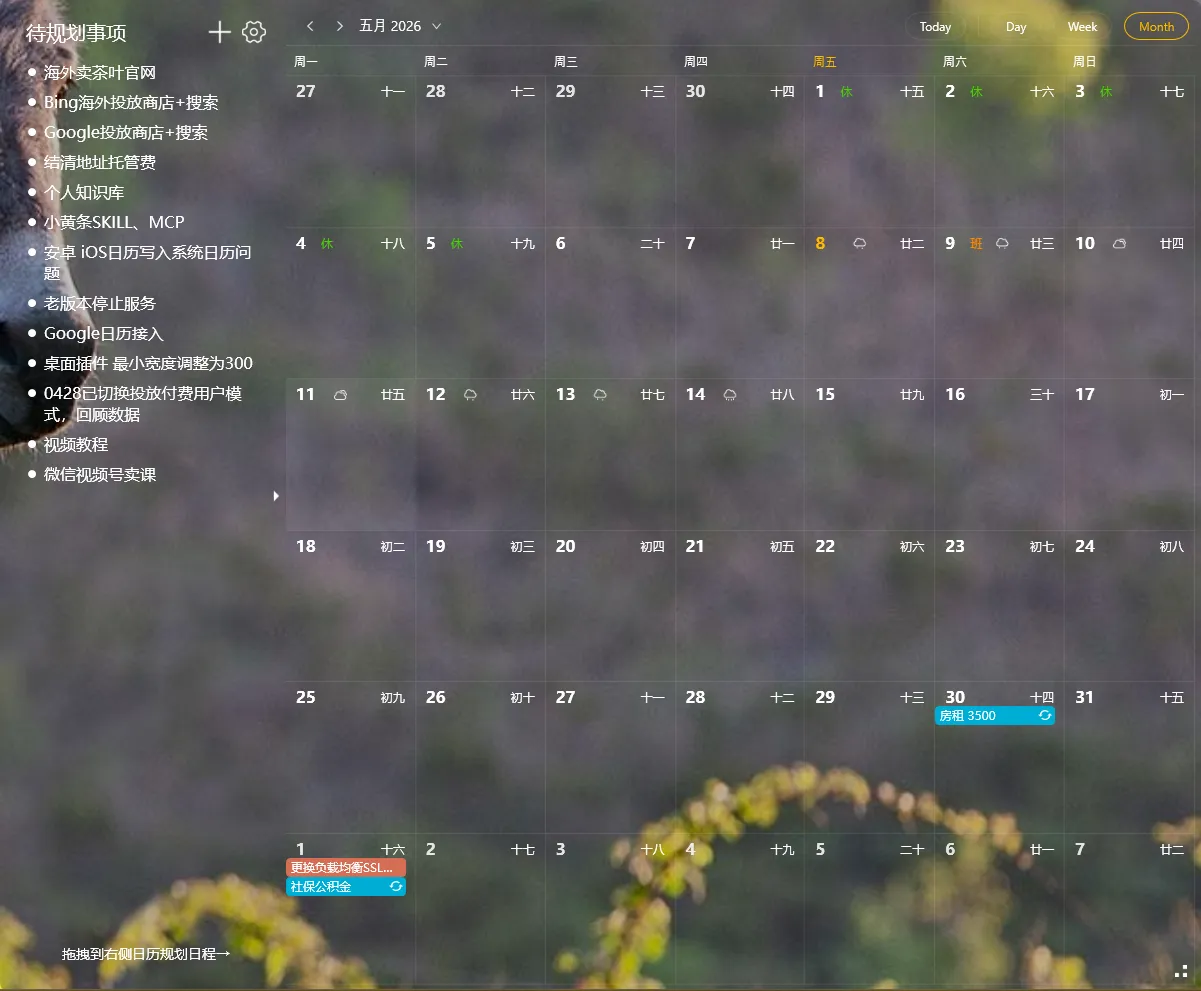
Quick answer: To show a calendar and sticky notes together on a Windows desktop, install YYNote, right-click its icon in the system tray, open App Settings, set the desktop sticky note count to 1 or more, and switch on the desktop calendar. Both render into the wallpaper layer itself, so the date, your schedule, and your notes share one surface — behind your open windows rather than on top of them — and the arrangement returns automatically at every login.
Why a calendar and sticky notes end up fighting each other
Section titled “Why a calendar and sticky notes end up fighting each other”If you searched for “calendar sticky notes desktop”, you were chasing one concrete annoyance: you want the date, your events, and a few notes in a single glance, and you want them out of the way while you work.
Ordinary sticky-note and calendar panels are drawn as ordinary windows, and that one design decision produces two opposite failures.
Failure mode one — the panel covers your work. A sticky note set to stay above other windows floats over your browser, your editor, your spreadsheet. You can read it, but you read it on top of your work, so you shove it into a corner or close it. A month-view calendar parked beside a maximized window eats the space you were reading in.
Failure mode two — your work covers the panel. A normal window goes underneath. The instant you maximize an app, or open a video call, a game, or a design tool in fullscreen, the notes and the calendar are no longer on screen. Still running, still intact — just invisible, which for a glance-based tool is the same thing as gone.
Window managers force a choice: always-on-top gives you the covering failure, ordinary behavior gives you the buried one. Both follow from putting information in a window at all.
Industry surveys of office workers consistently estimate that a meaningful slice of the working day goes into re-finding information that was on screen moments earlier — a date, a meeting time, a note.
The wallpaper layer removes the choice
Section titled “The wallpaper layer removes the choice”YYNote draws its components into the desktop wallpaper layer instead of into separate application windows. The calendar and the sticky notes are composited onto the desktop surface itself, underneath everything else.
- Nothing is covered. Your maximized windows, browser, and editor sit on top of the desktop exactly as before.
- Nothing is buried either. Press Win+D and the date, the schedule, and the notes are all still there, in the positions you dragged them to.
- Fullscreen apps take over cleanly. A fullscreen game, video call, or presentation replaces the desktop, and the widgets hide with it — automatically, with no setting to flip back later.
- They are not windows. No taskbar entry, no Alt-Tab entry, no minimize-or-lose decision, no resize handle on screen.
- They come back. With launch at startup enabled, the desktop layer is restored when Windows loads, so the arrangement survives reboots, sign-outs, and monitor changes.
Because the components live on the wallpaper, you also get a layout ordinary windows cannot: several surfaces side by side, each readable, none fighting a program for pixels.
Industry surveys of workplace task management consistently find that visible reminders are acted on more often than reminders stored inside an app, and that the deciding factor is how many actions it takes to read them.
Set the calendar and the notes on the same desktop
Section titled “Set the calendar and the notes on the same desktop”Step 1: install the Windows client. Download YYNote from the official site, run the installer, and register with your phone number. A new account includes a 7-day membership trial with every feature switched on.
Step 2: open App Settings from the system tray. YYNote’s icon sits next to the clock at the bottom-right of the taskbar; on Windows 11 it may be tucked behind the small chevron. Right-click it and choose App Settings — the panel that controls every desktop component.
Step 3: set the desktop sticky note count. In App Settings, find the desktop sticky note list option and set the count to the number of note surfaces you want — one for today’s shortlist and one for reference material works well. Setting the count to 0 turns the notes off.
Step 4: switch on the desktop calendar. In the same panel, the calendar widget has its own on/off switch. Turn it on and the calendar renders onto the wallpaper immediately — no restart, no sign-out.
Step 5: pick the view and drag both into place. The calendar supports month, week, and day views: month for the shape of the month, day for a timeline of today’s hours. Drag it to a corner, drag the notes beside it, and tune the transparency for legibility.
Step 6: turn on launch at startup. In the same settings area, switch on start-with-Windows, and the arrangement is restored after every login.
A layout that works: month calendar, today’s note, countdown
Section titled “A layout that works: month calendar, today’s note, countdown”Three surfaces answer three different questions at once.
The month calendar answers “when is it, and how much time is left.” Month, week, and day views; holidays and lunar dates marked on the cells; synced events from WeCom, DingTalk, Feishu, Microsoft, Exchange, and CalDAV in one view. Drag a plan onto a date and it becomes a scheduled event with its time filled in.
The sticky note answers “what do I do today.” A note has a title and multi-line body: it holds today’s shortlist — three to five items — while a second note holds the fragments you would otherwise lose: a server address, a version number, the wording you need to send. Notes can be tagged to stay sorted, and finished ones move to an archive.
The countdown answers “how far away is it.” A countdown entry sits on the desktop showing the days remaining, and the countdown list can also surface the next few upcoming holidays. A vague intention becomes a number.
Together the three cover a loop a calendar alone cannot: the calendar says when the meeting is, the note says what to bring, and the countdown says how many days remain to prepare it. Industry surveys on calendar usage consistently estimate that people check the date and their schedule many times a day, and every check that requires opening an app is wasted time.
The same desktop on every device
Section titled “The same desktop on every device”Everything above syncs through your account across Windows, Android, iOS, and HarmonyOS. Add an event on your phone in the morning and it is on the desktop calendar when you sit down; tick something off at the PC and the phone reflects it. The desktop is not a copy of your planning — it is one account on the surface you look at most.
Industry surveys of desktop organization report that people keep a system running longer when the visible surface stays uncluttered — so a good arrangement is a calm one: a calendar in a corner and two notes.
What it costs
Section titled “What it costs”YYNote downloads free, registration is free, and every new account starts with a 7-day membership trial. Paid membership runs ¥30 for 3 months, ¥88 for 1 year, ¥188 for 3 years, and ¥288 for 5 years — every plan carries the same features, and membership follows your account across devices.
Q: Will the calendar and the sticky notes cover my windows?
A: No. Both are drawn into the wallpaper layer beneath your application windows, so nothing on screen is covered and no taskbar or Alt-Tab clutter is added.
Q: What happens when I open a fullscreen game or a video call?
A: The fullscreen app replaces the desktop, and the calendar and notes hide with it automatically. Press Win+D afterwards and they return exactly where you left them.
Q: Can I show several sticky notes together with the calendar?
A: Yes. Set the desktop sticky note count in App Settings, drag each note to its own position, and adjust its transparency individually.
Q: Do the notes and the calendar follow me to my phone?
A: Yes. A single account syncs across Windows, Android, iOS, and HarmonyOS, so a note written at your desk is on your phone, and an event added on the phone appears on the desktop calendar.
One surface for the date, the plan, and the notes
Section titled “One surface for the date, the plan, and the notes”The request behind “calendar sticky notes desktop” is a layout request: date, events, and notes in a single glance, without adding a third floating panel to a screen that already carries too many. YYNote answers it in the wallpaper layer — a transparent calendar, sticky notes, and a countdown, positioned once, restored at every login, synced across devices.
For a closer look at widget types, views, and placement, see the desktop to-do list widget complete guide. For the same treatment on another platform, the to-do list on a Mac desktop guide covers that setup, and putting a to-do list on a Windows desktop walks through the Windows list.