
How to Put a To-Do List on Your Mac Desktop
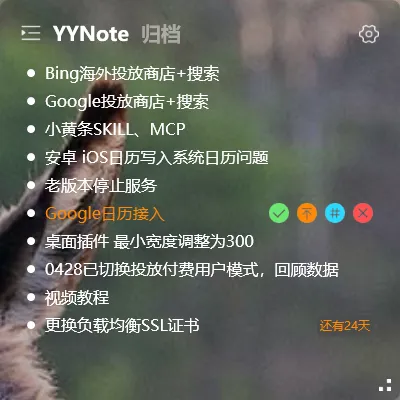
Quick answer: Install the YYNote app for macOS, sign in with a free account, and switch on the Desktop Todo widget. The widget renders directly on your wallpaper, so your tasks stay on the Mac desktop all day — visible behind every window, with no app switching and no extra clicks. Setup takes about two minutes, and the same list syncs in real time to your iPhone and iPad.
Why put a to-do list on your Mac desktop?
Section titled “Why put a to-do list on your Mac desktop?”A to-do list only works if you actually see it. When your tasks live inside an app, they hide behind a dock icon until you remember to open the app — and remembering is exactly the part that fails on busy days. Industry surveys consistently estimate that knowledge workers spend a significant slice of the workday re-orienting themselves after switching between apps and windows, and every “where was my list?” moment is a small tax on your focus.
Putting the list on the desktop itself removes that tax:
- Zero-friction visibility. Your tasks sit on the wallpaper layer. Glance past your windows, and there they are — even with a browser, an editor, or a video call filling the screen.
- Fewer dropped tasks. A list you see dozens of times a day is a list you actually keep up to date. Industry surveys consistently estimate that a large share of written to-dos are completed the same day they are captured, and steady visibility is a big part of that pattern.
- A calmer workspace. Instead of keeping a browser tab, a notes app, and a reminders app open “just in case,” one quiet widget on the wallpaper replaces the clutter.
It is the same idea that made home-screen widgets popular on phones, applied to the place where you actually do your work: the Mac desktop. Your wallpaper is the one surface you look at all day, and it is usually doing nothing at all.
What macOS gives you out of the box — and where it falls short
Section titled “What macOS gives you out of the box — and where it falls short”macOS ships with a few tools that get you part of the way there:
- Stickies puts colored note windows on your desktop, and they survive restarts. But Stickies has no reminders, no due dates, no checklists, and no sync to iPhone — a sticky note on your Mac stays on your Mac. Because they are ordinary floating windows, they also sit on top of your work instead of living quietly in the wallpaper.
- Notes and Reminders are capable apps, but they live in windows and tabs, not on the desktop. Checking off a task means switching away from what you were doing, which is precisely the friction a desktop list is meant to remove.
- macOS desktop widgets (available since Sonoma) can display Reminders lists, though the built-in options are limited in layout and behavior, and some configurations require a paired iPhone.
None of these tools are bad — they are simply built as apps first and desktop tools second. If you want a real task list embedded in your wallpaper, with reminders, checkboxes, and cross-device sync, a dedicated widget app is the practical route. Industry surveys consistently estimate that a growing share of Mac users keep at least one third-party productivity widget on the desktop, and to-do widgets are among the categories seeing the strongest growth.
How to put a to-do list on your Mac desktop with YYNote
Section titled “How to put a to-do list on your Mac desktop with YYNote”YYNote is a to-do, sticky-note, and calendar widget app with a native macOS client, plus apps for Windows, iOS, Android, and HarmonyOS that sync in real time across every device. Here is the complete setup:
Step 1: Install the Mac app
Section titled “Step 1: Install the Mac app”Download YYNote for macOS from the official site (www.yynote.net) and drag it into your Applications folder. Because it is a native client rather than a wrapped web app, widgets, launch-at-login, and system integration all behave the way you expect Mac software to behave.
Step 2: Create a free account and sign in
Section titled “Step 2: Create a free account and sign in”Register with an email address and sign in inside the app. Every new registration includes a 7-day membership trial (SEM ad channels excluded), so you can try the full widget set while you decide. No credit card is needed to start.
Step 3: Enable the Desktop Todo widget
Section titled “Step 3: Enable the Desktop Todo widget”Open YYNote’s widget settings and switch on the Desktop Todo widget. The widget is drawn on the wallpaper layer — it is not a floating window — so it sits behind your application windows, never blocks your cursor or clicks, and stays put across reboots and Mission Control gestures.
Step 4: Drag it exactly where you want it
Section titled “Step 4: Drag it exactly where you want it”Click and drag the widget to position it anywhere on the desktop: beside the dock, under the menu bar, or in the corner next to your files. Click the widget to add a task; click again to check one off. Because the list lives on the wallpaper, it is fully visible whenever you show the desktop and quietly present in the background the rest of the time.
While you are in settings, take a look at the other desktop components:
- Transparent sticky notes — quick-capture notes with an adjustable transparent background, so they read like writing on the wallpaper itself.
- Desktop calendar widget — month and date at a glance, no Calendar app required.
- Weather and time widget — current conditions and a clock on the desktop you stare at all day.
Together, they turn the desktop from the place where windows pile up into a dashboard you actually use.
Keep the same list on your iPhone and iPad
Section titled “Keep the same list on your iPhone and iPad”Because YYNote syncs in real time across macOS, iOS, Android, Windows, and HarmonyOS, the to-do list on your Mac desktop is the same list that appears on your iPhone and iPad. Three everyday patterns this unlocks:
- Capture anywhere, see it on the Mac. Add a task from your phone in the kitchen; it shows up on your desktop widget seconds later.
- Plan at your desk, execute on the go. Write the day’s list on the big screen in the morning, then tick items off from your phone all afternoon.
- One system instead of five. Tasks, sticky notes, and calendar entries live in a single account instead of being scattered across platforms and apps.
If you split your time between machines, you may also find our guides on pinning a to-do list on a laptop and putting a to-do list on your desktop home screen useful. For a deeper walkthrough of widget types, layouts, and placement ideas, the desktop to-do list widget complete guide covers everything in detail.
What it costs
Section titled “What it costs”Downloading YYNote and creating an account are free, and every new registration comes with a 7-day membership trial (SEM channels excluded). You can also extend membership without paying anything: invite a friend to register, and you each receive 9 days of membership, up to a limit of 90 days earned through invitations.
If you prefer to subscribe directly, the plans are: 3 months for ¥30, 1 year for ¥88, 3 years for ¥188, and 5 years for ¥288. All platforms and real-time sync are included with membership.
Does the Desktop Todo widget stay visible when other apps are open?
Yes. The widget renders on the wallpaper layer, so it sits behind your application windows rather than floating over them. Use the show-desktop gesture and the list is right there; the rest of the time it remains a quiet presence behind your work.
Is YYNote free to use?
Downloading and registering are free, and each new account includes a 7-day membership trial (not available through SEM ad channels). Inviting friends earns both of you 9 days of membership each, up to 90 days. Paid subscriptions start at ¥30 for 3 months.
Can I keep using Stickies alongside YYNote?
Yes — the two do not conflict. Plenty of people keep Stickies for throwaway scribbles and use YYNote’s Desktop Todo widget and transparent sticky notes for anything that needs reminders, checkboxes, or sync to iPhone.
Does YYNote work on Windows as well as Mac?
Yes. YYNote ships native clients for Windows, macOS, iOS, Android, and HarmonyOS, with real-time sync across all of them, so your desktop to-do list is not locked to your Mac.