
How to Add a Sticky Note to Your Desktop? Transparent Widget Guide
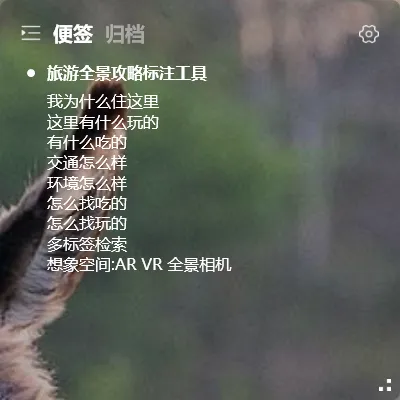
Sticky notes are one of the most commonly used tools at work. Paper notes get lost easily and can only be used on physical desks. Putting notes on your computer desktop where you can always see them is a much more practical approach.
What is a Desktop Sticky Note
Section titled “What is a Desktop Sticky Note”A desktop sticky note displays your note content as a transparent floating widget embedded directly on the Windows desktop. It’s not a tab inside an app — it’s genuinely “stuck” on your desktop, coexisting with your wallpaper.
Adding a Desktop Sticky Note Widget
Section titled “Adding a Desktop Sticky Note Widget”- Right-click the YYNote tray icon in the system tray (bottom-right), or click the settings icon on the top-right of the dashboard
- Go to “App Settings”
- Find “Desktop Sticky Note List” and set the quantity (set to 1 or more)
- The widget automatically appears on your desktop
Transparent Background, Customizable Style
Section titled “Transparent Background, Customizable Style”Desktop sticky notes support extensive style customization:
- Opacity: 0% to 100% — at fully transparent, only text is visible
- Background Color: Choose eye-friendly light colors or brand colors
- Font Size: Adjust based on content length
- Text Color: Customize font color
Settings path: Desktop sticky note widget top-right → Settings → Widget Settings
Note: Desktop plugins use a hover toolbar instead of right-click menus for settings and operations.
What to Record
Section titled “What to Record”- Shopping lists: Things to grab on the way home — put a note in the corner of your screen
- Meeting notes: Jot down key takeaways during meetings so nothing gets lost
- Spur-of-the-moment ideas: Capture random thoughts before they disappear in WeChat
- Temporary reminders: Short content worth noting but not urgent enough for a reminder
Difference Between Notes and Todos
Section titled “Difference Between Notes and Todos”Sticky notes have no time attributes — they don’t support reminders or recurrence. They’re for content that “doesn’t need to be done at a specific time.” Todos have reminders, recurrence, and due dates — they’re for tasks that need execution.
Simply put: notes are for “recording,” todos are for “doing.”
Final Thoughts
Section titled “Final Thoughts”No flashy new features, just continuous refinement. The essence of a sticky note is “always visible,” and a desktop transparent widget makes this natural.