
How to Use the Weather Widget? Desktop Clock & Weather Display
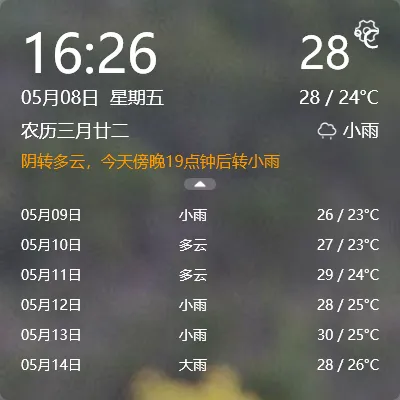
YYNote is more than just a todo tool. Its desktop weather widget can display time and weather simultaneously.
What’s Displayed
Section titled “What’s Displayed”The desktop weather widget shows:
| Content | Description |
|---|---|
| Digital Clock | Current time, updates in real-time |
| Date | Year, month, day |
| Lunar Calendar | Current lunar date |
| Day of Week | Current weekday |
| Real-time Weather | Current temperature and conditions |
| 7-Day Forecast | Weather forecast for the next 7 days |
| Extreme Weather Alerts | Automatic push notifications for typhoons, heavy rain, etc. |
How to Add It to Your Desktop
Section titled “How to Add It to Your Desktop”- Right-click the YYNote tray icon in the system notification area (bottom-right), or click the settings icon in the dashboard’s top-right corner
- Go to “App Settings”
- Find “Desktop Weather & Time” and enable the plugin
- A weather & time overlay will automatically appear in the top-left corner of your desktop
Setting Your Location
Section titled “Setting Your Location”Weather data is obtained automatically via the system API based on your location. If the weather isn’t displaying correctly, check that YYNote has permission to access your location.
If it still can’t retrieve the data after granting permission, you can set it manually: Settings → Desktop Weather → enter a city name → select the matching result.
Who Is It For
Section titled “Who Is It For”- People who want to check tomorrow’s weather before heading out (no need to open a weather app)
- People who need to see both time and date at a glance (desktop clock is more intuitive than the taskbar)
- People working from home who want to stay aware of weather changes (like whether it’s going to rain)
Platform Support
Section titled “Platform Support”The desktop weather widget is Windows only. On Android, iOS, and HarmonyOS, you can view weather information inside the YYNote app, but desktop transparent plugins are not supported due to system limitations.
Final Thoughts
Section titled “Final Thoughts”No flashy new features, just continuous refinement. Put weather and time on your desktop — glance at it when needed, let it sit quietly when not.