
Move Weather Time to Desktop - Weather time on wallpaper. Windows 10+
You Check Weather on Your Phone — How Do You Get It on Your Desktop?
Section titled “You Check Weather on Your Phone — How Do You Get It on Your Desktop?”You check the weather on your phone every morning. You open the weather app, wait for it to load, check the forecast, and then put your phone away — only to wonder an hour later if you need an umbrella. You check again. It’s a habit that interrupts your flow, fragments your attention, and makes you reach for your phone dozens of times a day.
The problem is simple: weather information is on your phone, but your work happens on your computer.
YYNote solves this by putting weather and time directly on your desktop — visible at all times, updating automatically. Here’s how to get real-time weather on your computer screen.
Why Desktop Weather Beats Phone Weather Apps
Section titled “Why Desktop Weather Beats Phone Weather Apps”Checking weather on your phone has a friction problem. You pick up your phone, unlock it, open the weather app, and wait for it to load. That’s four steps just to see if you need an umbrella. You do this multiple times a day.
Taskbar clocks have a limitation problem. Your taskbar shows the time, but nothing else. You can’t see the weather, the lunar date, or any of the other context that helps you plan your day.
Weather apps have an interruption problem. You have to open them, navigate past ads, and集中精神 to find the information you need. By the time you get the weather, you’ve forgotten why you wanted it.
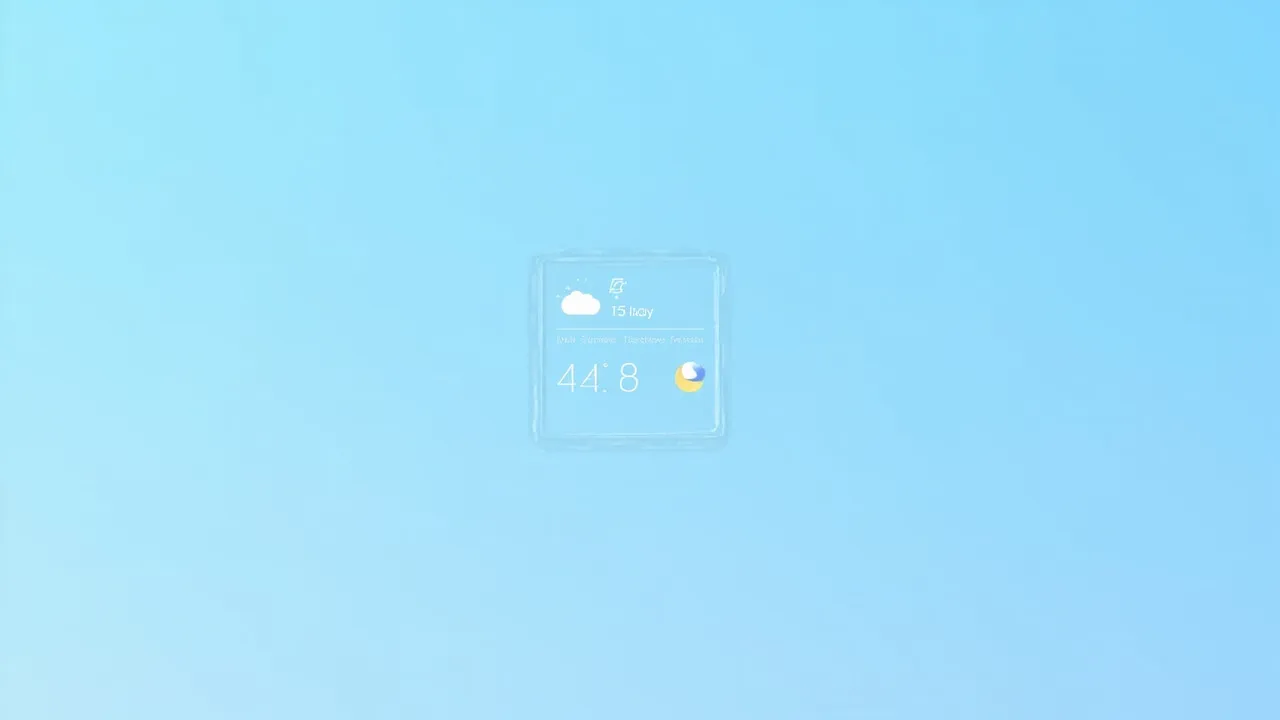
YYNote puts weather on your wallpaper, where it belongs. Real-time weather and time appear as a transparent floating panel directly on your desktop. A glance tells you everything — temperature, conditions, forecast — without reaching for anything.
Real-time updates and official weather alerts keep you informed of sudden changes. Never get caught in unexpected rain without an umbrella.
Four-in-one panel displays weather, time, Gregorian calendar, and lunar date all in one compact widget. Get complete context without multiple apps or windows.
Half-height and full-height 6-day forecast options let you choose how much detail you want. A compact view for minimalists, or a full forecast for planning ahead.
Auto-location automatically detects your city and keeps your weather accurate as you travel. No manual configuration needed.
Three Steps to Put Weather on Your Desktop
Section titled “Three Steps to Put Weather on Your Desktop”Step 1: Download and install YYNote
Visit the official website and download the Windows client. Run the installer and follow the prompts. Launch the application and create an account using your phone number. Your data syncs automatically to the cloud.
Step 2: Enable Desktop Weather
Right-click the YYNote tray icon in your system tray. Select “App Settings.” Find the “Desktop Weather” toggle and turn it ON. The weather widget will appear on your desktop. Note: This feature is only available on Windows 10 and above.
Step 3: Expand the Forecast
Hover over the weather widget to reveal the expand button. Click it to see the full 6-day forecast. Adjust the widget position by dragging it to your preferred location on the desktop.
Download YYNote | Put Todo List on Desktop | Put Sticky Note List on Desktop | Put Calendar List on Desktop