
How to Put a To-Do List on Your Desktop: Always-Visible Todo Widget
You put your tasks in a phone app. Then you sit at your computer for six hours. You never look at your phone. End of day, you check it — the thing you should’ve done this morning is still sitting there, unchecked.
That’s the “phone-write, desktop-forget” problem. Your phone and your computer don’t talk to each other. The fix? Put your to-do list on your desktop.
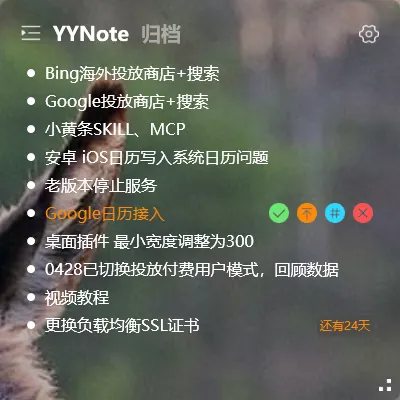
A desktop to-do list widget keeps your tasks visible on your screen — a transparent floating panel that blends into your wallpaper. No app to open, no window to Alt-Tab to. You see your tasks the moment you look at your desktop.
YYNote Desktop Todo Widget Features
Section titled “YYNote Desktop Todo Widget Features”Always Visible, Transparent Overlay
YYNote’s desktop to-do appears as a transparent overlay directly on your desktop wallpaper. Not a popup, not a floating window — text embedded in your wallpaper.
Multi-Device Sync
Win/Android/iOS/HarmonyOS full sync. Tasks written on your phone appear on your desktop automatically.
Tag Organization
Supports lists + labels + pinning. Manageable even with many tasks.
Plugin Switching
The desktop plugin top-left corner offers one-click switching — to-do / notes / calendar / weather, all in one plugin.
The Problem with Traditional Todo Apps
Section titled “The Problem with Traditional Todo Apps”Many todo tools are feature-rich but have one fatal flaw: you have to open them to see them.
You’re working in a browser — the todo window is buried. You go full-screen on a document — your todo list disappears entirely. Powerful features mean nothing if you never see them.
A desktop todo plugin removes every barrier: nothing to open, no new habit to build. You see your tasks the moment you look at your screen.
How to Add a Todo List Widget to Your Desktop: 4 Steps
Section titled “How to Add a Todo List Widget to Your Desktop: 4 Steps”Step 1: Download and install
Go to the YYNote website and download the Windows client. Double-click to install.
Step 2: Sign up and log in
Open YYNote, register with your phone number. Once logged in, your data syncs to the cloud automatically.
Step 3: Enable the desktop widget
Click the settings icon in the main panel → Desktop Widgets → Enable “To-Do List” widget. It appears on your desktop as a transparent panel.
Step 4: Switch to the to-do view
The widget has a tab switcher in the top-left corner. Click the “To-Do” tab — your to-do list is now on your desktop.
Double-click empty space on the desktop widget to create a new task — just like scribbling on a sticky note.
Who This Is For
Section titled “Who This Is For”- Office workers: You spend 6–8 hours at your computer. Your phone’s to-do list is irrelevant. Desktop to-do is essential.
- Students: You jot down assignments on your phone during class, then write them on your computer at home. Multi-device sync puts phone-captured tasks on your desktop automatically.
- Freelancers: No colleagues to remind you. An always-visible desktop to-do list is your virtual project manager.
Final Thought
Section titled “Final Thought”The point of a to-do tool isn’t how many features it has — it’s whether you actually use it. A desktop to-do widget removes every barrier: nothing to open, no new habit to build. You see your tasks the moment you look at your screen.
If you keep forgetting to check your to-do list, the tool might not be the problem — it might just not be on your desktop.
Download YYNote | How to Put Sticky Notes on Desktop | How to Put a Calendar on Desktop