
YYNote Desktop Widget System: A Guide to the 4 Desktop Widgets
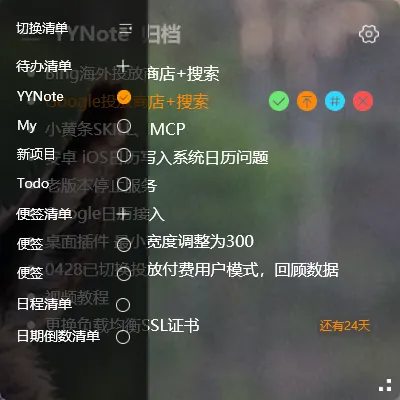
If you just installed YYNote and see several things appear on your desktop at once — that’s not a bug. That’s the widget system. Four independent panels, each with a specific job.
Here’s what each widget does, how to control them, and how to set them up for your workflow.
The four widgets
Section titled “The four widgets”| Widget | What it does | In one sentence |
|---|---|---|
| To-do / Notes | To-do list, sticky notes, schedule, countdown | Your main work panel — four views in one |
| Calendar | Month/week/day views | A desktop calendar you can drag around |
| Weather | Time, date, lunar calendar, weather, 7-day forecast | Clock and weather in one panel |
| Weather alerts | Typhoon, storm alerts | Auto-popup, invisible the rest of the time |
To-do / Notes widget: your main work panel
Section titled “To-do / Notes widget: your main work panel”This is YYNote’s primary widget. It sits on your desktop as a transparent panel with four switchable views:
- To-do: today’s tasks — categories, tags, pinning supported
- Notes: freeform sticky notes, no done/undone state
- Schedule: to-dos with due dates
- Countdown: days remaining until important dates
Switch views by clicking the view name in the top-left corner of the widget.
You can use just one view (to-do only, for example), or all four. Each view manages its own content independently.
Calendar widget: a desktop monthly calendar
Section titled “Calendar widget: a desktop monthly calendar”The calendar is a standalone widget, separate from the to-do panel. Drag it anywhere on your desktop.
Three views: month (default), week, day. Toggle via the button in the top-right corner.
The calendar links to your to-dos: dated tasks show as dots on calendar dates. Click a date to see that day’s tasks in the main panel.
Weather widget: time and weather at a glance
Section titled “Weather widget: time and weather at a glance”Shows: digital clock, date, lunar date, day of week, current weather, 7-day forecast.
Location is auto-detected via system location services. If that fails, set your city manually.
Requires location permission to work.
Weather alert widget: the silent safety net
Section titled “Weather alert widget: the silent safety net”Normally invisible. Pops up when气象 authorities issue typhoon, storm, or other extreme weather alerts. No need for a separate weather alert app.
How to toggle widgets
Section titled “How to toggle widgets”Two ways:
- Right-click the YYNote tray icon → “App Settings” → find the widget toggle
- Click the settings icon on the to-do widget → “App Settings”
The calendar and weather widgets each have their own on/off toggle. The to-do/notes widget is one toggle — use the view count selector inside it to control which of the four views are shown.
Three common setups
Section titled “Three common setups”Minimal: To-do widget only. Cleanest desktop.
Standard: To-do + Calendar + Weather. Everything you need for daily work.
Full: All four widgets, all four to-do views enabled. Your entire desktop is your workspace.
Final thought
Section titled “Final thought”The design principle is simple: each widget is independent. Turn on what you need, turn off what you don’t. Drag them where you want them. It’s not one big window — it’s a set of lightweight modules you arrange to fit your workflow.