
How to Use Desktop Calendar? YYNote Widget with Month/Week/Day Views
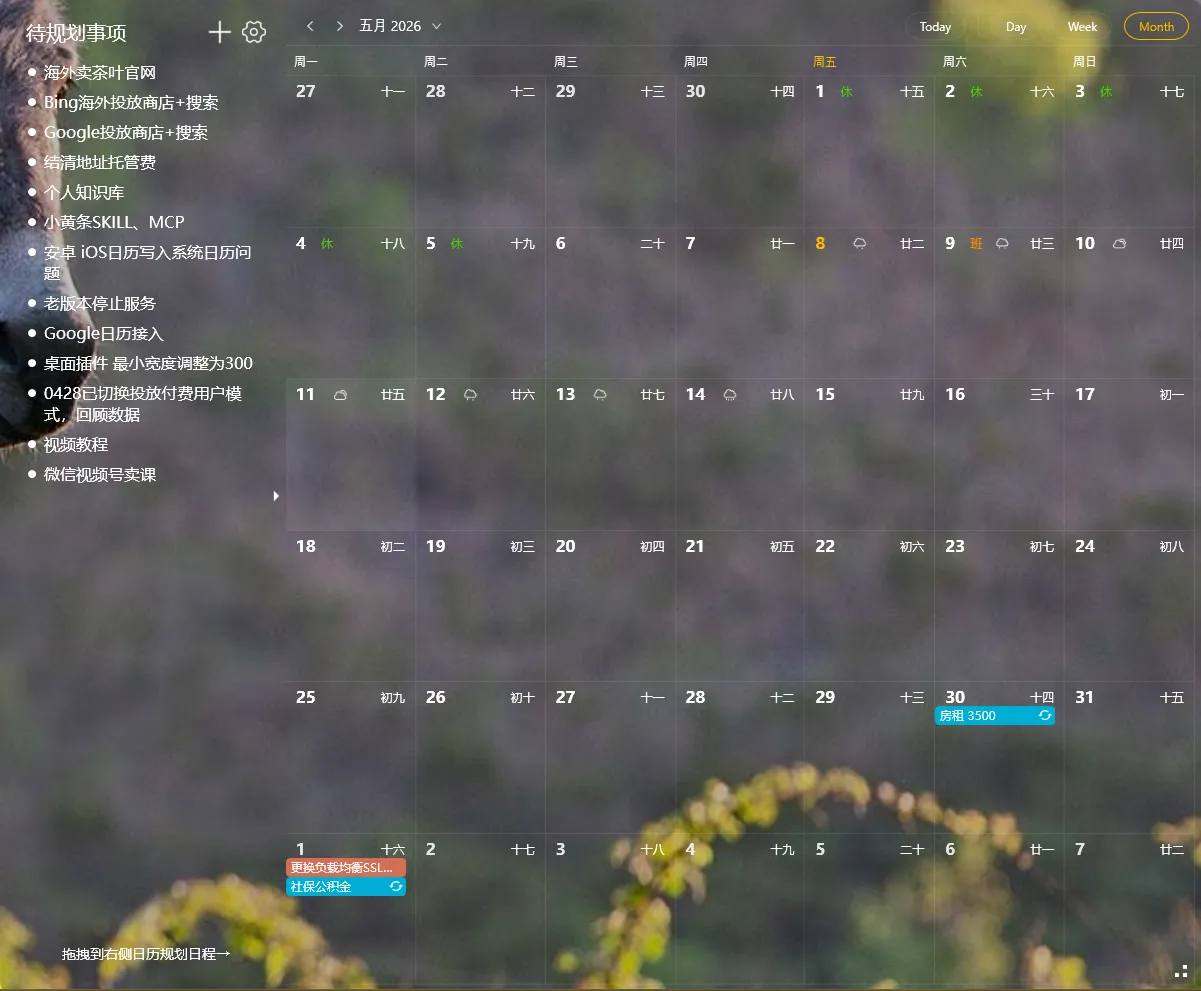
At work, it’s common to find that the afternoon meeting conflicts with another, or that by the weekend, your schedule is completely booked.
The desktop calendar puts your schedule directly on the desktop, letting you see your time distribution at any moment.
Adding the Desktop Calendar Widget
Section titled “Adding the Desktop Calendar Widget”- Right-click the YYNote tray icon in the system tray, or click the settings icon on the top-right of the dashboard
- Go to “App Settings”
- Find “Desktop Calendar List” and set the quantity
- The widget automatically appears on your desktop
Three Views (PC)
Section titled “Three Views (PC)”| View | Best For |
|---|---|
| Month | Monthly overview — see key dates at a glance |
| Week | Planning the work week — see daily time distribution |
| Day | Detailed daily schedule — time broken down by hour |
On the PC client, you also have a schedule list alongside the calendar views.
On the App (Android/iOS/HarmonyOS), the calendar supports month and week views in Tab plus a schedule list widget (no dedicated day view).
Switching views: Click the calendar widget top-right → Select view type.
Drag Todos Into Calendar
Section titled “Drag Todos Into Calendar”This is one of the most practical features.
On the desktop calendar widget, expand the todo list on the left, find the task you want to schedule, and drag it to a specific date and time on the calendar. Release — the system automatically sets start and end times, converting the todo into a scheduled event that appears in both your todo list and calendar.
This “todo-to-schedule” conversion is a Windows desktop widget-exclusive feature.
Display Holidays, Lunar Calendar & Weather
Section titled “Display Holidays, Lunar Calendar & Weather”The desktop calendar can overlay:
- Public holidays (with workday markings)
- Lunar calendar dates
- 7-day weather forecast
Enable: Expand the todo list on the left side of the calendar → Click settings → Widget settings → Check desired items.
Sync External Calendars
Section titled “Sync External Calendars”YYNote supports syncing calendars from WeCom (WeChat Work), DingTalk, Feishu (Lark), QQ Mail, and other CalDAV-compatible calendars. View all your schedules from various channels on one desktop calendar.
Setup path: Settings → Calendar Sync → Add → Select calendar type.
Final Thoughts
Section titled “Final Thoughts”No flashy new features, just continuous refinement. Putting the calendar on your desktop makes time planning a natural part of your workflow.