
How to Put a To-Do List on Your Laptop Home Screen (Windows)
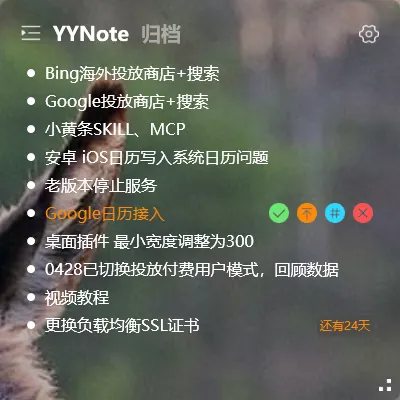
Quick answer: To put a to-do list on your laptop home screen, install YYNote on your Windows laptop, right-click the tray icon, open App Settings, and set the Desktop Todo List quantity to 1. Your tasks appear as a transparent list resting directly on the wallpaper - visible the moment you open the lid, and gone from your Alt-Tab cycle entirely.
A laptop home screen gets more glances than any app you own: at boot, every time you minimize a window, every time you return from a meeting. Yet for most people that screen holds nothing but a wallpaper, while the to-do list sits buried in an app they have to open and switch away from their work to read.
This guide is specifically about the laptop scenario: making a to-do list a permanent resident of that home screen on a Windows laptop, so it survives reboots, never hides behind windows, and never costs you a single window switch.
Why the Home Screen, Not an App Window
Section titled “Why the Home Screen, Not an App Window”On a 13- or 14-inch laptop, screen space is tight. A to-do list living in its own window competes with your browser, your editor, and your chat client for the same limited space - and it usually loses.
Industry surveys suggest that workers check email and messaging tools dozens of times per day, and each of those checks is a small window switch. When your task list causes switches, the tool meant to keep you organized is quietly fragmenting your focus.
There is also the boot-up problem. A to-do app only works if you remember to open it. On a laptop, the first thing you see each working day is the home screen after login - and if your tasks are not there, your day starts from memory instead of from the list.
A list pinned to the home screen solves both problems at once:
- Boot-time visibility. The list is already on the wallpaper when Windows finishes loading. No app to launch, no habit to maintain.
- Zero window switching. The list is not a window. It sits on the desktop layer, does not appear in the taskbar, and never shows up in Alt-Tab. Minimize everything and it is simply there.
- It does not steal screen space. Because the widget is transparent, it blends into your wallpaper. On a small laptop display, that difference matters.
What “Pinning to the Home Screen” Actually Means on Windows
Section titled “What “Pinning to the Home Screen” Actually Means on Windows”Windows offers no native way to keep a task list on the desktop itself. Desktop gadgets were removed years ago, and the built-in widgets panel opens as a separate layer over your screen - one more window, which is exactly what you are trying to avoid.
YYNote (小黄条) takes a different approach: it renders a transparent to-do widget directly onto the desktop wallpaper layer. The result looks as if your tasks were printed onto the wallpaper:
- The list stays behind your application windows but in front of the wallpaper.
- It does not occupy a slot in the taskbar and does not respond to Alt-Tab.
- It reappears on its own after every restart, in the position you left it.
- On a laptop that docks and undocks, the list comes back with your desktop every time.
This is the core difference from keeping a to-do app pinned to the taskbar: a taskbar pin still requires a click and a window. A wallpaper-level widget requires nothing.
How to Pin a To-Do List to Your Laptop Home Screen: Step by Step
Section titled “How to Pin a To-Do List to Your Laptop Home Screen: Step by Step”The whole setup takes a few minutes on a Windows 10 or Windows 11 laptop.
Step 1 - Install YYNote and sign in
Section titled “Step 1 - Install YYNote and sign in”Download the Windows client from the YYNote website and run the installer. Registration is quick, and new accounts get a 7-day full-feature membership trial, so you can test everything on your laptop before paying anything.
Step 2 - Open App Settings from the tray icon
Section titled “Step 2 - Open App Settings from the tray icon”Look for the YYNote icon in the system tray, near the clock in the bottom-right corner of your screen. Right-click it and choose App Settings. If you want a walkthrough of every option in this panel, the App Settings guide covers them one by one.
Step 3 - Set the Desktop Todo List quantity
Section titled “Step 3 - Set the Desktop Todo List quantity”In App Settings, find the Desktop Todo List option and set the display quantity. For a laptop home screen, one widget is usually the right call - a single list in one corner is easier to scan at a glance than several. The widget appears on your desktop immediately.
Step 4 - Give it a fixed home on the screen
Section titled “Step 4 - Give it a fixed home on the screen”Drag the widget to a corner of your home screen - top-left and top-right tend to work well on laptops, since the bottom of a small screen is often covered by the taskbar. Adjust the transparency so the text reads clearly against your wallpaper. The position is remembered, so after the next reboot the list returns exactly where you put it.
That is the entire process. From this point on, opening your laptop means seeing your tasks - before any browser tab, chat window, or email client has a chance to cover them.
The Working Style It Enables
Section titled “The Working Style It Enables”Once the list lives on the home screen, a quieter workflow emerges:
- Morning: plan from the screen, not from memory. You boot the laptop and your day is already laid out on the wallpaper. Add or adjust items in the widget before opening anything else.
- During work: glance, do not switch. When you finish a task, minimize or clear your windows for a second, check the next item off, and continue. Industry surveys suggest that workers shift context many times per hour, and keeping the check-off action on the desktop layer keeps the cost near zero.
- Evening: close the lid with a clear list. Whatever is unfinished stays visible for tomorrow’s first glance. Nothing lives only in your head overnight.
If you also carry a phone, the same account keeps both sides in sync: YYNote runs on Windows, Android, iOS, and HarmonyOS, so a task captured on your phone during a commute is on your laptop wallpaper by the time you sit down. Industry surveys suggest that sync is the feature cross-device users care most about, because a list that only lives on one screen stops being trusted. Teams can go one step further and sync the calendar with WeCom, DingTalk, Feishu, or CalDAV, so meeting schedules and desktop tasks share one view.
Two Companion Widgets Worth Adding
Section titled “Two Companion Widgets Worth Adding”The to-do list is the anchor, but two widgets pair naturally with it on a laptop home screen:
- Calendar widget. Month, week, and day views sit directly on the wallpaper, with holiday markings and lunar calendar support alongside your synced schedules. A compact month view in one corner plus your to-do list in another turns the home screen into a full planning surface. See the guide on how to add a calendar widget to your Windows desktop.
- Weather widget. Available on Windows 10 and later, it shows current conditions alongside the time, so the first glance at your home screen also answers “do I need an umbrella.”
All of this is optional - a single transparent to-do list is already the full answer to the search that brought you here.
Pricing
Section titled “Pricing”After the 7-day trial, YYNote membership costs 30 CNY for 3 months, 88 CNY for 1 year, 188 CNY for 3 years, or 288 CNY for 5 years. Inviting a friend to register earns you 9 extra days per invite, up to a 90-day cap.
Will the to-do list still be there after I restart my laptop?
Section titled “Will the to-do list still be there after I restart my laptop?”Yes. The widget is restored automatically when YYNote starts with Windows, in the same position and with the same transparency you set. You do not need to relaunch anything or re-pin it.
Does the list show up in Alt-Tab or the taskbar?
Section titled “Does the list show up in Alt-Tab or the taskbar?”No. Because the widget lives on the desktop wallpaper layer rather than as a regular window, it does not appear in Alt-Tab, the taskbar, or task-switcher previews. It is simply part of your home screen.
I have a small 13-inch laptop screen. Will the widget get in the way?
Section titled “I have a small 13-inch laptop screen. Will the widget get in the way?”The widget is transparent and can be placed in a corner, so it takes no usable window space. You can also reduce the display quantity to one compact list if the screen feels crowded.
Can I use the same list on my phone?
Section titled “Can I use the same list on my phone?”Yes. Sign in with the same account on Android, iOS, or HarmonyOS and your tasks sync across devices in both directions.
Put Your Home Screen to Work
Section titled “Put Your Home Screen to Work”Your laptop home screen is the one surface you see every single working day. With YYNote, it can hold your to-do list - visible at boot, transparent against your wallpaper, and never another window to manage. Download YYNote and try it free for 7 days.