
How to Add a Calendar Widget to Your Windows Desktop: A Step-by-Step Guide
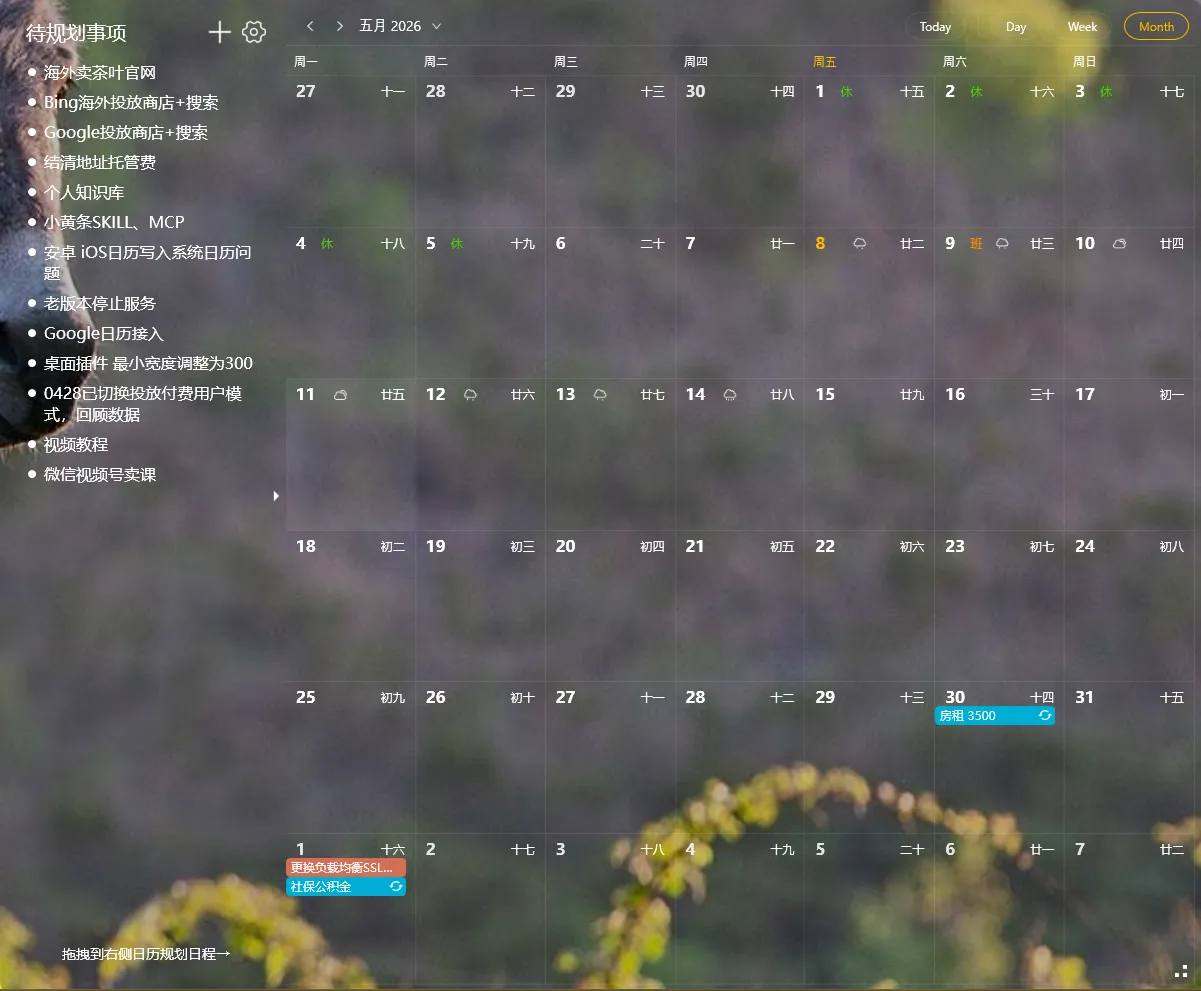
Quick answer: To add a calendar widget to your Windows desktop, install a transparent desktop widget app like YYNote, right-click its system tray icon, open App Settings, and set “Desktop Calendar” to 1. The calendar appears as a transparent floating panel on your wallpaper — month, week, or day view, with holidays, lunar dates, and synced events from WeCom, DingTalk, Feishu, and CalDAV. No browser tab, no phone unlock, no extra clicks.
Why a Desktop Calendar Widget Beats the Alternatives
Section titled “Why a Desktop Calendar Widget Beats the Alternatives”The Windows taskbar clock shows the date only when you hover. The built-in Calendar app needs a click to open, then disappears behind your work. Phone calendars sit in your pocket. A desktop calendar widget solves all three: it lives on your wallpaper, always visible, zero clicks to glance at.
According to industry surveys, the average knowledge worker checks their calendar 8 to 12 times per day. Each lookup on a phone or in a browser tab costs roughly 10 to 15 seconds of context switching. That is 1.5 to 3 minutes of lost focus every workday, just to confirm a date.
A transparent calendar widget collapses those lookups into a single glance. Industry research on productivity habits consistently finds that information visible at a glance is consulted more than five times as often as information that requires opening an app or window. Putting your calendar on the desktop turns “checking the date” from a task into a reflex.
What YYNote’s Desktop Calendar Widget Does
Section titled “What YYNote’s Desktop Calendar Widget Does”YYNote’s calendar is a transparent widget embedded directly into your wallpaper — not a floating window, not a system tray popup. Dates float over your background. The widget supports three views, drag-and-drop scheduling, holiday markers, lunar dates, weather overlay, and external calendar sync.
| Feature | What it does |
|---|---|
| Month / Week / Day views | One-click switching for monthly overview or hourly focus |
| Lunar calendar + holidays | Chinese lunar dates, statutory holidays (休), makeup workdays (班) on every cell |
| 7-day weather overlay | Mini weather icons on each date cell |
| Drag-to-schedule | Drag any todo from the side panel onto a date to convert it into a scheduled event |
| External calendar sync | WeCom, DingTalk, Feishu, Exchange, CalDAV, Microsoft — all aggregated |
| Transparent background | No opaque box — text floats over your wallpaper |
| Tray icon access | Right-click for settings without opening the main app |
Third-party synced calendars are read-only inside YYNote — your original data in WeCom or DingTalk stays clean. Any edit must happen at the source, which prevents accidental double-booking.
How to Add the Calendar Widget: 4 Steps
Section titled “How to Add the Calendar Widget: 4 Steps”Step 1: Download and install YYNote for Windows
Section titled “Step 1: Download and install YYNote for Windows”Visit the official YYNote website and download the Windows client. Run the installer, create an account with your phone number, and sign in. The free trial lasts 7 days with every feature enabled.
Step 2: Enable the Desktop Calendar widget
Section titled “Step 2: Enable the Desktop Calendar widget”Right-click the YYNote icon in the Windows system tray (the area near the clock at the bottom-right of your screen). Choose App Settings, then find Desktop Calendar List and set the quantity to 1. A transparent calendar widget appears on your desktop immediately.
Step 3: Pick your view
Section titled “Step 3: Pick your view”Click the view switcher in the top-right corner of the calendar widget:
- Month view — full grid, see every date in the month at a glance
- Week view — seven columns, useful for planning the work week
- Day view — 24-hour timeline, ideal for hourly schedules
Switching takes one click. The widget remembers your last view between sessions.
Step 4: Optional — sync external calendars
Section titled “Step 4: Optional — sync external calendars”If your company uses WeCom, DingTalk, or Feishu: open YYNote’s main panel, go to Settings → Calendar Sync → Add, pick the service, and authorize. Your work calendar and personal calendar merge into one desktop view. No more switching between apps to see whether the 3 PM standup clashes with the dentist appointment.
Three Practical Use Cases
Section titled “Three Practical Use Cases”Office workers. Meetings, deadlines, makeup workdays — a desktop calendar widget is more reliable than the taskbar clock and faster than a phone. Drag a todo from the side panel straight onto Tuesday at 2 PM and it becomes a scheduled event automatically, with start and end times filled in.
Holiday and lunar-date trackers. The 休 and 班 markers tell you at a glance whether next Sunday is a holiday or a makeup workday. Lunar dates appear under every Gregorian date, useful for planning around traditional festivals.
Multi-calendar households. Company on WeCom, personal on Google, school events on CalDAV — all six supported sources aggregate into one widget. Industry surveys on calendar fragmentation suggest knowledge workers juggle an average of 3.2 separate calendars. A unified desktop view eliminates the “which app was that in?” problem.
Tips for Best Results
Section titled “Tips for Best Results”- Position matters. Drag the widget to a corner of your desktop (top-left or bottom-right) so it stays out of your main work area but visible with a glance.
- Enable autostart. In App Settings, toggle “Start on Boot” so the calendar appears the moment you log into Windows, before you even open a browser.
- Pair with the todo widget. Place the calendar in one corner and the YYNote todo list widget in another — drag tasks between them to convert todos into scheduled events.
- Adjust transparency. Lower values (10% to 30%) make text float crisply over your wallpaper; higher values add a subtle background for legibility against busy wallpapers.
Frequently Asked Questions
Section titled “Frequently Asked Questions”Can I display a calendar on my Windows 10 or Windows 11 desktop for free?
Section titled “Can I display a calendar on my Windows 10 or Windows 11 desktop for free?”Yes. YYNote’s free trial is 7 days and includes the desktop calendar widget with every feature enabled — month/week/day views, lunar dates, holidays, and external calendar sync. After the trial, a paid membership keeps the widget active.
Will the calendar widget slow down my computer?
Section titled “Will the calendar widget slow down my computer?”No. YYNote’s widgets are designed to be lightweight. The calendar uses minimal memory and CPU, runs entirely on the desktop layer, and does not interfere with foreground applications.
Can I sync Google Calendar or Outlook to the desktop widget?
Section titled “Can I sync Google Calendar or Outlook to the desktop widget?”Yes. YYNote supports CalDAV subscriptions, so any CalDAV-compatible calendar — including Google Calendar and Outlook — can be added via Settings → Calendar Sync. Third-party events appear alongside your local tasks in the same widget.
Does the calendar work without an internet connection?
Section titled “Does the calendar work without an internet connection?”Yes. Local events and todos display offline. External calendar sync requires an internet connection to fetch new events, but cached entries remain visible when you are offline.
How do I remove the widget if I no longer want it on my desktop?
Section titled “How do I remove the widget if I no longer want it on my desktop?”Right-click the YYNote tray icon → App Settings → set “Desktop Calendar List” to 0. The widget disappears instantly. Your data stays safe in the cloud and reappears the next time you set the quantity to 1.
Final Thoughts
Section titled “Final Thoughts”A calendar is only useful if you actually see it. Bury it in a phone app, hide it behind a browser tab, and you stop consulting it. Put it on your desktop wallpaper as a transparent widget, and it becomes part of your workflow — the way the taskbar clock already is.
Adding a calendar widget to your Windows desktop takes about 60 seconds once YYNote is installed. The result: month, week, and day views on your wallpaper, holidays and lunar dates marked automatically, and every synced calendar aggregated into one place. No more opening apps just to confirm what day it is.
Download YYNote for Windows and add a calendar widget to your desktop today.
Related guides: How to Display a Calendar on Your Windows Desktop · How to Put Sticky Notes on Your Desktop · YYNote Desktop Widget Position Guide