
How to Put a To-Do List on Your Laptop (Windows & Mac)
Quick Answer
Section titled “Quick Answer”The fastest way to put a to-do list on your laptop is a desktop widget app: install YYNote, enable the Desktop Todo widget, and your tasks appear directly on the wallpaper - always visible, no app switching. Setup takes about 5 minutes on Windows 10/11 and macOS.
Laptop users have a specific pain: the screen is smaller, windows multiply faster, and your to-do app gets buried under Chrome, Slack and Excel within minutes of opening it. A desktop-pinned list solves this because it lives on the wallpaper layer - always behind your windows but visible every time you clear or minimize them.
Why App-Based To-Do Lists Fail on Laptops
Section titled “Why App-Based To-Do Lists Fail on Laptops”On a laptop, screen real estate is scarce. A full to-do app (Todoist, Microsoft To Do, TickTick) needs its own window, which means:
- Alt-tab tax: every task check costs you a window switch, and you do it 20-50 times a day
- Out of sight, out of mind: minimize the app “for focus” and the list is gone - tasks get missed
- Context switching: each switch breaks your focus on the actual work
A desktop-embedded list removes all three: the tasks are on the screen you already look at, visible even when every app window is maximized over them.
3 Ways to Put a To-Do List on Your Laptop
Section titled “3 Ways to Put a To-Do List on Your Laptop”Method 1: Desktop Widget App (Recommended)
Section titled “Method 1: Desktop Widget App (Recommended)”Best for: anyone who wants a permanent, always-visible task list.
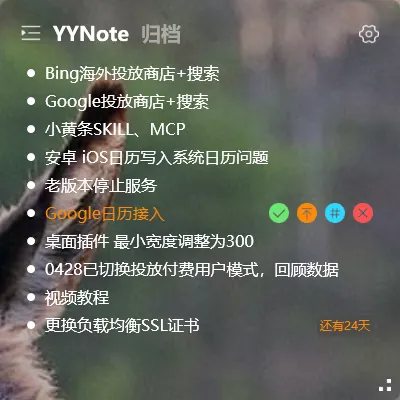
YYNote places a transparent to-do widget directly on your desktop wallpaper:
- Download YYNote for Windows or Mac, install and register (under a minute)
- Right-click the YYNote tray icon → Settings → set “Desktop Todo List” quantity to 1
- The widget appears on your desktop as a floating transparent list
- Click it to add tasks - type “Call client tomorrow at 9 AM” and the reminder sets itself
The widget supports drag-to-schedule (drag a task onto the calendar widget to give it a time range), cross-device sync, and adjustable transparency so it blends into your wallpaper.
Method 2: Sticky Notes Widget (for lighter lists)
Section titled “Method 2: Sticky Notes Widget (for lighter lists)”If your list is short and changes fast (5-10 items, rewritten daily), a desktop sticky note is lighter than a full to-do widget. YYNote’s sticky notes widget works the same way: enable it in settings, click to edit, notes stay on the desktop.
Choose this if you mostly need a scratchpad. Choose Method 1 if you need reminders, due dates and sync.
Method 3: Built-in Options (no install)
Section titled “Method 3: Built-in Options (no install)”Windows 10/11: Pin Microsoft To Do’s live tile to Start (Win key, type “To Do”) - but it requires opening the Start screen to see tasks. Or use the Calendar app’s task view on the taskbar clock.
macOS: Stickies (built-in app) puts notes on the desktop. Works, but no reminders, no sync to iPhone, and notes get visually stale.
Both work, but neither gives you the always-on-wallpaper visibility that makes a desktop list actually stick as a habit.
Laptop-Specific Tips
Section titled “Laptop-Specific Tips”Small screen? Set widget scale to 80%. YYNote widgets support per-widget opacity and sizing - shrink the todo widget to a corner strip if 14 inches feels tight.
External monitor at home, laptop on the go? YYNote syncs across devices, and the widget position is remembered per display configuration. Your list follows you.
Battery life matters? The widget is static until a task changes - no constant redraw, negligible battery impact compared to a browser tab with a web to-do app open.
Quick Comparison
Section titled “Quick Comparison”| Method | Always visible | Reminders & sync | Install needed | Works offline |
|---|---|---|---|---|
| Desktop widget (YYNote) | Yes | Yes, cross-device | Yes (30MB) | Yes |
| Sticky note widget | Yes | Partial | Yes (same app) | Yes |
| Built-in (To Do / Stickies) | No (Start menu / basic) | Partial | No | Yes |
Get Started
Section titled “Get Started”YYNote is free to try for 7 days with all features enabled - desktop todo widget, sticky notes, calendar and weather widgets, cross-platform sync. No credit card required.
Download for Windows · App Store · Android