
How to Export and Import Data? YYNote Data Backup Guide
Your data is invaluable. Regular backups are a great habit.
How to Export Data
Section titled “How to Export Data”The PC version supports exporting all data, including deleted records.
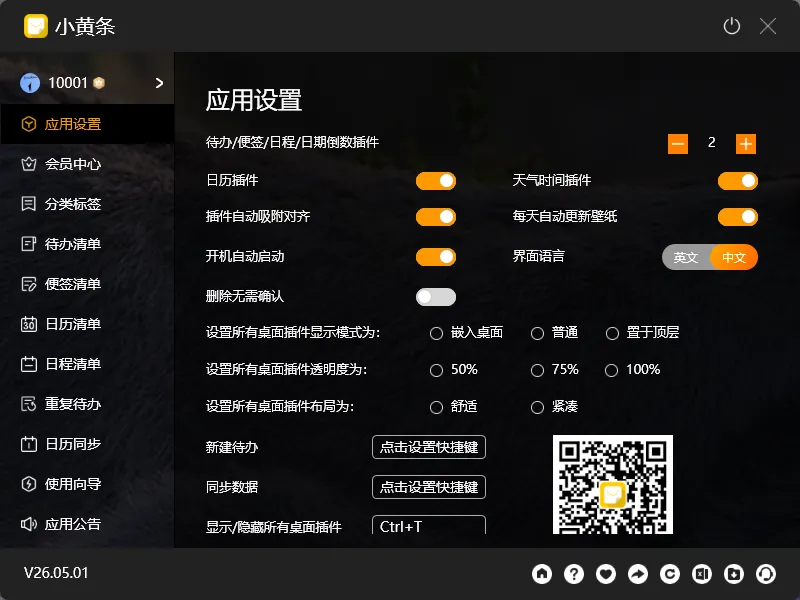
Path: Main interface bottom toolbar → Export
Exported data includes:
- Todo data (including completed and deleted items)
- Sticky note data (including archived and deleted)
- Schedule data
- Tag data
- System settings
Data Ownership
Section titled “Data Ownership”Your data belongs to you. Even after your membership expires, you can still export your data. YYNote does not hold your data hostage — you can always get a copy of everything you’ve created.
How to Import Data
Section titled “How to Import Data”To restore your data on a new device or after a fresh installation:
- PC: Use the Import function at the same location (Main interface → Import), then select your exported backup file
- App: Data syncs automatically via the cloud when you log into your account
When to Export
Section titled “When to Export”We recommend exporting at these key moments:
- Before mass-deleting tasks (prevents accidental loss)
- Before canceling your membership (confirm your data is saved)
- Before a long period of inactivity (keep a backup)
- Before switching devices (confirm everything is synced)
Exported data can be kept as a backup or imported into other tools for further organization.
- Data export is a free feature — available anytime after logging in
- Even deleted data can be exported, so back up before mass deletion
- Exporting does not remove any data from your account
Data Sync Recovery
Section titled “Data Sync Recovery”If you encounter sync issues:
- App: Try reinstalling the app
- PC: Try deleting the YYNote folder (the data will be re-downloaded from the server)
Final Thoughts
Section titled “Final Thoughts”No flashy new features, just continuous refinement. Data backup is something you never think about until you need it — and by then, it’s too late.