
Time Management Tools: Building a Desktop System That Actually Sticks
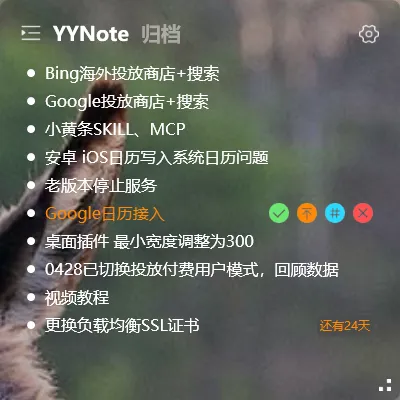
Quick answer: The time management tools that actually work are not a long list of separate apps — they are a small set of always-visible desktop elements that reinforce each other: a to-do list for commitments, a calendar for time slots, sticky notes for raw thinking, and a countdown for deadlines. When all four sit on your desktop wallpaper, visible the moment your computer starts, you stop relying on memory and willpower. That is the core idea of desktop time management.
Why most time management tools stop working
Section titled “Why most time management tools stop working”Industry surveys of knowledge workers consistently estimate that people spend somewhere between one and two hours of each working day switching between apps and hunting for the task, note, or file they already wrote down somewhere. The tool existed; the reminder simply never appeared at the moment it mattered.
The same pattern shows up in to-do research. Summaries of habit and productivity studies repeatedly report that a large share of captured tasks — often cited in the range of 40 percent or more — are never checked off. And surveys on goal follow-through suggest that fewer than one in ten people sustain a new routine past the first few weeks when nothing in their environment cues it.
The common thread is visibility, not capability. A tool you have to open is a tool you have to remember to open. Desktop time management flips the model: instead of you going to the system, the system is already on the screen you look at all day.
The desktop time management system: four layers
Section titled “The desktop time management system: four layers”An effective desktop time management setup has four layers, each answering a different question.
Layer 1: A to-do list that lives on the wallpaper
Section titled “Layer 1: A to-do list that lives on the wallpaper”The to-do layer answers “What should I do next?” Put commitments where your eyes already rest: the desktop. A transparent list embedded in the wallpaper layer stays visible while remaining non-intrusive — it never covers a window you are working in, yet it is one glance away whenever you finish a task.
Practical rules for this layer:
- Keep one primary list for today, not five lists for five contexts.
- Capture fast, in any form — typed text works better than rigid forms.
- Break anything larger than an hour into its next concrete step.
In YYNote, this layer is the transparent desktop to-do list: a floating widget that sits in the wallpaper layer, shows your chosen list, and survives reboots because the app runs from the system tray and can start with Windows. Typed entries with a date or time are recognized automatically, and repeated to-dos can recur on five built-in cycles, so weekly reviews do not mean retyping the same tasks.
Layer 2: A calendar you can glance at
Section titled “Layer 2: A calendar you can glance at”The calendar layer answers “When?” A task list tells you what; a calendar tells you when the time actually exists. Glancing at the month ahead — deadlines, holidays, appointments — is what turns intention into a scheduled plan.
YYNote’s desktop calendar plugin floats on the desktop in month, week, and day views, shows public holidays and adjusted workday markings, and can pull in external calendar subscriptions, so personal and work schedules merge into one surface you see without opening anything.
Layer 3: Sticky notes for thinking out loud
Section titled “Layer 3: Sticky notes for thinking out loud”The notes layer answers “What am I figuring out right now?” Not everything deserves to be a task. Drafts, ideas, numbers to copy, half-formed plans — these belong on notes that are visible but disposable. If your notes tool is a separate destination you must navigate to, note-taking collapses under friction. For a deeper comparison of desktop note tools, see the desktop notes app guide.
YYNote’s transparent sticky notes sit on the wallpaper like real paper: they do not block interaction with the desktop, they are tagged automatically so old notes remain searchable, archived notes are kept rather than deleted, and everything syncs across your devices.
Layer 4: Countdowns and reminders for deadlines
Section titled “Layer 4: Countdowns and reminders for deadlines”The countdown layer answers “How much time is left?” This is the layer most time management tools skip, and it is the one that creates urgency. A visible number of days remaining to a delivery, an exam, or an anniversary changes behavior in a way a buried reminder never does.
YYNote provides both sides of this layer: countdown-day and anniversary widgets that show the days remaining directly on the desktop, and per-task reminders so a time-bound to-do can notify you at the moment it becomes relevant.
How to assemble the system in one afternoon
Section titled “How to assemble the system in one afternoon”Building desktop time management with YYNote takes a short session, not a project:
- Install and start from the tray. Install the Windows client and sign in. The app stays resident in the system tray and can launch at startup, so your widgets reappear after every reboot.
- Place the to-do widget first. From tray settings, enable the desktop widget and point it at your main list. Position it beside your wallpaper’s focal point.
- Add the calendar. Turn on the desktop calendar plugin, drag it next to the to-do list, and switch between month, week, and day views depending on your planning horizon.
- Add a weather-and-time panel for rhythm. The weather time widget shows current weather, time, and date in one panel (Windows 10 and above), giving your desktop a glanceable clock anchor.
- Create countdowns for your three nearest deadlines. Add countdown-day entries for the events that matter this quarter.
- Set recurring to-dos and reminders. Convert weekly chores into repeated tasks with the recurrence cycles, and attach reminders to anything time-sensitive.
- Tag as you go. YYNote applies tags automatically as you type, so lists stay grouped without manual filing; completed items archive for later review.
Because every element syncs across devices, a task added on the road appears on your desktop list without any manual step.
Choosing a time management app by system fit
Section titled “Choosing a time management app by system fit”When you evaluate any time management app, judge it by how well it supports the four layers above, not by feature count:
- Visibility: does the information sit on the desktop by default, or behind a click?
- Non-interference: do widgets stay out of the way of real work — transparent, wallpaper-level, never stealing focus?
- Capture speed: can you type a task in one line, with dates and tags recognized as you write?
- Structure: do recurring to-dos, reminders, and archiving exist so the system survives long-term use?
- Continuity: does everything sync across your devices and return after a restart?
For a fuller framework on evaluating candidates, the todo list app selection guide walks through the decision step by step.
Habits that keep a desktop time management system alive
Section titled “Habits that keep a desktop time management system alive”The system is the scaffolding; a few habits keep it standing:
- Do a two-minute evening scan. Cross off finished items and pick tomorrow’s three priorities while context is fresh.
- Pair the system with focused work blocks. The to-do widget defines what you work on; a timer defines how long. See using Pomodoro with a todo list for a workflow that connects the two.
- Let archived history correct your planning. Exported and archived completed tasks are a record of how long things really take — review it monthly instead of guessing again.
- Prune ruthlessly. Surveys of workplace productivity suggest that planners who set more than a handful of daily priorities complete a noticeably smaller share of them; keep the visible list short.
What are the essential time management tools for a desktop setup?
Section titled “What are the essential time management tools for a desktop setup?”Four elements cover the essentials: a visible to-do list, a glanceable calendar, sticky notes for rough thinking, and countdown or reminder widgets for deadlines. Weather-and-time panels are a useful fifth addition for daily rhythm. What matters is that they share one desktop surface rather than living in separate apps.
How many separate apps should a time management system use?
Section titled “How many separate apps should a time management system use?”Fewer is better. Habit and productivity surveys consistently link tool sprawl to abandoned routines, and estimates of daily app-switching time run from one to two hours for typical knowledge workers. A single app that provides to-dos, calendar, notes, and countdowns as desktop widgets removes both the switching cost and the sync problems.
Do desktop time management widgets interfere with normal computer use?
Section titled “Do desktop time management widgets interfere with normal computer use?”They do not have to. Transparent widgets that render in the wallpaper layer sit beneath your application windows: they are visible on the desktop, never block clicks or keystrokes aimed at your work, and stay out of the way entirely when a window covers them.
Is a visible desktop system better than reminders on a phone?
Section titled “Is a visible desktop system better than reminders on a phone?”They serve different roles, and the strongest setup uses both. The desktop system provides constant ambient visibility during work hours; the phone covers you away from the desk. That is why cross-device sync matters: a to-do captured on your phone should appear on the desktop list within moments.