
Desktop Countdown Widgets: Keep Every Important Date on Your Windows Desktop
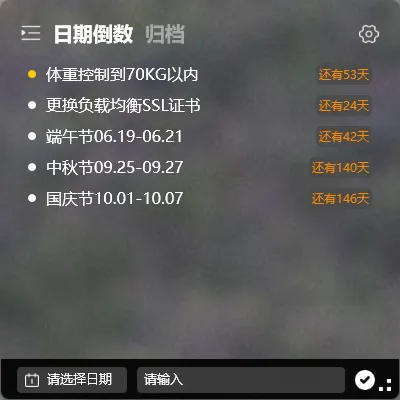
Quick answer: A desktop countdown widget keeps the number of days left until a deadline, trip, exam, or anniversary pinned directly on your Windows desktop, visible every time your windows minimize. With YYNote (小黄条), the countdown sits in a transparent layer over your wallpaper alongside your todo list, calendar, sticky notes, and weather — it reminds you when the day arrives and stays in sync across your devices.
Why Important Dates Slip Through the Cracks
Section titled “Why Important Dates Slip Through the Cracks”A conference deadline, a visa appointment, a wedding anniversary, a product launch — these dates matter, yet they usually live buried inside a calendar app or a note you wrote weeks ago. Between the moment you record the date and the moment it matters, you open and close dozens of windows and tabs. Nothing in your daily field of view connects you to that date, so it quietly slides from “plenty of time” to “that was yesterday.”
In user research on desktop customization, a large share of participants report that information placed on the wallpaper layer gets checked repeatedly throughout the day, simply because it is already on screen. The same pattern shows up in surveys of personal productivity habits: reminders that demand an action — opening an app, unlocking a phone, scrolling to a date — are consistently less effective than information that is simply present in the place you already look.
That gap is exactly what a desktop countdown widget closes. Instead of storing a date somewhere and hoping you will check it later, the widget does the arithmetic for you and displays the result — “23 days” — in a spot your eyes pass over constantly. You never have to remember to look, because looking happens on its own.
What a Desktop Countdown Widget Does Differently
Section titled “What a Desktop Countdown Widget Does Differently”A countdown widget is not a calendar and not a reminder app. It answers one question at a glance: how long until the date? Calendars show you a grid; countdown widgets show you the distance. That single number changes how you plan. When “the launch” becomes “11 days,” the next conversation, the next evening, and the next shopping decision all organize themselves around a concrete horizon.
YYNote implements this idea with a desktop-centric design. The countdown and anniversary widget sits in a transparent layer embedded into your wallpaper, so it reads as part of the desktop itself rather than as a floating panel competing with your work. Because the widget is transparent, your wallpaper stays visible: the aesthetic you chose for your desktop survives, and the information you need rides along with it.
Feedback gathered from desktop widget users suggests that this transparency is the detail that decides whether a widget lasts longer than a week. Opaque panels tend to feel like clutter and get closed within days, while widgets that blend into the wallpaper layer tend to stay on machines for months or even years — which is precisely the point of a countdown, a thing that needs to survive until its date arrives.
Pin a Countdown to Your Desktop in Three Steps
Section titled “Pin a Countdown to Your Desktop in Three Steps”Setting up a desktop countdown in YYNote takes a few minutes, and the widget remains on your desktop afterward without any maintenance.
Step 1: Install the Windows client. Download YYNote (小黄条) from the official site at www.yynote.net and run the installer. Register an account with your phone number; new registrations come with a 7-day membership trial so you can try the full experience.
Step 2: Add your countdown or anniversary. Create a countdown item (倒数日) for a future date — an exam, a flight, a release, a move — or an anniversary marker (纪念日) for a date you want to track. Give it a name, set the date, and the widget starts counting the remaining days immediately.
Step 3: Position it and forget about it. Drag the countdown widget to a spot on your desktop where it stays in view — a corner near your launcher, beside your taskbar, anywhere that suits your layout. Settings are managed through the tray icon, and the widget runs on startup, so after every reboot your countdowns are back on the desktop before you open anything else.
From that point on, checking the date costs nothing. A glance at the desktop tells you how many days remain, and the number updates itself every day.
One Desktop, Every Widget Working Together
Section titled “One Desktop, Every Widget Working Together”A countdown rarely stands alone. The dates you are counting toward usually come with preparation: a packing list before a trip, revision tasks before an exam, action items before a launch. YYNote treats the desktop as a single working surface, so your countdown shares the screen with a transparent todo list, a calendar, sticky notes, and a weather and clock panel — each in the same wallpaper-embedded layer, each placed wherever you want it.
This combination is where a desktop countdown becomes genuinely useful. The countdown to your trip tells you that 12 days remain; the todo list next to it holds the packing and errands; the calendar shows the week the departure falls in; the weather panel keeps an eye on the sky. Nothing needs to be opened, switched to, or remembered — the whole picture assembles itself on your wallpaper every time the desktop is visible.
Observations from workspace-setup studies of information workers point in the same direction: people who keep related information grouped in one persistent view report less task-switching and fewer missed deadlines than people whose information is scattered across separate apps. A countdown with its supporting widgets beside it is a compact version of that persistent view.
Reminders and Multi-Device Sync
Section titled “Reminders and Multi-Device Sync”Two details make the countdown dependable rather than merely decorative.
The date still arrives without warning — so YYNote sends a reminder when the day comes, making sure the countdown you watched for weeks does not silently pass you by at the finish line.
And because dates are recorded in your account rather than in one machine, your countdowns stay in sync across devices. Add an anniversary on your PC at work, and it is on your other devices too — useful when a trip date changes mid-week or when you want to confirm a date from your phone before committing to plans. Multi-device sync turns the desktop countdown from a single-screen novelty into a small piece of daily infrastructure.
Going Further with Countdowns
Section titled “Going Further with Countdowns”Once your countdowns live on the desktop, small habits grow around them: a countdown for each project milestone, one for personal dates you refuse to miss, anniversaries that repeat through the years. For a detailed walkthrough of creating and managing countdown and anniversary items, see the step-by-step countdown guide. To explore how the countdown fits with the todo, calendar, notes, and weather modules, visit the YYNote features page.
Frequently Asked Questions
Section titled “Frequently Asked Questions”Does the countdown widget block my desktop or my wallpaper?
No. The widget sits in a transparent layer embedded into the wallpaper, so your wallpaper remains visible behind it. It is designed to be read at a glance without covering your desktop the way an opaque panel would.
Will my countdowns still be there after I restart my computer?
Yes. The widget runs on Windows startup, so your countdowns reappear on the desktop automatically after every reboot, with no need to reopen anything or re-add your dates.
Can I see the same countdowns on my other devices?
Yes. Countdown and anniversary items sync across devices through your account, so a date added on your PC is available on your other signed-in devices, and changes carry over.
How much does YYNote cost?
Registration is free and includes a 7-day membership trial. Afterward, membership plans start at 30 CNY for 3 months, with longer plans available — 88 CNY per year, 188 CNY for 3 years, and 288 CNY for 5 years.
A date that matters deserves a place where you will actually see it. A desktop countdown widget gives it that place — on the surface you look at more than any other, every single day.