
Calendar Notes for Desktop: Keep Dated Notes Visible Every Day
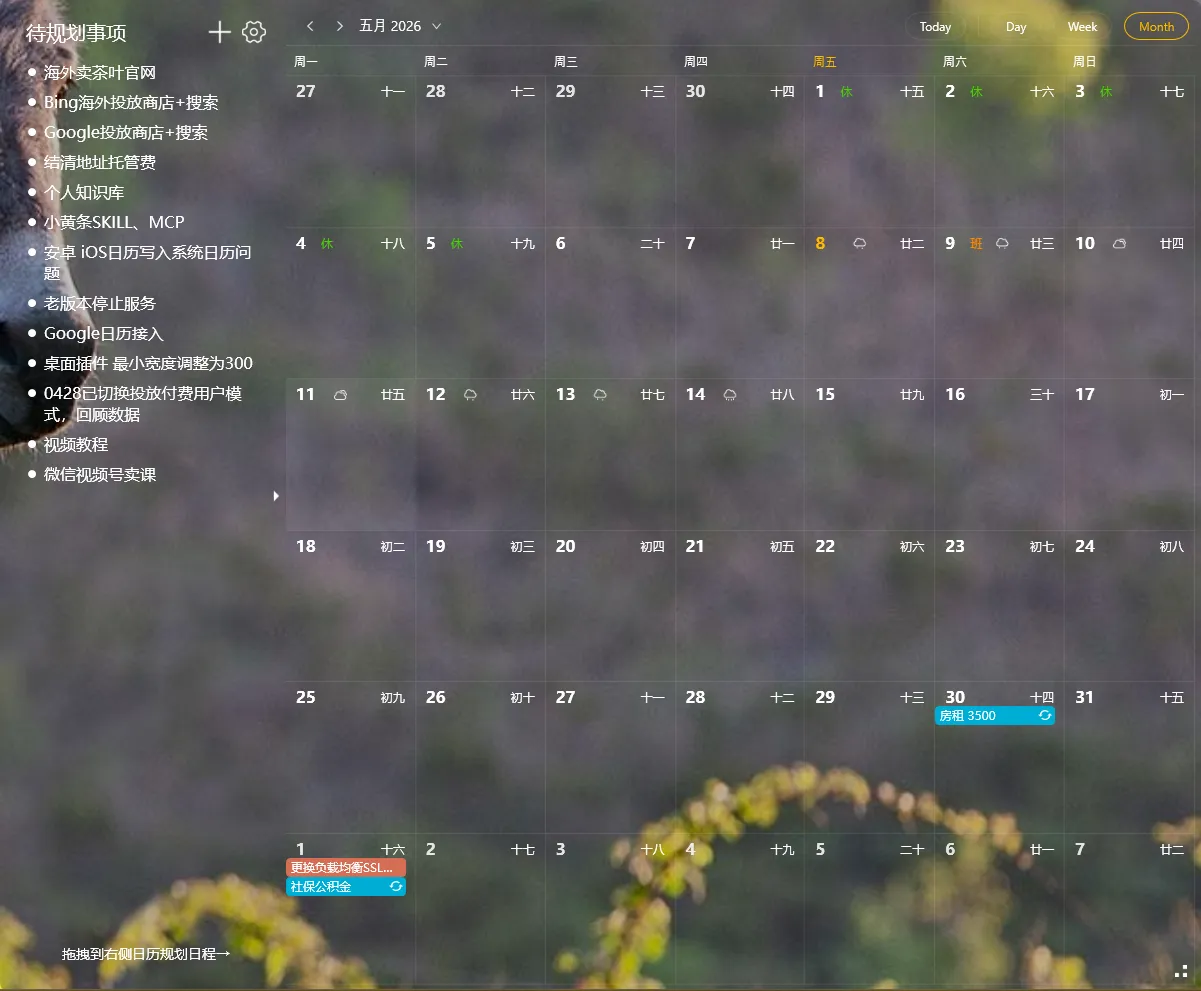
Quick answer: Calendar notes for desktop means keeping notes attached to specific dates — day remarks, schedule details, follow-ups — inside a calendar that lives on your Windows desktop instead of buried in an app. With YYNote (小黄条), the desktop calendar renders into a transparent layer over your wallpaper, so every dated note is visible whenever your windows minimize, and the whole system stays in sync across your devices.
What “Calendar Notes” Actually Means
Section titled “What “Calendar Notes” Actually Means”Most people already write notes with dates in them. The problem is where those notes go afterward: a line in a chat you will never scroll back to, a sticky note in an app you stopped opening, a memo file saved into a folder of a hundred other files. The date is recorded, but the note is no longer attached to anything you see when that date approaches.
Calendar notes close that gap by binding each note to its date in a calendar view. Instead of a note that says “project review — bring the updated numbers” floating somewhere abstract, the note sits on the Thursday it belongs to. When you look at the week, the note is already positioned in time. You do not have to remember that a note exists; you only have to look at the calendar, which is exactly the surface a desktop calendar puts in front of you every day.
Surveys of office workers consistently show that notes tied to a date are more likely to be acted on than undated notes, simply because the date itself creates the deadline and the context. The same pattern appears in research on personal information management: information organized by when it matters tends to resurface at the right moment, while information organized only by where it was stored tends to be forgotten.
A Desktop Calendar Makes Dated Notes Ambient
Section titled “A Desktop Calendar Makes Dated Notes Ambient”The second half of the idea is the “desktop” part. A calendar inside an application only helps when you remember to open it. A calendar embedded into your desktop wallpaper layer helps constantly, because the desktop is the surface you glance at dozens of times a day — every time you minimize windows, close a document, or return from a meeting.
YYNote implements this with a desktop calendar drawn into a transparent layer that sits above your wallpaper but below your application windows. That placement is the key detail: the calendar and its notes never cover your work, never steal focus, and never need to be summoned. They are simply part of the desktop itself. The calendar supports month, week, and day views, shows holidays, and includes lunar calendar dates, so you can zoom from “where does this note fall in the month” down to “what exactly does today hold” in one click.
Observations from workspace studies of information workers suggest that ambient displays — information that is simply present rather than actively fetched — get checked repeatedly through the day at near-zero cost. A desktop calendar with notes attached to dates turns your entire note system into an ambient display.
Building a Dated Notes System with YYNote
Section titled “Building a Dated Notes System with YYNote”Here is a workflow that turns the desktop calendar into a real note-keeping system rather than a decoration.
Step 1: Install and place the desktop calendar. Download YYNote from www.yynote.net and run the installer on Windows 10 or later. Register an account — new registrations come with a 7-day membership trial so you can try the full experience. Turn on the desktop calendar, switch it to the view you prefer, and drag it to a part of the desktop you see often.
Step 2: Record schedule items with their remarks. When something has a date, put it in the schedule list (日程清单) instead of a loose note: a meeting, a renewal deadline, an appointment. Attach the details that matter — who, where, what to bring — so the entry carries its own context. Each item then appears on the calendar at its date, and the remarks travel with it.
Step 3: Keep undated capture in sticky notes and todos. Not everything deserves a date immediately. Quick thoughts go to transparent sticky notes on the same desktop layer; actionable items go to the desktop todo list. During a daily or weekly review, promote the ones that now have a deadline into dated schedule entries. The note moves from “somewhere” to “on the day it matters.”
Step 4: Review in whichever view fits the moment. Month view for planning ahead and spotting crowded weeks, week view for the shape of the coming days, day view for the detail of today. Because notes are attached to dates, switching views reorganizes the same information without any re-entry.
Feedback gathered from desktop widget users indicates that systems built this way — capture loosely, date deliberately, review in a calendar — survive far longer than systems that demand every note be perfectly filed at the moment it is written. The desktop calendar lowers the cost of the review step enough that it actually happens.
One Working Surface, Not Five Apps
Section titled “One Working Surface, Not Five Apps”This dated-notes workflow does not live alone. YYNote treats the desktop as a single working surface: the calendar with its dated entries, the transparent sticky notes, the todo list, and the schedule list can all be placed on the same wallpaper layer, each positioned wherever your layout needs it. The note about Thursday’s review, the todo list holding its preparation tasks, and the calendar showing the week around it form one picture that assembles itself every time the desktop is visible.
If you want to go deeper on the individual pieces, the desktop sticky notes complete guide covers capture habits for undated thoughts, and the add a calendar widget to your Windows desktop guide walks through calendar placement and view settings in detail.
Reliability: Autostart and Multi-Device Sync
Section titled “Reliability: Autostart and Multi-Device Sync”Two details decide whether a desktop note system is dependable or decorative.
First, the widgets run on Windows startup. After every reboot, the calendar with its dated notes, the sticky notes, and the todo list reappear on the desktop automatically — no reopening apps, no rebuilding the layout. The system survives reboots because it has to survive months to be useful.
Second, everything is stored in your account and synced across devices. A schedule item added at your desk is on your other signed-in devices too, so a date change made mid-day carries everywhere instead of leaving one machine holding a stale version of your week.
A Habit That Compounds
Section titled “A Habit That Compounds”Dated notes compound in a way loose notes never do. After a few weeks, the calendar becomes a record of what actually happened and what is actually coming — a timeline you can scroll back through and plan forward from. Weekly planning stops being a search through apps and becomes a glance at the month view with every remark already in place.
Start small: the desktop calendar with this week’s schedule, a handful of dated entries with real remarks, and one sticky note for capture. The habit grows from there, and the desktop does the reminding for you.
Frequently Asked Questions
Section titled “Frequently Asked Questions”What is the difference between calendar notes and sticky notes?
Sticky notes are undated — they live on the desktop until you remove them. Calendar notes are attached to a specific date and appear in the calendar’s month, week, and day views at that date. Most people use both: sticky notes to capture, calendar entries to schedule.
Will the calendar and its notes still be there after I restart my computer?
Yes. YYNote’s desktop layer runs on Windows startup, so the calendar, sticky notes, and todo list return to the desktop automatically after every reboot, in the positions you left them.
Do calendar notes sync to my other devices?
Yes. Schedule items and their remarks are stored in your account and synced across your signed-in devices, so dates added at one machine are current on all of them.
Which Windows versions are supported, and what does it cost?
YYNote runs on Windows 10 and later. Registration is free and includes a 7-day membership trial; after that, plans start at ¥30 for 3 months or ¥88 per year.
A note with a date is a plan. A plan that sits on your desktop calendar is one you will actually see — every day, without ever opening an app.